

- Top Pick: Samsung 990 PRO 2TB NVMe SSD
- Runner-up: Sapphire Pulse Radeon RX 9070 XT
- Also consider: Corsair Vengeance LPX 32GB DDR4-3200
A used desktop can be the cheapest honest route into Linux gaming, but Linux changes which bargains are real. On Windows, an old graphics card is mostly a performance question. On Linux it is first a driver question: the card’s generation decides which driver branch still carries it, whether it has a working Vulkan path for Proton, and how many years of updates that path has left. A machine that looks strong on a spec sheet can be a dead end if its GPU sits on a legacy driver.
This guide is an inspection checklist for buying second-hand with Linux in mind: GPU generations sorted by driver horizon, CPU and motherboard checks, storage and memory health, and the order for refreshing parts afterwards. It complements this site’s coverage of gaming on an older NVIDIA GPU; here the question is which whole machine to buy.
As an Amazon Associate, we earn from qualifying purchases.
Quick answer
A used PC suits Linux gaming when its graphics card still sits on a maintained driver with a Vulkan path: AMD from Polaris onward on the in-kernel amdgpu driver, NVIDIA from Turing onward on the current proprietary branch or NVK, and almost any six-core-era CPU. Check the GPU generation first, the drive’s SMART health second, and budget to replace storage and the power supply before anything else.
GPU generations by driver horizon
The graphics card is the whole decision, so sort listings by generation before looking at anything else. On the AMD side, the in-kernel amdgpu driver plus Mesa’s RADV Vulkan driver cover Polaris (the RX 400 and 500 series), Vega, and every RDNA generation. Polaris and Vega are the floor for a sensible used buy: both have mature RADV support and run Proton titles through DXVK and VKD3D-Proton. Older cards fall away quickly: early GCN defaults to the older radeon driver with amdgpu support classed as experimental, and pre-GCN cards have no RADV path at all, which closes the door on most Proton gaming.
NVIDIA’s used market needs branch awareness. The proprietary driver moves in branches, and each branch eventually freezes the generations it leaves behind. Turing, Ampere, Ada and Blackwell cards sit on the current branch and also have the NVK open driver improving underneath them in Mesa, because Turing and later cards carry the GSP firmware that lets NVK manage clocks properly. Maxwell and Pascal cards, the GTX 900 and 10 series, still run on the proprietary driver, but NVIDIA has announced that the 580 branch is the last one to carry them, so their horizon is now visibly finite, and pre-Turing cards cannot reclock under the open stack, which rules out usable NVK performance. Kepler-era cards sit on the frozen 470 legacy branch. Price a Pascal card as hardware with a known support sunset, not as a long-term platform.
Intel integrated graphics follow the same Vulkan rule. Broadwell and later integrated GPUs have an ANV Vulkan driver in Mesa, and UHD Graphics generations can handle light Proton gaming. Anything older lacks a modern Vulkan path and should be treated as a display output, not a gaming GPU.
The CPU and platform checks
Processor requirements for Linux gaming are gentler than the GPU rules. Any Ryzen or Core processor from the last several generations qualifies. Six cores has become the comfortable used-market target because modern titles and shader compilation threads use them, but a four-core, eight-thread chip remains workable for older libraries. What matters more is the platform around the CPU: a path to more memory, a full-size PCIe slot with room for a two-slot card, and an M.2 slot for a modern NVMe drive.
Two firmware realities deserve checks before buying. First, Secure Boot: mainstream distributions such as Ubuntu and Fedora ship Microsoft-signed shims, so they install and boot with Secure Boot enabled, but out-of-tree driver modules built through DKMS need a machine owner key enrolled, which is awkward on ex-corporate machines with locked firmware. Check that the firmware setup is accessible and not password-locked by a previous owner’s IT policy. Second, firmware updates: some older boards only offer BIOS updates as Windows executables, while others can update from a USB stick inside the setup utility itself. Prefer boards in the second group, since you may never install Windows. A TPM, by contrast, is a non-issue here; it matters for Windows 11, not for a Linux install.
Storage and memory checks
Storage is where used machines quietly fail. Ask the seller for the drive’s SMART data, or check it yourself with smartctl from a Linux live USB before paying. On an SSD, look at the wear indicator, usually reported as a percentage-used figure; a drive near the end of its rated wear is a replacement cost inside your bargain. On a mechanical drive, reallocated and pending sector counts are the warning signs, and any growth there means the drive is a scratch disk, not a home for your library. A worn boot SSD is not a reason to walk away from an otherwise good machine, but it belongs in your upgrade budget.
Memory checks are simpler. Sixteen gigabytes is the sensible floor, and the kit should be a matched pair running in dual channel rather than a single stick. Confirm which memory generation the platform uses, because DDR4 and DDR5 machines are entirely separate upgrade paths: a DDR4 platform can be topped up cheaply for years, while a DDR5 platform locks you into current-generation memory. If a listing shows eight gigabytes on a single stick, price in a matching replacement kit from the start.
The pre-purchase checklist
Run through the machine in this order. Confirm the exact GPU model and generation, then check that generation against its driver branch as described above. Read the SMART data for every drive. Verify the power supply’s maker, model and rated wattage from its label, and treat an unbranded or unknown-age unit as a part you will replace. Check the case for GPU clearance and the board for a free M.2 slot. Boot a Linux live USB if the seller allows it: this confirms the network adapter, audio and GPU all enumerate under Linux before you commit. Finally, ask about the machine’s history. A card that spent years mining is not automatically worn out, but its fans and thermal pads have lived a harder life, and a modified GPU BIOS is worth asking about directly.
First upgrades in order
Once the machine is home, refresh parts in the order that removes risk first. Storage comes first: a new NVMe SSD becomes the system and library drive, and the old drive is demoted to bulk storage only if its SMART data is clean. The power supply comes second if the original is unknown, unbranded or well past its warranty years, because every other upgrade depends on it. Memory comes third, up to a matched sixteen or thirty-two gigabyte kit. Only then does a GPU upgrade make sense, chosen from a generation with a long driver horizon.
How to choose
Choose by the tier of library you actually play. For an esports and back-catalogue tier, a used Ryzen or Core machine with a Polaris, Vega or Pascal card and sixteen gigabytes of memory is a complete answer, refreshed with a new SSD. For a mainstream tier aimed at recent titles at 1080p, target a six-core platform with room to grow, and plan the GPU as a separate purchase from a current-driver generation: AMD RDNA, or NVIDIA Turing or newer. For a longevity tier, buy the platform, not the card: a DDR5 board with a modern socket, a strong power supply and a good case will carry several GPU generations, and the used card inside it is simply the first tenant.
Who should skip this
Skip the used market if you want a warranty on the whole machine rather than on individual parts, or if you are not comfortable opening a case to swap a drive or a power supply. Skip ex-office small-form-factor machines if you plan to add a full-size graphics card, since their power supplies and clearance rarely allow it. And skip any listing where the seller will not share the exact GPU model or drive health data.
The refresh parts worth pricing in
Samsung 990 PRO 2TB NVMe SSD

The first upgrade for almost any used machine. It replaces a worn boot drive, holds a serious library, and reports its own wear clearly as it ages.
- Specs: PCIe 4.0 x4 NVMe, M.2 2280
- Specs: Maker-rated sequential reads up to 7,450 MB/s
- Specs: Model MZ-V9P2T0B/AM
Sapphire Pulse Radeon RX 9070 XT
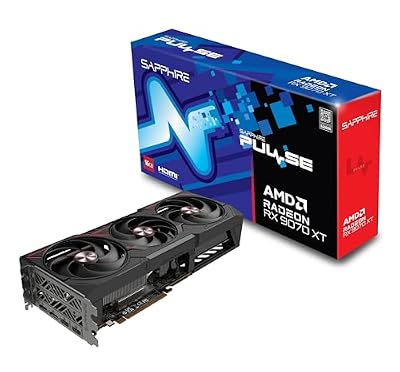
The long-horizon GPU option. As an RDNA-generation AMD card it runs on the in-kernel amdgpu driver and RADV, the stack that improves with every Mesa release.
- Specs: Radeon RX 9070 XT, 16GB GDDR6
- Specs: Model 11348-03-20G
- Specs: Dual-fan Pulse cooler
Corsair Vengeance LPX 32GB DDR4-3200

The DDR4 platform top-up. A matched pair restores dual-channel operation in used machines that shipped with a single stick or an eight gigabyte kit.
- Specs: 32GB as two 16GB modules, DDR4-3200
- Specs: Latency CL16, 1.35V
- Specs: Model CMK32GX4M2E3200C16
Corsair Vengeance 32GB DDR5-6000

The DDR5 platform equivalent, for used AM5 or late Intel machines. A matched pair bought new avoids the mixed-stick stability lottery.
- Specs: 32GB as two 16GB modules, DDR5-6000
- Specs: Latency CL30, Intel XMP and AMD EXPO profiles
- Specs: Model CMK32GX5M2B6000C30
Corsair RM850e 850W Power Supply

The precautionary replacement when the original supply is unknown or aging. A modern, fully modular unit covers both the card the machine came with and the one you buy next.
- Specs: 850W continuous output, ATX 3.1 and PCIe 5.1 ready
- Specs: Fully modular, native 12V-2×6 cable included
- Specs: Model CP-9020296-NA
FAQ
Is a used GTX 1070 or 1080 still worth buying for Linux?
It can be, with eyes open. Pascal cards run current Proton titles through the proprietary driver, but NVIDIA has announced the 580 branch as their last, so the horizon is finite and NVK is not a performance route for them. Buy one as a short-to-medium-term card, not as a foundation.
How can I check a used PC’s drive health before buying?
Ask for SMART data or run smartctl from a Linux live USB. On an SSD, check the percentage-used wear figure and power-on hours. On a hard drive, check reallocated and pending sector counts.
Does Secure Boot stop Linux from working on a used office PC?
Usually not. Major distributions ship signed boot shims that work with Secure Boot enabled. The real obstacles are a firmware setup locked by a previous owner’s password and out-of-tree modules that need a key enrolled. Verify you can enter the firmware setup before buying.
Should I avoid a graphics card that was used for mining?
Not automatically. Mining loads are steady rather than spiky, and the common wear points are fans and thermal pads, which are serviceable. Ask whether the card’s BIOS is original, since a mining-modified BIOS is the one hidden problem that follows the card home.
Final verdict
Second-hand hardware and Linux gaming fit each other well, provided you buy the driver support along with the silicon. Sort listings by GPU generation and its remaining driver horizon, verify drive health from SMART data rather than promises, confirm the firmware is open to you, and budget the refresh in risk order: storage, power supply, memory, then graphics.










