

- Top Pick: GameSir G8 Galileo Type-C Controller
- Runner-up: SanDisk 256GB High Endurance microSDXC Card
- Also consider: Anker 341 USB-C Hub (7-in-1)
Lemuroid is a free, open-source Android emulator built on Libretro, the same core system that powers RetroArch, but designed around the opposite philosophy: instead of handing you every core and setting, developer Filippo Scognamiglio curates one good core per system and hides the machinery. There are no ads and no paywall.
As an Amazon Associate, we earn from qualifying purchases.
This walkthrough covers the whole first-run path: installing from Play, F-Droid or GitHub, granting folder access, letting the first scan index your own game dumps, the systems and cores it bundles, BIOS files where a core needs them, touch, tilt and gamepad controls, and cloud save sync. A running thread compares it with RetroArch, so you can see where curation ends and configuration begins.
This article contains affiliate links, and we may earn a commission when you buy through them at no extra cost to you.
Quick Answer
Install Lemuroid from Google Play, F-Droid or GitHub, then point it at one folder holding game dumps from your own cartridges and discs. It scans and indexes that folder automatically, downloads only the cores your systems need, autoconfigures most gamepads, and syncs saves and states to the cloud, with no core management or menu diving required.
Step 1: Install It From Play, F-Droid or GitHub
Lemuroid has three official homes, all free. Google Play is the simplest route and updates through the store. F-Droid carries the fully open build and updates through its own client. The project’s GitHub page hosts the source and releases for anyone who prefers installing the APK directly.
The app itself is small: modern versions download cores on demand rather than bundling everything, so each core arrives as an extra download only when your library needs it. Android TV is supported as well as phones and tablets, with an interface that adapts to a remote and a big screen.
Step 2: Grant Folder Access and Run the First Scan
On first launch Lemuroid asks you to choose the folder that holds your games. Modern Android uses scoped storage, so the app can only read folders you explicitly grant; pick one folder in internal storage or on a microSD card, with your dumps inside, and accept the system picker prompt. Games dumped from your own cartridges and discs are the only legal source, and Lemuroid ships with none.
The scan then indexes everything it recognises against its bundled databases, sorts games by system, and presents them in a clean library with cover art where the database has a match. Zipped ROMs are supported, so archives do not need unpacking first, and disc games in cue and bin form are handled, including multi-track discs. Rescan the same folder after adding games and the library updates. A dump the scanner cannot identify simply does not appear, which almost always means a corrupt file or an unsupported format.
Step 3: The Systems and Cores It Chooses for You
As documented in the project README, Lemuroid covers Atari 2600 (Stella), Atari 7800 (ProSystem), Atari Lynx (Handy), NES (FCEUmm), Super Nintendo (Snes9x), Game Boy and Game Boy Color (Gambatte), Game Boy Advance (mGBA), Genesis, Sega CD, Master System and Game Gear (Genesis Plus GX), Nintendo 64 (Mupen64Plus), PlayStation (PCSX-ReARMed), PSP (PPSSPP), FinalBurn Neo arcade, Nintendo DS (DeSmuME or melonDS), PC Engine (Beetle PCE Fast), Neo Geo Pocket and Color (Mednafen NGP), WonderSwan and WonderSwan Color (Beetle Cygne), and Nintendo 3DS (Citra).
Two things follow from that list. First, there is exactly one core per system, or two for DS, so the RetroArch question of which core to download never arises; Lemuroid fetches the right one after the scan. Second, the list is finite: no Saturn, Dreamcast or PlayStation 2, and no way to add cores the project has not chosen. The store listing also warns that not every device can run every system, and that PSP, DS and 3DS need a powerful device.
Step 4: BIOS Files for the Cores That Need Them
Most cartridge systems start with no extra files. A few disc-based cores expect BIOS files dumped from consoles you own, notably PlayStation and Sega CD. Lemuroid keeps this visible instead of mysterious: its BIOS settings screen shows which files it supports and which it has detected, so you can confirm at a glance instead of debugging a black screen.
Place your own dumped files where the app directs, rescan if it asks, and the checkmarks update. If a PlayStation game refuses to boot, this screen is the first place to look: a missing or misnamed BIOS file is the usual cause.
Step 5: Touch, Tilt and Gamepads
Touch controls are a first-class feature rather than an afterthought: the overlay is optimised per system, its size and position can be customised, and the pad layout changes with the console, including switching between standard and DualShock layouts for PlayStation and three- or six-button layouts for Genesis and arcade. Display simulation filters mimic an LCD for handheld systems or a CRT for TV consoles.
Lemuroid’s signature extra is tilt input: the device gyroscope can stand in for a stick, and a later update extended tilt mapping to buttons such as the shoulder keys, which helps in games that ask for more simultaneous inputs than two thumbs provide. Nintendo DS games get dual-screen layouts with touch on the lower screen, and recent versions added microphone support.
For real controls, connect a Bluetooth or USB gamepad and Lemuroid maps it to its standard pad automatically in most cases, with no per-button assignment ritual. Local multiplayer works by connecting several gamepads to the same device, and an individual pad can be disabled, which matters when a TV remote tries to join in.
Step 6: Saves, States and Cloud Sync
Lemuroid automatically saves and restores game states, so leaving a game and returning later resumes where you stopped, and quick save and load slots sit on top of each game’s own in-game saving. Battery and memory-card saves behave as on the original hardware.
Cloud save sync ties the library together across devices: sign in and your saves and states follow you between a phone, a tablet and an Android TV box, the feature RetroArch users normally assemble themselves from separate sync apps. Keep the first sync on Wi-Fi and confirm it completes before playing on the second device.
Step 7: Where the Curation Stops
The trade for this simplicity is control. Settings are deliberately shallow: sensible global options, display filters, HD mode and fast-forward, but no deep per-core options menu, no shader stack to assemble, no run-ahead latency tuning and limited per-game adjustment compared with RetroArch. The DS core choice is one of the few real forks in the road offered.
That is a fair exchange for most libraries. If a game needs an obscure core option to run correctly, Lemuroid gives you no lever to pull, and that title belongs in RetroArch or a standalone emulator instead.
Gear That Completes a Phone Setup
GameSir G8 Galileo Type-C Controller

A telescopic controller that turns the phone into a handheld and removes the overlay. The USB-C connection means no pairing or battery to manage, and pass-through charging keeps the phone fed.
Specs:
- Connection: USB-C with movable connector; pass-through charging
- Sticks and triggers: Hall Effect sensors
- Extras: 3.5 mm audio jack, two mappable back buttons, magnetic faceplates
- Phone fit: 110 to 185 mm long, up to 13 mm deep
- Weight: 252 g
SanDisk 256GB High Endurance microSDXC Card

The simplest storage upgrade for a phone library, rated for the constant rewriting that saves, states and artwork cause.
Specs:
- Model: SDSQQNR-256G-GN6IA
- Capacity: 256 GB
- Speed: up to 100 MB/s read and 40 MB/s write; Class 10, U3, V30
- Endurance: rated for up to 20,000 hours of Full HD recording
- Build: temperature-proof, waterproof, shockproof and x-ray-proof; SD adapter included
Anker 341 USB-C Hub (7-in-1)

One hub covers the desk side: card slots for the media your dumps live on, HDMI out where the phone supports it, and power pass-through.
Specs:
- Model: A8346
- Ports: USB-C data, two USB-A 5 Gbps data, USB-C Power Delivery input, HDMI, SD and microSD slots
- Video: HDMI output up to 4K
- Charging: up to 85W pass-through to the host device
- Weight: 3.52 ounces
Lamicall Foldable Phone Stand
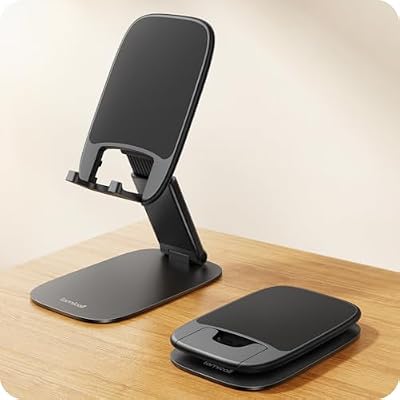
For tablet play or sessions with a separate Bluetooth pad, a stand holds the screen at a proper angle and frees both hands. This one folds flat enough to share a bag with the controller.
Specs:
- Model: STDP03
- Fit: devices from 4 to 8 inches; thick-case friendly
- Design: foldable, height adjustable, weighted metal base, anti-slip silicone pads
- Dimensions: 4.41 x 2.76 x 0.59 inches
Samsung T7 Portable SSD (1 TB)

The master copy of a dump library should live somewhere bigger and faster than a phone; the T7 holds it and makes rebuilding a phone setup quick.
Specs:
- Model: MU-PC1T0T/AM
- Interface: USB 3.2 Gen 2
- Speeds: read up to 1,050 MB/s, write up to 1,000 MB/s
- Security: AES 256-bit hardware encryption
- Size and weight: 3.3 x 2.2 x 0.3 inches, 2.08 ounces; USB-C cables included
How to Choose
Choose Lemuroid when your library sits inside its system list and you value a ten-minute setup over deep options: one install, one folder, automatic scanning, automatic cores, automatic gamepad mapping and cloud sync included. Choose the install source by habit: Play for ordinary store updates, F-Droid for the fully open build, GitHub if you manage APKs yourself. Choose storage by library size, internal storage for a few systems and a microSD card once disc games join the folder. If your library includes systems Lemuroid does not cover, or you want shaders, per-core options and latency features, RetroArch remains the right tool.
Who Should Skip
Skip Lemuroid if your must-play systems are outside its list, such as Saturn, Dreamcast or PlayStation 2, since no setting adds a core the project has not chosen. Skip it if you need deep per-game configuration, alternative cores for the same system, or advanced display and latency tuning. And skip phone emulation generally if your library leans on the heaviest 3D systems and you expect long sessions at full speed; a small PC suits it better.
FAQ
Is Lemuroid really free, with no ads?
Yes. The project is open source under the GPL, the store listing states there are no ads, and the developer states it will always be completely free; an optional in-app purchase exists purely to support development. Games are never included; you supply dumps from cartridges and discs you own.
Why did some of my games not appear after the scan?
The scanner indexes files it can match against its databases, so a missing game usually means an unsupported format or a damaged dump. Confirm the folder was granted and scanned, keep disc games in cue and bin form, and rescan after adding files. Zipped cartridge ROMs are supported as they are.
Does Lemuroid work on Android TV?
Yes. Android TV support is a documented feature, the interface works with a remote, and cloud save sync means a library set up on a phone carries its saves to the TV box. Individual gamepads can be disabled in settings, which helps when a TV remote is detected as a controller.
Can Lemuroid and RetroArch share the same games folder?
They can read the same folder of your own dumps, since both only read the files. Keep each app’s own saves separate, though: their save and state formats and locations differ, and Lemuroid’s cloud sync manages only its own library.
Final Verdict
Lemuroid is what most phone players actually want from a multi-system emulator: install it, point it at one tidy folder of your own dumps, and play, with scanning, cores, controls and cloud sync handled for you. Its limits are honest and visible, a fixed system list and shallow settings, and they only bite when a library outgrows the curation.










