Updated November 2026 – To use a gaming headset on a PC, plug it into the connector type it was made for (USB, a 3.5 mm split pair, or a wireless dongle), then choose it as both the output and input device in Windows Sound settings; if the mic is silent, the fastest fixes are the Windows microphone privacy switch, the default input device, and the headset’s own mute switch.
This guide shows how to use a gaming headset on PC step by step, covers the three connection types, and works through the fixes for a mic that is not working. It also lists what to look for if you are choosing a headset for its microphone, with example models.
How to Use a Gaming Headset on PC: Pick the Right Connector
Gaming headsets reach a PC in three ways, and the connector decides which steps apply.
| Connector | What you need | Common catch |
|---|---|---|
| USB cable | A free USB port; Windows installs it as a sound device | Select it as both output and input in Sound settings |
| Single 3.5 mm plug (four-pole) | A combo headset jack, or a splitter for separate sockets | A desktop with separate pink and green jacks needs a splitter |
| Two 3.5 mm plugs (green and pink) | Separate headphone and microphone jacks | Plugging into the wrong jack gives sound but no mic |
| 2.4 GHz wireless dongle | A free USB port for the dongle | Dongle must be paired with the headset and plugged in before power-on |
| Bluetooth | PC Bluetooth hardware | Mic use can force a lower-quality hands-free mode |
3.5 mm splitter versus combo jack
Laptops and many motherboards have a single combo jack that carries sound and mic on one four-pole plug. Many desktops have two sockets, one for headphones and one for the microphone. A headset with a single four-pole plug will play sound on a desktop but give no mic unless you use a Y splitter, which turns one four-pole socket into two three-pole plugs, usually coloured green and pink to match the rear panel.
Splitter guides point to a wiring detail: the CTIA standard orders the pins as left, right, ground, mic, while the older OMTP standard swaps ground and mic. Most splitters and headsets use CTIA, and a mismatch can silence the mic. If the mic is dead on a plug that otherwise works, the standard is worth considering, and the headset and splitter instructions will say which they use.
USB headsets and dongles
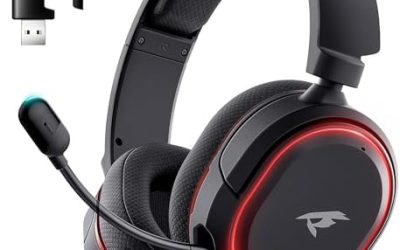
A USB headset contains its own sound card, so it avoids the jack problems above and bypasses the motherboard audio. Wireless gaming headsets with a USB dongle work the same way: the dongle appears as a sound device. If Windows lists the headset twice, once for games and once for chat, set the game device as the default output and the headset input as the default microphone.
Set Up the Headset in Windows Sound Settings
- Connect the headset, and for wireless models switch it on after the dongle is in.
- Open Settings, then System, then Sound.
- Under Output, choose the headset as the device for playing sound.
- Under Input, choose the headset as the device for speaking or recording.
- Use the input test or speak and watch the level bar to confirm the mic responds.
- In the game or chat app, open the audio settings and confirm the same devices are selected, since many apps ignore the Windows default.
Menu names differ slightly across Windows versions, so if a label is not where described, use the settings search box for Sound.
Headset Mic Not Working? Fix It in This Order
Microsoft Q&A threads and Windows guides agree on the same sequence of fixes, which is listed below from fastest to slowest.
| Symptom | Likely cause | Fix |
|---|---|---|
| No mic in the list at all | Wrong jack, splitter needed, or headset not seen | Re-seat the plug, try the pink jack or a splitter, try a different USB port |
| Mic appears but no level bar | Microphone privacy switch off, or muted headset | Check Privacy settings and the inline mute switch |
| Mic works in Windows but not in a game or chat app | App set to another input device | Choose the headset in the app’s audio settings |
| Very quiet voice | Low input volume, or mic boom too far from the mouth | Raise input volume and reposition the boom |
| Bluetooth mic sounds thin and mono | Hands-free profile active | Use a USB dongle or a separate microphone |
| Mic works only when the cable is held a certain way | Cable break near the plug or ear cup | Contact the maker about a repair or replacement |
1. Check the microphone privacy permission
Windows has a privacy gate for microphones. Open Settings, then Privacy and security, then Microphone. Turn on microphone access, allow apps to use it, and also allow desktop apps, because most games and chat programs count as desktop apps. You can reach the page quickly by typing ms-settings:privacy-microphone into the Run box. This is a very common reason for a mic that shows no signal.
2. Set the default input device
In Settings, System, Sound, choose the headset under Input. In the older Sound dialog on the Recording tab, right-click the headset microphone and set it as the default device, and as the default communication device if offered. If you have a webcam, a monitor with a built-in mic, or another headset connected, Windows may be defaulting to one of those. Microsoft guidance suggests disabling unused microphones in Device Manager if apps keep choosing the wrong one.
3. Look at the headset itself
Many headsets have a mute switch, a flip-to-mute boom, or an inline control on the cable. These produce a silent mic that looks like a software fault. Wireless models also have an on-headset volume wheel and sometimes a mix control between game and chat; check them before changing any PC setting. Make sure the boom is fully plugged in if it is detachable.
4. Check the jack type
On a combo jack the port should be marked for a headset, usually with a headphone-and-mic icon, rather than for headphones alone. A headset plugged into a headphone-only port plays sound but not voice. On desktops, use the pink microphone jack with a splitter rather than the front panel jack unless that port is labelled as a combo.
5. Update or reinstall drivers
If Windows does not detect the microphone, run the Input devices troubleshooter under Sound settings, install pending Windows updates including optional ones, and reinstall the audio driver from the motherboard or laptop maker’s support page. For USB headsets, the maker’s software can also carry a firmware update. Be conservative: change one thing at a time, so you can tell which step worked.
6. Bluetooth headsets and the hands-free profile
Bluetooth headsets switch to a hands-free profile when the mic opens, and guides report that this lowers the sound to mono and a much narrower quality. If the mic does not appear, update Windows and the Bluetooth driver, remove and re-pair the headset, and choose the hands-free input in the sound list. If voice quality is the priority, a USB dongle headset or a separate microphone is the more reliable route.
7. Broken cable or connector
A mic that cuts out when the cable moves usually points to a break near the plug or the ear cup, which is a typical wear point. Unplug the headset before looking, avoid taking apart sealed parts if the headset is under warranty, and contact the maker for a repair or replacement. Do not open a PC power supply or attempt electrical repairs inside the computer to chase an audio fault; the headset, cable or driver is the right place to look.
Choosing a Headset for Its Microphone
Search interest around this topic includes the best headset with a good mic, the best wireless headset mic, the best wired headset with a mic, the best headset without a mic, the best USB headset microphone, and a headset for office use. The common thread is that a headset mic is a compromise built for speech, not for recording.
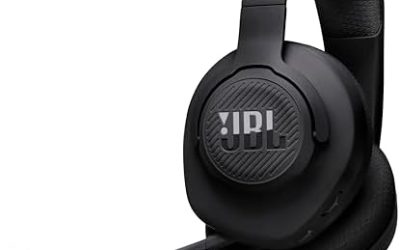
JBL Quantum 910 Wireless – Best for wireless with a boom mic
2.4 GHz dongle, Bluetooth 5.2 and 3.5 mm wired modes · flip-up boom microphone · active noise cancelling · up to about 39 hours of battery without noise cancelling, per JBL and reviewers. The dongle can carry game audio while Bluetooth handles another source.
Moondrop Chu II DSP – Best for a compact USB-C inline mic
Single dynamic driver · USB-C cable with DSP · inline mic. Guides suggest it for people who want in-ear sound and a built-in mic with no extra gear.
Beats Studio Pro – Best for wired USB-C calls on a PC
Built-in DAC over USB-C · works wired with audio and mic · RTINGS rates the microphone as disappointing, while another outlet is more positive about call quality.
Headset without a mic
If you already have a good desk or USB microphone, a headset or headphones without a mic is a valid choice and gives more freedom in picking each part. For singing or recording, a headset boom mic is not the tool; use a dedicated USB or XLR microphone and treat the headset as monitoring only. For office calls, a USB headset or dongle headset with a boom or a noise-reducing mic is simpler than a Bluetooth earbud because it avoids the hands-free quality drop.
Frequently Asked Questions
Why does my headset play sound but not pick up my voice?
The most common causes are plugging a four-pole headset into a headphone-only jack, a muted headset, or the Windows microphone privacy switch being off. Check those three first, then confirm the headset is the selected input device.
Do I need a splitter for a gaming headset on a desktop PC?
If your headset has one four-pole plug and your PC has separate green and pink jacks, yes. A CTIA-type splitter turns the single plug into two, giving you headphone and mic connections. A USB headset avoids the need.
Why does my Bluetooth headset sound bad when the mic is on?
Bluetooth uses a lower-quality hands-free profile when the microphone is active, which makes the sound thin. Using a USB dongle headset or a separate microphone avoids this.
Why does the mic work in Windows but not in my game?
The game or chat app may be using a different input device from the Windows default. Open the app’s audio settings and select the headset microphone directly.
How do I know if my headset cable is broken?
Crackling, cutting out when the cable moves, or a mic that works only at certain angles suggest a break near the plug. Contact the maker for repair or replacement, especially if the headset is under warranty.
Is a USB headset better than 3.5 mm for a PC?
USB headsets include their own sound hardware and avoid jack-wiring problems, which makes setup simpler. 3.5 mm headsets work well with a good motherboard audio chip and are easy to swap between devices.