

- Top Pick: Samsung T9 Portable SSD 2TB
- Runner-up: Corsair Vengeance DDR5 32GB (2x16GB) 6000MHz
- Also consider: 8BitDo Ultimate 2 Bluetooth Controller
Plenty of Windows owners are curious about Linux gaming but unwilling to gamble their working PC on an install they might hate. A virtual machine looks like the perfect compromise: install Linux in a window, try Steam and a few games, and delete the experiment if it disappoints. No partitioning, no boot menus, no risk to the Windows setup.
That logic is sound, as long as you know what the experiment can and cannot prove. This guide covers the reverse direction from our GPU passthrough coverage, where a Linux host runs Windows for anti-cheat-blocked games. Here the host is Windows and the guest is Linux: a VM is a fine test drive for the Linux desktop and for light games, and a poor stand-in for real Linux gaming performance.
As an Amazon Associate, we earn from qualifying purchases.
Quick answer
Yes, with low expectations. A Linux guest in VirtualBox, VMware or Hyper-V on Windows plays 2D games, indie titles and older or light 3D games well enough to judge whether Linux gaming suits you. It cannot use your real GPU properly, and much anti-cheat blocks VMs outright. Treat it as a test drive; dual boot is the real trial.
What the VM is honestly for
The virtual machine earns its place as a learning and checking tool. It answers the questions that actually stop most people switching: whether they can live with a Linux desktop, whether their everyday applications have workable equivalents, whether Steam installs and signs in as expected, and whether the games they own show as installable on Linux. All of that can be explored in an afternoon and reversed in seconds.
Snapshots make it a sandbox: take one before a big change and a failed experiment costs a rollback instead of a reinstall. Distro-hopping inside a VM is nearly free, and trying three desktops teaches more than reading about them for a month.
What the VM cannot do is certify performance. Frame rates inside a guest say almost nothing about frame rates on bare metal, because the guest never touches your real graphics hardware. A game that struggles in the VM may fly on a real install, so use the VM to test the workflow, not the speed.
The graphics reality: a virtual GPU, not your GPU
Every mainstream desktop hypervisor hands the guest a virtual graphics device, not your graphics card. VirtualBox and VMware offer optional 3D acceleration that translates a limited set of older graphics calls to the host, and Linux guests can use software rendering or the virgl stack where supported. That is enough for a smooth desktop and undemanding games. It is not a path to modern Vulkan performance, and Proton inside a VM suffers twice: the game is translated for Linux, then the guest’s limited graphics stack translates again for the host.
The dividing line is the kind of game. 2D games, visual novels, point-and-click adventures, retro emulation and indie titles with modest 3D generally work, and older 3D games from the era the virtual drivers were designed around can be playable. Current 3D releases, anything expecting a modern Vulkan driver, and anything whose minimum specification assumes a real discrete GPU are outside what a guest can honestly deliver.
Giving the guest your actual GPU is a different technology: passthrough, and on a Windows host it is effectively unavailable in the mainstream tools. Consumer Windows editions and desktop hypervisors offer no supported route to hand a discrete card to a Linux guest. If real GPU performance inside a VM is the goal, this direction is the wrong one.
The anti-cheat wall, stated plainly
Virtual machines sit on the wrong side of anti-cheat policy from both directions. Kernel-level anti-cheat cannot run under Proton on real Linux, and publishers have separately made clear that virtualised environments are not a refuge. Riot’s Vanguard refuses virtual machines outright. Other anti-cheat systems detect hypervisors and decline to run, and publishers can tighten that stance in any update without notice.
Even user-mode anti-cheat that supports Linux through Proton expects a normal Linux environment. A guest’s virtual hardware and translated graphics stack are exactly the anomalies these systems are trained to be suspicious of. Some titles work anyway; none owe you an explanation when they stop.
So if a game’s multiplayer matters to you, check its documented Linux status and assume the VM adds risk rather than removing it. The VM is for single-player libraries, older games and experimentation, never an anti-cheat workaround, because it is not one.
Storage and memory: where the VM lives matters
A virtual machine is a large file that behaves like a hard drive, and it inherits the speed of whatever it sits on. A guest stored on a mechanical drive or a nearly full system SSD feels sluggish in ways that have nothing to do with Linux. Put the virtual disk on fast storage, ideally a drive not also fighting Windows for bandwidth, and the experiment feels a class faster.
Memory is the other hard limit, because the guest’s allocation is carved out of the host’s total. A host short on RAM forces a choice between starving Windows and starving the guest, and a starved guest makes Linux look worse than it is. The guest wants enough for the desktop and one game, the host wants the same again for itself, and systems that cannot spare both should not judge Linux by the result. Processor cores follow the same logic: give the guest a sensible share, never all of them.
When to graduate to dual boot
The VM has done its job when your remaining questions are about performance, a specific demanding game, or whether you could live in Linux full time. None of those can be answered in a guest. The next step is a real install that shares the machine rather than living inside Windows: dual boot, where each system gets the hardware to itself.
Dual boot asks more of you: disk space set aside, a boot menu at startup, and two systems to keep updated. A second internal drive is the cleanest version, because each operating system lives on its own storage. A persistent live USB install is the halfway house: real hardware access and real drivers with no changes to the internal drives, at the cost of USB storage speeds.
The two are not rivals: the VM decides whether Linux deserves a partition, and the dual boot shows what it can do.
How to choose
Choose the hypervisor by the Windows edition and the job. Hyper-V is built into Pro and higher editions and is the natural pick there, with the caveat that its Linux graphics support is oriented to productivity rather than games. VMware Workstation is the polished commercial option, now offered free for personal use, with some of the better 3D acceleration for Linux guests. VirtualBox is free, cross-platform and the most heavily documented by community guides, which matters when following beginner tutorials. For a gaming test drive, VMware or VirtualBox are usually the friendlier classrooms.
Choose the distribution for the guest the way you would for real hardware, because habits transfer. Allocate storage generously, since game installs consume the virtual disk quickly, and install the hypervisor’s guest tools inside Linux for proper display resizing and shared folders.
Who should skip this
Skip the VM if your goal is to judge how a specific modern 3D game performs on Linux, because the guest cannot tell you. Skip it if your library centres on competitive multiplayer, where anti-cheat makes the VM the least reliable way to play rather than a loophole. Skip it if your PC is short on memory or storage, because a starved guest manufactures a bad impression of a system that would behave far better on the same hardware directly. And skip it as a permanent arrangement: anyone still gaming in a guest after a month pays the costs of both systems and collects the benefits of neither.
The test-drive kit
Samsung T9 Portable SSD 2TB

A fast external drive is the ideal home for a virtual machine you intend to keep: the guest gets its own storage, the Windows drive is left alone, and the environment can move to another PC. The T9’s maker-rated speeds assume a USB 3.2 Gen 2×2 host port; on a Gen 2 port it runs at that ceiling, still ample for a guest disk.
Specs:
– Capacity: 2TB
– Interface: USB 3.2 Gen 2×2 (20Gbps)
– Model: MU-PG2T0B/AM
– Maker-rated sequential read: up to 2,000 MB/s on a Gen 2×2 host
Corsair Vengeance DDR5 32GB (2x16GB) 6000MHz
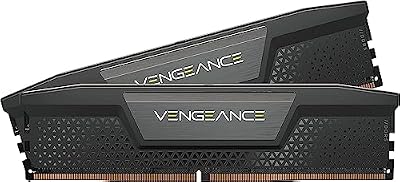
Memory headroom is what separates a fair test from a rigged one. With 32GB in total, a Windows host keeps room to breathe while the guest takes a sensible share for the desktop and a game, which is the configuration this experiment quietly depends on.
Specs:
– Capacity: 32GB (2 x 16GB)
– Type: DDR5, 6000MHz
– Timings: CL36-44-44-96 at 1.35V
– Model: CMK32GX5M2E6000C36, Intel XMP 3.0 and AMD EXPO profiles
8BitDo Ultimate 2 Bluetooth Controller

Controller behaviour is one thing a VM genuinely can test, because gamepad passthrough is a solved problem in the mainstream hypervisors. A pad that works in the guest here behaves the same on a real install, and this one also serves the dual boot you graduate to.
Specs:
– Model: 80ND (Ultimate 2 Bluetooth, Black)
– Connectivity: Bluetooth, 2.4G wireless and wired
– Sticks: TMR joysticks with switchable trigger modes
– Includes charging dock
Samsung 990 PRO 2TB NVMe SSD

When the test drive convinces you, this is the clean destination: a second internal drive dedicated to Linux, so the dual boot keeps each system on its own storage and the Windows install is never resized or shared.
Specs:
– Capacity: 2TB
– Interface: PCIe 4.0 x4, NVMe M.2 2280
– Model: MZ-V9P2T0B/AM
– Maker-rated sequential read: up to 7,450 MB/s
FAQ
Can I play my Steam games in a Linux VM?
The 2D, indie and older parts of the library, generally yes, and that is enough to learn the Steam-on-Linux workflow. Modern 3D titles are limited by the virtual graphics device rather than by Linux itself, so judge compatibility in the VM and performance only on real hardware.
Why not just pass my graphics card through to the guest?
Because on a Windows host the mainstream desktop hypervisors do not offer a supported way to do it. Passthrough gaming builds run the other way around, and they exist mainly for anti-cheat cases rather than casual testing.
Will anti-cheat games work in the VM since it is still my Windows PC?
No. The game runs inside the Linux guest, and anti-cheat judges the environment it runs in. Kernel-level systems that refuse Linux also commonly refuse virtual machines, and publishers treat VM play as unsupported. Assume blocked until a publisher documents otherwise.
How much memory and storage should the guest get?
Enough to be a fair test: a sensible share of system memory and processor cores rather than all of either, and a virtual disk large enough for the system plus the games you intend to try, on the fastest drive you can spare.
Final verdict
A Linux virtual machine on Windows is an honest tool used honestly: a reversible classroom for the desktop, the workflow and the light end of your library. It is not a performance preview, an anti-cheat workaround or a destination. Run the test drive, and when the questions turn to speed or serious play, give Linux the hardware directly with a dual boot.










