

- Top Pick: Corsair K63 Wireless Keyboard and Gaming Lapboard Combo
- Runner-up: Razer Turret Wireless Mechanical Keyboard and Mouse Combo
- Also consider: Logitech K600 TV Keyboard
A keyboard bought for a desk fails on a couch in predictable ways: there is no surface under it, the link was chosen for a monitor two feet away, and the mouse has nowhere to live. A Linux living-room PC adds one more filter. Whatever you buy has to behave as a plain input device, because the configuration software the big brands ship is written for Windows and macOS, and none of it runs on SteamOS, Bazzite, ChimeraOS or a regular distro.
The good news is that the couch category is built on boring, standard technology. Lapboards and touchpad keyboards are USB or Bluetooth HID devices, and Linux has handled those natively for decades: they work at the login screen, inside gamescope sessions, and in games, with no driver and no account. This guide sorts the category by form factor, then by connection, and names five products for the realistic ways a Linux couch gets played.
As an Amazon Associate, we earn from qualifying purchases.
Quick answer
For a Linux couch setup, buy the surface first and the keys second. A lapboard such as the Corsair K63 combo or Razer Turret suits real mouse-and-keyboard games; a touchpad keyboard such as the Logitech K600 TV or Microsoft All-in-One suits navigation, launchers and slower titles. Every pick here is standard USB or Bluetooth HID, so each works on Linux with no vendor software.
Three form factors, three different couches
True lapboards solve the mouse problem by building the surface into the product. A rigid board carries the keyboard and a mousing area, so a real gaming mouse tracks on your lap as it would on a desk pad. This is the only form factor that honestly supports shooters, RTS and MMO play from a sofa.
Touchpad keyboards merge the pointer into the board. A trackpad beside the keys handles the cursor, media keys handle the TV jobs, and the board is light enough to live on a coffee table. They are the right tool for launching games, driving Steam’s desktop mode, typing passwords and chat, and playing anything turn-based or slow. They are the wrong tool for aiming, and no touchpad changes that.
A compact board plus a lap desk is the improvised third route: a small wireless keyboard and a separate mouse on a cushioned tray. It reuses gear you may already own, at the cost of two devices to charge, pair and store. The picks below concentrate on the first two forms, which are the ones designed for the room; the lap-desk route returns in the choosing section.
The connection question: receiver or Bluetooth
Every product here connects one of two ways, and on Linux the difference is practical rather than theoretical.
A 2.4 GHz USB receiver is a private link between one device and one port. The receiver presents itself to the system as a wired keyboard and mouse, so it works before the operating system loads, at the disk-encryption prompt, and in any session, with no pairing. Corsair rates the K63’s 2.4 GHz link at 1 ms; that is the maker’s figure, and it is why lapboards built for fast games ship with dongles. The costs are a USB port on the PC or dock, and a dongle that is easy to lose in a sofa.
Bluetooth needs no port and no dongle, and one keyboard can pair with the PC, a Steam Deck and a tablet in turn. Pairing runs through BlueZ, the standard Linux Bluetooth stack. The honest limits: Bluetooth has no maker-published gaming latency figure for these boards, wake-from-sleep behaviour depends on the PC’s adapter, and a Bluetooth keyboard cannot type a disk-encryption password on most setups, because the stack loads later than the prompt. For navigation and slower games none of that matters; for competitive play the receiver boards exist.
One Linux-specific warning applies to the whole category. Lighting, macros, remapping and firmware updates on branded gear are configured in vendor applications that do not run on Linux. What you get is the hardware’s onboard behaviour: stored profiles and default lighting travel with the device, and community tools cover some lines, OpenRazer being the established example for Razer hardware.
The five picks
Corsair K63 Wireless Keyboard and Gaming Lapboard Combo
The reference design for the category: a tenkeyless mechanical board that locks into a rigid lapboard with a full-length mouse surface and a cushion underneath. The keyboard is a proper gaming board, with Cherry MX Red switches and the maker’s 1 ms-rated 2.4 GHz link, plus Bluetooth and wired modes for the times it leaves the couch. One honest caveat: Corsair has discontinued the K63 line, so this combo is remaining retail stock rather than a current product, and its iCUE-dependent extras are Windows-side features.
Specs
- Connection: 2.4 GHz USB receiver, Bluetooth 4.2, or wired USB
- Switches: Cherry MX Red mechanical
- Backlighting: blue LED
- Layout: tenkeyless board docked in a lapboard with mouse surface
- Model: CH-9515031-NA (keyboard and lapboard combo)
Razer Turret Wireless Mechanical Keyboard and Mouse Combo

Razer’s lapboard takes the other approach: the keyboard and the mouse surface are one unit, with a retractable magnetic mat that slides out for the included mouse and holds it in place on your lap. It connects over a 2.4 GHz dongle or Bluetooth, and carries Razer’s mechanical switches and Chroma backlighting. Razer rates the battery at up to 40 hours. On Linux it is a standard HID combo; the Chroma lighting is the part with a software story, and the OpenRazer driver is the route for adjusting it.
Specs
- Connection: 2.4 GHz USB dongle or Bluetooth
- Switches: Razer mechanical
- Backlighting: Razer Chroma RGB
- Pointing: included wireless mouse on a retractable magnetic mat
- Battery: rechargeable, maker-rated up to 40 hours
Logitech K600 TV Keyboard
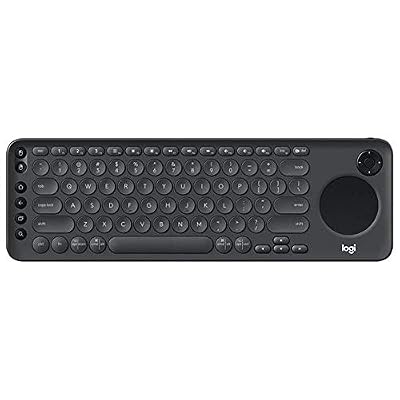
The touchpad board designed for the television rather than the desk. Alongside a full keyboard it carries a round precision touchpad and a D-pad, so grid menus, launchers and browsers can all be driven from one device, and it switches between three paired devices. Logitech rates the range at 15 metres and the battery at 12 months on two AAA cells. There is no backlight, the honest trade for that battery life, and its TV-specific Bluetooth profiles are aimed at televisions; with a Linux PC it works as a standard Bluetooth or receiver keyboard.
Specs
- Connection: Bluetooth or USB receiver, 3 switchable devices
- Pointing: integrated precision touchpad and D-pad
- Range: maker-rated 15 m
- Power: 2 AAA batteries, maker-rated up to 12 months
- Model: 920-008822
Rii K18 Plus Wireless Keyboard with Touchpad
The full-size budget entry: a complete keyboard layout with a large multi-touch trackpad, a 2.4 GHz receiver, and a three-colour backlight for dark rooms, in a category where backlit touchpad boards are rare. It is rechargeable over USB and aimed at HTPC duty; on Linux it arrives as a generic HID keyboard and touchpad, which is all a couch board needs to be. Nothing about it pretends to be a gaming keyboard; it is the navigation-and-chat board that also survives slower games.
Specs
- Connection: 2.4 GHz USB receiver
- Pointing: large multi-touch trackpad
- Backlighting: 3-colour LED (red, green, blue)
- Power: rechargeable internal battery, USB charging
- Layout: full-size with number pad
Microsoft All-in-One Media Keyboard

The minimalist media board: a compact keyboard with an integrated multi-touch trackpad, media hotkeys along the top, and a spill-resistant deck, connected through a small USB nano transceiver. Microsoft’s own datasheet lists it at 367 mm wide and 434 g, light enough to pass around the room. Two details date it honestly: it runs on replaceable AAA batteries rather than a rechargeable cell, and the hotkey customisation is a Windows feature, so on Linux the board is its default HID self.
Specs
- Connection: 2.4 GHz USB nano transceiver
- Pointing: integrated multi-touch trackpad
- Build: spill-resistant keys, media hotkeys
- Power: 2 AAA batteries
- Model: N9Z-00001
How to choose
Start with the games, because they pick the form factor. If the couch library includes shooters, real-time strategy or anything mouse-aimed at speed, only a lapboard with a real mouse is an honest answer: the K63 combo if you find stock, the Razer Turret as the current-production route. If the keyboard mostly launches games, types and navigates, a touchpad board is smaller and easier to live with.
Choose the connection second. A receiver board works at every prompt including disk encryption and never needs pairing. Bluetooth earns its place when one keyboard serves several machines, or when every USB port on a docked Steam Deck is spoken for.
Use the lap-desk route deliberately if you go that way: pair a compact Bluetooth board you already like with a rigid cushioned tray, and accept two batteries and two pairings. Finally, check the dark-room question: of the touchpad boards here only the K18 Plus is backlit, and both lapboards light their keys.
Who should skip this
Skip the whole category if a controller already runs your living room: a gamescope session driven by a good gamepad covers most couch libraries, and a keyboard becomes a drawer item. Skip lapboards if your couch games are turn-based, narrative or controller-first, because the size and cost buy aiming ability you will not use. Skip touchpad boards as your only input if you play anything with real-time aiming; a trackpad is a navigation device, not a mouse substitute. And skip every pick here if the vendor’s software features, macro suites and lighting editors are part of the appeal: on Linux these are HID devices first, and should be bought on that basis.
FAQ
Do these keyboards need drivers on Linux?
No. Every product listed connects as a standard USB or Bluetooth HID device, which the Linux kernel handles natively. They work at the login screen, in gamescope and Steam desktop mode, and in games. What does not carry over is the brands’ Windows configuration software for macros, lighting and firmware updates.
Can a couch keyboard type the disk-encryption password at boot?
A receiver-based board can, because the dongle presents itself as a wired keyboard before the operating system loads. A Bluetooth keyboard usually cannot, because the Bluetooth stack starts later in the boot process. On an encrypted living-room PC, that difference alone can decide the purchase.
Is a touchpad keyboard good enough for gaming?
For launching, navigating and playing turn-based, strategy-over-menus or narrative games, yes. For aiming in real-time games, no: a touchpad lacks the travel and precision of a mouse, which is why the lapboards here carry a real mouse surface.
Which connection is better for a Steam Deck on the couch?
Bluetooth, if the Deck is undocked or its dock ports are full, since it needs no port at all. A receiver board is the better pick when the Deck lives in a dock under the TV, where the dongle stays plugged in and works at every prompt.
Final verdict
The couch decides, not the spec sheet. Players who genuinely game with a mouse on the sofa need a lapboard: the discontinued K63 combo while stock remains, or Razer’s Turret as the living product line. Everyone else is better served by a touchpad board: the K600 TV for multi-device households, the K18 Plus when a backlight matters, and Microsoft’s All-in-One when simple and light wins. On Linux all five reduce to the same fact: plug in or pair, and type.










