

- Top Pick: Logitech Brio 4K Webcam
- Runner-up: Elgato Facecam
- Also consider: Razer Kiyo Pro
A smart TV is the simplest way to play cloud games: open an app, pair a controller, and play, with no console under the TV. Adding a webcam sounds like a natural next step if you stream your sessions or call friends between matches.
The honest answer comes first, because it changes every buying decision in this guide. No cloud gaming service on a TV uses a webcam inside the game itself. Xbox Cloud Gaming, GeForce Now, and Luna do not take camera input from a TV app. A webcam here is for your stream overlay, a video call, and a recording of your reactions.
As an Amazon Associate, we earn from qualifying purchases.
Quick answer
A webcam cannot feed video into Xbox Cloud Gaming, GeForce Now, or Luna on a smart TV, so buy one only for streaming and video calls. Pick a camera with a wide field of view and a long cable, plug it into the device that runs your stream or your call, and keep a separate microphone or headset ready.
The honest limit: no camera input inside cloud games
Cloud gaming on a TV is a closed loop: the game runs on a remote server, video comes down to your TV app, and controller input goes back up. The TV app has no camera permission, no camera menu, and no in-game video feed, wherever the camera is plugged in.
That does not make a webcam useless. It changes where the camera belongs: on the device that captures your stream or hosts your call, usually a laptop beside the TV. Many players run the game on the TV and streaming software on a laptop beside the couch, with the webcam on a small tripod facing the sofa.
For streaming your session
Streaming is the strongest reason to add a webcam here. Viewers want to see your reactions while the game fills the TV screen.
Logitech Brio 4K Webcam
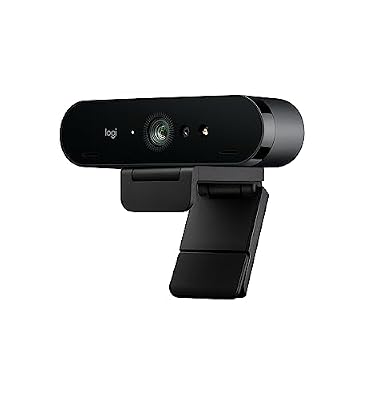
The Logitech Brio 4K Webcam is the premium pick for the sharpest picture in this guide. It records in 4K at 30 frames per second, 1080p at 60 frames per second, and 720p at 90 frames per second. Three field-of-view presets, at 65, 78, and 90 degrees, move from a tight head-and-shoulders shot to a wider frame with a second person on the sofa. Autofocus, 5x digital zoom, RightLight 3, and HDR support help across a living room, even with a bright TV behind you.
Specs
| Spec | Detail |
|---|---|
| Resolution | 4K Ultra HD |
| Frame rate | 4K at 30 fps, 1080p at 60 fps, 720p at 90 fps |
| Field of view | 65, 78, or 90 degrees |
| Focus | Autofocus |
| Microphone | Dual noise-canceling microphones |
| Connection | USB-C with USB-A adapter |
Elgato Facecam

The Elgato Facecam is the pick for a streamer who cares about smooth motion and already owns a microphone. It records true 1080p at 60 frames per second, with uncompressed video over a USB 3.0 connection. Its fixed-focus prime lens, with an f/2.4 aperture and a 24 mm focal length, is tuned for a focus range of 30 to 120 cm, and the Sony Starvis sensor handles indoor light well. Elgato states plainly that this camera has no built-in microphone, on purpose, because creators are expected to use a dedicated microphone or headset.
Specs
| Spec | Detail |
|---|---|
| Resolution | 1080p Full HD |
| Frame rate | 1080p at 60 fps |
| Field of view | 84 degrees |
| Focus | Fixed focus, 30 to 120 cm range |
| Microphone | None, use a separate microphone or headset |
| Connection | USB-C |
Razer Kiyo Pro
The Razer Kiyo Pro is the pick for a dim living room. Many TV rooms are dark by design, with the TV as the main light source. The Kiyo Pro uses a Sony Starvis sensor with an adaptive light sensor, built to keep your face visible when the room light is low and the TV light keeps changing. It records uncompressed 1080p at 60 frames per second, with HDR at 30 frames per second. Three field-of-view settings at 80, 90, and 103 degrees, set through Razer Synapse software, fit one player or two people on a sofa.
Specs
| Spec | Detail |
|---|---|
| Resolution | 1080p Full HD |
| Frame rate | 1080p at 60 fps, HDR at 30 fps |
| Field of view | 80, 90, or 103 degrees |
| Focus | Autofocus |
| Microphone | Stereo microphones |
| Connection | USB 3.0 |
For video calls between games
Video calls are the second real use for a webcam here. A call camera needs clear audio, a privacy cover, and a field of view that fits the sofa.
Anker PowerConf C200 Webcam

The Anker PowerConf C200 Webcam is the call-first pick in this guide, and the most practical choice for a shared living room. It records in 2K at 30 frames per second, sharper than 1080p without the processing load of 4K. The adjustable field of view matters most: three settings at 65, 78, and 95 degrees, chosen in Anker software, frame one person tightly or open the shot to include the whole sofa. Dual microphones with AI noise cancellation pick up voices while reducing background sound from a TV or a fan. Autofocus works from 15 cm to 3 m, and the built-in privacy cover slides over the lens when the call ends.
Specs
| Spec | Detail |
|---|---|
| Resolution | 2K, 2560 by 1440 |
| Frame rate | 2K at 30 fps |
| Field of view | 65, 78, or 95 degrees |
| Focus | Autofocus, 15 cm to 3 m |
| Microphone | Dual microphones with AI noise cancellation |
| Connection | USB 2.0 |
For a wide living-room shot
A fixed webcam frames whoever sits directly in front of it, which is fine for one player. It is less useful when players move around or two people share the sofa.
OBSBOT Tiny 2 Lite

The OBSBOT Tiny 2 Lite is a pan-tilt-zoom webcam, and that movement is the reason to choose it for a TV setup. A two-axis gimbal pans 140 degrees to either side and tilts to follow you, while AI tracking with auto zoom keeps you in frame as you shift position on the sofa. The 1/2-inch CMOS sensor with 48M effective pixels records 4K at 30 frames per second or 1080p at 60 frames per second, with HDR support for a bright TV and a dark sofa in the same shot.
Specs
| Spec | Detail |
|---|---|
| Resolution | 4K Ultra HD |
| Frame rate | 4K at 30 fps, 1080p at 60 fps |
| Field of view | 79.4 degrees diagonal |
| Focus | Autofocus |
| Microphone | Dual omnidirectional microphones with noise reduction |
| Tracking | Two-axis gimbal with AI tracking and auto zoom |
Setting up a webcam with a smart TV
Start by deciding which device runs the camera. A webcam plugged into a TV USB port will not appear inside Xbox Cloud Gaming, GeForce Now, or Luna. Plug the camera into the laptop or small computer that runs your streaming software or your video call app.
Cable length is the next practical check. Measure the distance from your seat to the device that hosts the camera, and add slack so the cable runs along a TV stand rather than across a walkway. Mount the camera on a small tripod on a coffee table or shelf, aimed at the sofa at eye level.
Audio needs a separate plan on any camera without a microphone. A headset microphone is the simplest option for a streamer, because it stays close to your mouth and keeps TV speaker audio out of your voice track.
Lighting is the cheapest upgrade in this guide. Face a soft lamp toward yourself rather than sitting with a bright window behind you, and keep the TV brightness moderate. A single lamp at eye level, placed behind the camera, does more for your picture than a higher-resolution camera.
How to choose
Choose by role first, then by resolution. If streaming is the main job, pick the Brio 4K for the sharpest picture, the Facecam for smooth 1080p at 60 frames per second when you already own a microphone, or the Kiyo Pro when your room is dim. If video calls are the main job, pick the Anker PowerConf C200. If people move around the room, pick the OBSBOT Tiny 2 Lite.
Check three details before you buy: confirm the camera has a microphone or plan for a separate one, because the Facecam has none; measure your cable run and mounting spot; and confirm it works with your software, then test it once before you go live.
Who should skip
Skip a webcam entirely if you only want your face inside a cloud game on a TV, because no camera can do that through Xbox Cloud Gaming, GeForce Now, or Luna on a TV app. Skip the purchase if you never stream and never make video calls from your living room. Skip the Elgato Facecam if you do not own a microphone or a headset. Skip the Razer Kiyo Pro if your room is bright and evenly lit. Skip the OBSBOT Tiny 2 Lite if you always sit still in one seat. Skip the Logitech Brio 4K if your calls and streams are casual and short.
FAQ
Can a webcam show my face inside a cloud game on a smart TV?
No. Xbox Cloud Gaming, GeForce Now, and Luna on a TV do not take camera input, so a webcam cannot put your face into a game. A webcam works for your stream overlay and for video calls around the game.
Which device should the webcam plug into?
Plug it into the laptop or small computer that runs your streaming software or your video call app, not into the TV. TV cloud gaming apps have no camera support.
Do I need a separate microphone for a streaming webcam?
It depends on the camera. The Logitech Brio 4K, the Anker PowerConf C200, and the OBSBOT Tiny 2 Lite have built-in microphones, while the Elgato Facecam has none at all. A headset or USB microphone will sound clearer.
What field of view works best for a sofa?
A field of view around 78 to 95 degrees suits a sofa, with the wider end fitting two people. The Anker PowerConf C200, Razer Kiyo Pro, and Logitech Brio 4K cover 65 to 103 degrees between them.
Final verdict
A webcam is a useful addition to a cloud gaming setup on a smart TV, if you buy it for the job it can actually do. It will not put you inside a cloud game. It will make your stream look professional, make your video calls clearer, and capture the reactions that make a shared evening worth remembering. For most players, the Logitech Brio 4K is the best starting point. The Elgato Facecam suits a streamer who already owns a microphone, the Razer Kiyo Pro suits a dim room, the Anker PowerConf C200 suits video calls, and the OBSBOT Tiny 2 Lite suits a room where the camera must follow people.










