Top 3 Picks
If you want the short answer: the Samsung 34″ ViewFinity S50GC is the best ultrawide for most multitasking professionals because Ultra-WQHD (3440×1440) on a flat 34-inch panel gives you roughly 40% more horizontal workspace than a 27-inch 1440p screen without forcing you to turn your head, and it does so at a budget price tier. The Samsung 49-inch Odyssey G9 (G91F) is the pick for anyone replacing two or three monitors outright: its 32:9 DQHD canvas is effectively two 27-inch 1440p displays fused together with no bezel gap, and it carries a premium price tier to match. The Samsung 34″ ViewFinity S65UC splits the difference, adding a curved panel and a USB-C docking path that suits laptop-centric workflows where one cable should carry video, data and power.
Quick Comparison
The table below covers every monitor in this roundup. Price tiers are deliberately coarse — street prices on this category move constantly, and a monitor that is mid-range in one quarter can be budget the next.
| Product | Best for | Key specs | Price tier |
|---|---|---|---|
| Samsung 34″ ViewFinity S50GC | Best overall for desk-bound multitasking | 34″, Ultra-WQHD 3440×1440, 21:9 flat, 100Hz, 5ms, HDR10, AMD FreeSync, borderless, eye-care modes | Budget |
| Samsung 34″ ViewFinity S65UC | Best mid-range for laptop docking | 34″, Ultra-WQHD 3440×1440, 21:9 curved, USB-C connectivity, ViewFinity colour and eye-care feature set | Mid-range |
| Samsung 49″ Odyssey G9 (G91F) | Best premium for replacing a multi-monitor wall | 49″, DQHD 5120×1440, 32:9 curved, 144Hz, DisplayHDR 600 | Premium |
| ZZA 49-Inch Ultra-Wide DQHD Curved | Best value route into 32:9 | 49″, DQHD 5120×1440, 32:9, 1500R curve, 165Hz, AMD FreeSync, 120% sRGB, height-adjustable stand | Mid-range |
| Wixzet 14″ Laptop Screen Extender | Best budget companion for laptop-only workers | 14″, FHD 1080p portable panel, ultra-thin, attaches to laptop | Budget |
How We Chose
These picks were assembled by matching published specifications to the actual mechanics of multitasking rather than to a single “best monitor” ranking. The first filter was resolution and pixel density: for a screen sitting at normal desk distance, 3440×1440 across 34 inches lands in a comfortable range for sustained text reading, while 5120×1440 across 49 inches spreads the same vertical pixel count across a much wider canvas, which changes how you arrange windows but not how tall your documents are. Aspect ratio came next, because 21:9 and 32:9 solve different problems — 21:9 widens a single document or timeline, while 32:9 genuinely substitutes for two side-by-side displays.
The second filter was category fit and upgrade path. A budget pick has to be defensible on its own merits, not just cheap; a mid-range pick has to justify the step up with connectivity or panel treatment you will actually use; a premium pick has to offer something the cheaper options structurally cannot. Connectivity was weighed heavily because most professionals are docking a laptop, and a monitor that cannot carry video and peripherals over one cable adds desk clutter that undercuts the whole point of consolidating to a single screen. Finally, we considered what each monitor asks of your desk: a 49-inch 32:9 panel is roughly four feet wide and demands real depth for comfortable viewing, so a monitor that is excellent in a large room can be a poor recommendation in a small one.
1. Samsung 34″ ViewFinity S50GC – Best for All-Round Multitasking on a Normal Desk
As an Amazon Associate we earn from qualifying purchases at no extra cost to you.

The S50GC is the monitor to buy if you want the productivity jump of an ultrawide without reorganising your office. Its 34-inch 21:9 panel is the classic ultrawide footprint — wide enough that two full-size documents sit comfortably side by side, but not so wide that you are swivelling your neck to track a notification. For anyone stepping up from a 24- or 27-inch 16:9 display, the extra horizontal real estate is the single most noticeable upgrade you can make, and it arrives at the budget price tier rather than the premium one.
Who it suits: writers and editors working from two documents at once, analysts running a spreadsheet alongside a chat window, developers who want an editor plus a terminal plus documentation visible simultaneously, and anyone whose desk is deep enough for a monitor arm but not wide enough for a 49-inch panel. If your workflow is “one big task plus two or three reference windows,” 21:9 is the ratio that fits it. If your workflow is “two full desktops at once,” the 32:9 screens below will serve you better.
Key specs
- Screen size: 34 inches, flat panel
- Resolution: Ultra-WQHD 3440×1440
- Aspect ratio: 21:9
- Refresh rate: 100Hz
- Response time: 5ms
- HDR: HDR10
- Adaptive sync: AMD FreeSync
- Design: Borderless styling, eye-care feature set
Strengths
The resolution-to-size ratio is the headline. At 3440×1440 on a 34-inch diagonal you get a pixel density that keeps text crisp at normal viewing distance without scaling gymnastics, and crucially the vertical resolution matches a standard 1440p monitor — so the workspace you gain is entirely horizontal. Nothing about your vertical workflow changes; you simply gain two or three more window slots across the middle. That makes the transition from a 16:9 display almost frictionless.
The 100Hz refresh rate deserves more credit than it usually gets in productivity contexts. Scrolling long documents, dragging windows and moving a cursor across four feet of screen all feel materially smoother above 60Hz, and once you have used a high-refresh panel for office work it is genuinely hard to go back. AMD FreeSync is along for the ride; on a productivity monitor it mostly means the panel avoids tearing during the occasional video or casual game, and it costs you nothing.
Flat rather than curved is a legitimate advantage for some users. Curved panels are designed to keep the edges of a very wide screen equidistant from your eyes, but on a 34-inch 21:9 the benefit is modest, and a flat panel is easier to align in multi-monitor setups, easier to photograph, and less prone to the faint geometric distortion that bothers people doing precision layout work. Borderless styling keeps the bezels thin, which matters the moment you set a second display next to it.
Pros
- Ultra-WQHD resolution on 34 inches hits a sweet spot for text sharpness at typical desk distance
- 21:9 aspect gives meaningful extra horizontal workspace without a punishing footprint
- 100Hz refresh makes scrolling and window management noticeably smoother than 60Hz
- Budget price tier for a spec set that would have been flagship-class a few years ago
- Flat panel is simpler to pair with a second monitor or mount on an arm
- HDR10 and eye-care modes cover the basics for long sessions
Cons
- No USB-C docking, so laptop users still need a separate hub or dock
- 100Hz is modest next to the 144Hz and 165Hz panels further up this list
- HDR10 without local dimming is an HDR-compatible signal, not a true HDR experience
- 21:9 cannot fully replace two side-by-side monitors the way 32:9 can
How it compares with the nearest alternative
Against the ViewFinity S65UC, the S50GC gives up the curve and the USB-C path in exchange for a lower price tier. If you use a desktop PC and plug peripherals into the tower, the S50GC is the better-value buy and you will not miss the curve on a 34-inch panel. If you dock a laptop daily and want one cable to carry video, data and charging, the S65UC’s connectivity is worth the step up. Against the ZZA 49-inch DQHD, the S50GC trades raw width for desk friendliness and a lower entry price — it is the safer first ultrawide, while the 49-inch is the bigger commitment.
2. Samsung 34″ ViewFinity S65UC – Best for Laptop-Centric Workflows

The S65UC is the mid-range answer to a specific problem: you work from a laptop, you hate cable spaghetti, and you want one ultrawide screen to become your whole desk. It keeps the same Ultra-WQHD 3440×1440 canvas and 34-inch 21:9 format as the budget pick, but wraps it in a curved panel and, most importantly, adds USB-C connectivity — the feature that turns a monitor into a docking station. That combination is what makes it the most natural pick for hybrid workers who move between an office desk and a kitchen table.
Who it suits: consultants, designers and developers on a company laptop who want to arrive at a desk, plug in one cable, and have display, peripherals and charging handled at once. Also a strong fit for anyone who has already bought into USB-C as their single-cable standard and resents monitors that force a separate dock back onto the desk.
Key specs
- Screen size: 34 inches, curved
- Resolution: Ultra-WQHD 3440×1440
- Aspect ratio: 21:9
- Connectivity: USB-C, enabling single-cable laptop docking
- Panel treatment: Curved, ViewFinity colour and eye-care feature set
- Series positioning: ViewFinity, Samsung’s productivity and creator line rather than its gaming line
Strengths
The USB-C port is the whole argument. Laptops in the modern workplace increasingly ship with two or three USB-C ports and nothing else, and a monitor that accepts video, USB data and power delivery over a single cable eliminates the dock, the dongle chain and the tangle of adapters that accumulates behind a desk. You sit down, plug in one cable, and your keyboard, mouse, external drive and display all come alive while the laptop charges. That is the difference between an ultrawide being a nice screen and being infrastructure.
The curve earns its place here more than it would on a flat 34-inch panel, because the S65UC is pitched at long working sessions. A gentle curve keeps the far corners of the screen at a more consistent distance from your eyes, which reduces the small eye movements and refocusing you do as you scan from a spreadsheet on the left to a chat window on the right. Some users find a curve makes text near the edges look very slightly softer; others find the opposite. It is worth seeing one in person before committing if you are sensitive to it.
Series positioning matters too. ViewFinity is Samsung’s productivity line, tuned for colour accuracy and eye comfort rather than for competitive refresh rates. If your day is documents, dashboards and design files rather than frame rates, that tuning is what you want. The 21:9 format remains the right width for a single-focus workspace with reference material alongside it.
Pros
- USB-C connectivity collapses laptop docking into one cable
- Curved 21:9 panel keeps the wide screen comfortable across long sessions
- Same Ultra-WQHD 3440×1440 resolution as the budget pick, so text stays crisp
- Productivity-tuned colour and eye-care feature set
- Mid-range price tier for a docking-capable ultrawide
- 34-inch footprint fits desks that cannot take a 49-inch panel
Cons
- Curve is a matter of preference and can make edge text look faintly soft to some eyes
- Refresh rate and gaming features are not the focus, unlike the Odyssey line
- Costs more than the flat budget pick for the same resolution and size class
- Still 21:9, so it will not fully replace a dual-monitor arrangement
How it compares with the nearest alternative
Against the S50GC, the S65UC is the same canvas with better connectivity and a curved panel. If you plug a desktop tower into your monitor, save the money and take the flat S50GC. If your computer is a laptop, the USB-C port is the feature that pays for itself in reduced desk clutter. Against the Odyssey G9 (G91F), the S65UC is half the width and far easier to place — it is the correct choice if a 49-inch panel simply will not fit, or if you prefer one focused work area over two fused desktops.
3. Samsung 49″ Odyssey G9 (G91F) – Best Premium for Replacing a Multi-Monitor Setup

The Odyssey G9 in its 49-inch G91F form is the monitor you buy when a 34-inch ultrawide would feel like a compromise. Its 32:9 DQHD panel runs 5120×1440, which is exactly two 27-inch 1440p displays placed edge to edge with no bezel between them. If your current setup is two monitors, this is a straight substitution that removes the seam, the mismatched panels and the second power cable — and if you are running three, it replaces the middle one with something far better.
Who it suits: traders and analysts watching many windows simultaneously, video editors with a full timeline plus preview plus bins, developers running an IDE, a browser and a terminal across one continuous surface, and anyone whose workflow is genuinely “I need everything visible at once.” It is also the pick for people who want their work monitor to double as a gaming display, since the 144Hz refresh and DisplayHDR 600 rating put it well beyond what productivity panels offer.
Key specs
- Screen size: 49 inches, curved
- Resolution: DQHD 5120×1440
- Aspect ratio: 32:9
- Refresh rate: 144Hz
- HDR: DisplayHDR 600
- Series positioning: Odyssey G9, Samsung’s flagship ultrawide gaming line
- Effective layout: equivalent to two 27-inch 1440p panels side by side
Strengths
The 32:9 canvas is the point, and it is difficult to overstate how different it feels from 21:9. Two full-width applications sit side by side at their natural sizes, each with the same vertical room they would have on a 27-inch 1440p monitor. You can go further with a three- or four-column window layout and still have each window usable rather than cramped. For document comparison, spreadsheet-plus-source, or code-plus-browser-plus-console workflows, nothing else in this roundup comes close to the raw number of comfortably visible windows.
The vertical resolution is the subtle win. DQHD keeps 1440 pixels of height, so you are not gaining width by sacrificing the document height you already had. A wide-but-short panel would force horizontal scrolling in long documents; this does not. Whatever you can see on a 1440p monitor vertically, you can still see here — you have simply added two more 1440p-wide columns next to it.
The 144Hz refresh and DisplayHDR 600 rating make it a genuine dual-purpose display. Productivity at 144Hz is noticeably smoother for scrolling and cursor movement, and DisplayHDR 600 means the panel can push real brightness for HDR content rather than merely accepting an HDR signal. Occasional gaming will look dramatically better here than on any panel tuned purely for office work, and frame rates will of course vary with your GPU, the resolution you run, the game and its patch level — 5120×1440 is a demanding canvas and you should expect to make settings compromises in demanding titles.
Odyssey G9 panels also tend to carry the aggressive 1000R-style curvature typical of this line, which wraps the far edges of a four-foot-wide screen around your field of view. On a display this wide, that curvature is not a gimmick; it is what keeps the extreme left and right thirds from requiring a head turn.
Pros
- DQHD 5120×1440 is functionally two 27-inch 1440p monitors without a bezel seam
- Preserves 1440 pixels of vertical workspace, so nothing gets shorter
- 144Hz refresh benefits both gaming and everyday scrolling smoothness
- DisplayHDR 600 offers meaningful brightness for HDR content
- Curved 32:9 geometry keeps edge content within comfortable view
- Consolidates a multi-monitor setup into one panel, one stand, one cable run
Cons
- Premium price tier — the most expensive route in this roundup
- Roughly four feet wide; needs a genuinely large, deep desk
- 5120×1440 is demanding to drive, so older GPUs may struggle in games
- Overkill if your workflow only ever needs two windows
- Extreme curvature is polarising for precision layout work
How it compares with the nearest alternative
Against the ZZA 49-inch DQHD, the Odyssey G9 is the premium version of the same idea. Both give you 5120×1440 across 32:9, but the G9 adds a higher-tier HDR rating and the Odyssey line’s flagship tuning and build. The ZZA counters with a higher 165Hz refresh and a mid-range price, making it the value play. Against the ViewFinity S65UC, the G9 is a different category of commitment: double the width, roughly double the desk demand, and a price tier to match. Only choose the G9 if you actually intend to fill the space with windows.
4. ZZA 49-Inch Ultra-Wide DQHD Curved – Best Value Route into 32:9
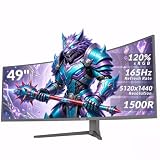
The ZZA 49-inch is the monitor that makes 32:9 accessible without a flagship budget. It delivers the same DQHD 5120×1440 resolution and 32:9 aspect ratio as the Odyssey G9, wraps it in a 1500R curve, and pushes the refresh rate to 165Hz — higher than the G9’s 144Hz. For a multitasking professional who wants the fused dual-monitor experience and does not need the top-tier HDR rating or brand flagship status, this is the pragmatic pick.
Who it suits: buyers who have decided they want 5120×1440 of horizontal workspace and are optimising for price-per-pixel rather than for premium badge, HDR performance or gaming pedigree. Also a strong option for a home office where the monitor will spend most of its life showing spreadsheets, dashboards and documents rather than HDR video.
Key specs
- Screen size: 49 inches, curved
- Resolution: DQHD 5120×1440
- Aspect ratio: 32:9
- Curvature: 1500R
- Refresh rate: 165Hz
- Adaptive sync: AMD FreeSync
- Colour: 120% sRGB coverage claim
- Stand: Height-adjustable
Strengths
The resolution and aspect ratio are identical to the premium pick, which is the core of the value argument. You get the full two-27-inch-1440p-panels canvas — the thing that actually changes how you work — at a mid-range price tier. If what you want from a 49-inch ultrawide is the window real estate and nothing else, there is no productivity task that the premium panel does better in any way you will notice during a working day.
The 165Hz refresh rate is, on paper, the highest in this roundup. In practice the meaningful threshold for productivity is crossing 120Hz, after which gains become progressively harder to perceive; but for anyone who also games on the same screen, having headroom above 144Hz is a genuine bonus, and AMD FreeSync will smooth out frame pacing across a wide range. As always, actual frame rates at 5120×1440 depend heavily on your GPU, the game, the resolution you choose to run and the current patch — treat any specific number you read elsewhere as approximate.
The height-adjustable stand is an underrated inclusion. A four-foot-wide monitor is only comfortable if you can set its vertical position correctly, and a stand that adjusts height lets you dial in eye level without buying an arm. The 1500R curve provides a gentler wrap than the very aggressive curves used on some 49-inch panels, which some users find easier on text at the far edges. The 120% sRGB coverage claim is sufficient for general productivity and most non-critical creative work.
Pros
- Full DQHD 5120×1440 and 32:9 at a mid-range price tier
- 165Hz refresh — highest here — with AMD FreeSync
- Height-adjustable stand included, which many rivals omit or restrict
- 1500R curve is a moderate wrap that suits mixed text and video work
- 120% sRGB coverage is adequate for general creative tasks
- Same window-management payoff as premium 49-inch panels
Cons
- DisplayHDR tier and panel tuning do not match the premium Odyssey G9
- Lesser-known brand means fewer firmware and support resources
- Roughly four feet wide and needs a deep desk, same as any 49-inch 32:9
- 165Hz is only meaningful if your GPU can feed it at this resolution
- Colour coverage claim falls short of what colour-critical work demands
How it compares with the nearest alternative
Against the Odyssey G9 (G91F), the ZZA is the value decision: identical resolution, identical aspect ratio, a higher refresh rate, a height-adjustable stand, and a lower price tier, in exchange for a lesser HDR rating and a non-flagship brand. If HDR quality matters for your work or your entertainment, pay for the G9. If you want the 32:9 workspace and nothing more, the ZZA is the efficient buy. Against the ViewFinity S50GC, the ZZA is a fundamentally different proposition — double the width, far more desk demand, and a higher price — but for anyone already planning a dual-monitor setup, the ZZA’s all-in cost can undercut two separate 27-inch 1440p displays plus their stands and cables.
5. Wixzet 14″ Laptop Screen Extender – Best Budget Companion for Laptop-Only Workers

The Wixzet 14-inch extender is the odd one out in this roundup, and deliberately so. It is not an ultrawide desktop monitor; it is a portable FHD 1080p panel that attaches to a laptop and gives you a second screen anywhere. It belongs here because the search for “ultrawide multitasking” often really means “I need more screen and I do not have a permanent desk” — and for that user, a 49-inch panel is the wrong answer at any price.
Who it suits: field workers, contractors, students and remote employees who work from whatever surface is available. Also a good fit as a second screen for someone whose primary monitor is already an ultrawide and who wants extra canvas while travelling, or as a first step for a user who is not yet sure an ultrawide is right for them and wants a cheap way to test whether more horizontal space actually changes how they work.
Key specs
- Screen size: 14 inches
- Resolution: FHD 1080p
- Form factor: Ultra-thin portable panel that attaches to a laptop
- Positioning: Companion display, not a primary desktop monitor
- Price tier: Budget
Strengths
The value proposition is portability. A desktop ultrawide is a fixture; this folds away with your laptop and gives you a second 1080p surface in a hotel room, a client site or a co-working desk. For anyone whose multitasking problem is “I am stuck on a single 14-inch laptop screen half the week,” the productivity gain from a second panel is proportionally larger than any upgrade between two desktop ultrawides, because you are going from one screen to two rather than from a wide screen to a wider one.
At 1080p on 14 inches, pixel density is reasonable and text is legible at normal laptop viewing distance, so it handles email, chat, reference documents and a browser window without strain. The ultra-thin design means it adds little bulk to a laptop bag, and the attach-to-laptop form factor means it needs no separate stand, no wall space and no desk depth — the exact constraints that rule out every other monitor on this list. It is also the cheapest way to answer the question “does a second screen actually make me more productive?” before committing four figures to a desk setup.
Pros
- Genuinely portable; works anywhere your laptop works
- Budget price tier — the lowest entry cost here by a wide margin
- FHD 1080p at 14 inches keeps text legible at laptop distance
- No stand, no desk footprint, no permanent installation
- Adds a second screen where a desktop monitor is impossible
- Useful complement to an existing ultrawide when travelling
Cons
- 1080p cannot match the vertical resolution or workspace of a 1440p ultrawide
- 14-inch size limits how many windows are comfortably usable
- Laptop-attached mounting depends on your laptop’s shape and hinge
- Not a substitute for a primary desktop monitor
- Two panels on one laptop can mean more cables and more battery draw
How it compares with the nearest alternative
Against the Samsung 34″ ViewFinity S50GC, the Wixzet is not a competitor but a complement — the S50GC stays on the desk and the Wixzet travels in the bag. If you must choose one, choose based on whether you have a fixed desk: with a permanent workspace the S50GC delivers far more usable canvas, while without one the Wixzet is the only option here that travels. For laptop-only users who cannot justify a desktop ultrawide, it is the honest budget answer.
How to Choose
Choosing an ultrawide for multitasking comes down to six variables: screen size, resolution, aspect ratio, text sharpness, connectivity and window-management features. Each one interacts with the others, and the right combination depends less on which monitor is “best” than on the width of your desk and the shape of your workflow.
Screen size: measure your desk width first
A 34-inch 21:9 monitor is roughly 32 inches wide including bezels — about the width of a 27-inch 16:9 monitor plus a bit. A 49-inch 32:9 monitor is roughly 45 to 47 inches wide, which is four feet of continuous screen. Before anything else, measure your desk. A 49-inch panel needs a surface at least five feet wide to leave room for speakers or a lamp, and you need enough depth to sit 30 to 40 inches back from it; at 24 inches of depth you will be craning to see the far corners. A 34-inch panel fits comfortably on a four-foot desk and works at 24 to 30 inches of viewing distance. If your desk is small, an ultrawide may be the wrong category entirely and a portable second panel is the better solution.
Resolution: match it to size, not to bragging rights
The two resolutions in this roundup are Ultra-WQHD at 3440×1440 and DQHD at 5120×1440. Note that they share the same vertical pixel count — 1440 — and differ only horizontally. That has three consequences worth internalising.
First, DQHD is not “sharper” in the sense of finer text; it distributes the same vertical density across a wider panel. On a 49-inch screen at 5120×1440 you get roughly the same pixel pitch as a 27-inch 1440p display, which is a comfortable, well-established density. On a 34-inch screen at 3440×1440 you get a slightly finer pitch, since the same 1440 vertical pixels are packed into a shorter height. Both are good for text; neither is a density upgrade over a 1440p 27-inch monitor.
Second, DQHD is a heavier workload for your GPU. A rough scaling exercise: it carries about 49% more pixels than 3440×1440 (5,120 × 1,440 = 7,372,800 versus 3,440 × 1,440 = 4,953,600). Driving that at high refresh rates in games requires correspondingly more graphics horsepower, and the exact frame rates you achieve will vary with your GPU, the game, the in-game resolution you select and the current patch. For desktop work this is irrelevant — any modern integrated or discrete GPU handles a 5120×1440 desktop — but it matters if the monitor will also serve for gaming.
Third, if you run a laptop with limited graphics capability, 3440×1440 is the safer resolution. It is easier to drive, easier to scale, and far less likely to leave you fighting with scaling on a machine that was not built for a canvas this wide.
Aspect ratio: 21:9 versus 32:9 is really a workflow question
This is the single most consequential decision and the one most often made for the wrong reason.
21:9 at 3440×1440 is a widened single workspace. Two documents fit side by side; a document plus a reference pane fits; a spreadsheet with a chat window alongside fits. What it does not do is give you two full desktops. Your main application still occupies the centre of your attention, and the extra width is peripheral space. It is the right choice for writers, editors, analysts and developers whose work is one primary task with supporting material around it.
32:9 at 5120×1440 is two workspaces fused. It is the right choice when you genuinely need two full-size applications visible at all times — a coding environment and a browser, a trading dashboard and a news feed, a video timeline and a preview — and you have been tolerating a bezel gap between two monitors to get it. If you are not currently running two monitors side by side, be cautious: a 32:9 panel only pays off if you will actually fill it.
A simple test: count the windows you keep open and glance at continuously. If the answer is two or three, 21:9 is enough. If the answer is four or more, 32:9 will earn its width. If the answer is one, an ultrawide is probably not your upgrade — a higher-resolution standard-ratio monitor might serve you better.
Text sharpness: the variables that actually matter
Sharpness of text is not a spec line you can read off directly. It is a product of pixel density, subpixel layout, panel type, curvature, viewing distance and operating-system scaling. On a 34-inch 3440×1440 flat panel, text at native resolution at 28 to 32 inches is crisp by any normal standard. On a curved panel, some users perceive slight softness toward the edges because the subpixel geometry rotates relative to your eye; this is usually subtle and often disappears entirely after a day of use, but if you do precision layout or spend all day reading long-form text, it is worth seeing a curved screen in person before buying.
The most common way people accidentally ruin text sharpness is scaling. Running a non-native resolution or an unusual scaling factor makes text look soft on any panel. Set the display to its native resolution — 3440×1440 or 5120×1440 — and adjust operating-system scaling in whole steps if you need larger text. On a 34-inch 3440×1440 panel at typical desk distance, most users are comfortable at 100% scaling; on a 49-inch 5120×1440, 100% also works for most people because the pixel pitch is comparable to a 27-inch 1440p display.
Panel type plays a part too, though it is worth being careful about claims here. IPS-family panels generally offer the widest viewing angles and most consistent colour, VA-family panels offer deeper contrast, and curved ultrawides are typically built on VA-type panels, which is one reason the curved picks in this list have strong contrast characteristics. For text specifically, a well-implemented panel of either family is fine; the anti-aliasing in your operating system and your font rendering settings will matter more than the panel family.
Connectivity: count the cables before you buy
This is the criterion most buyers underweight and later regret. Ask three questions.
How many devices will plug in? If you use a desktop tower, a single DisplayPort or HDMI run is all you need, and the budget pick is the efficient choice. If you use a laptop, USB-C with power delivery lets one cable carry video, USB peripherals and charging — which is exactly what the mid-range pick here provides, and it is the single most useful feature for hybrid workers.
What does your laptop output? Not every laptop’s USB-C port carries DisplayPort Alt Mode, and some cap external display resolution or refresh rate. Check your machine’s specification before assuming one cable will drive 5120×1440 at high refresh. Where a laptop cannot drive the full canvas, a lower resolution like 3440×1440 is the pragmatic target.
What is this monitor’s job in the long run? If it will eventually become the hub of a keyboard, mouse, webcam, external drive and Ethernet, buy for the port count you want in two years, not the one you need today. A monitor is typically replaced on a much longer cycle than a laptop, so the docking capability you choose now will outlast at least one computer.
Window-management features: the software half of the equation
Every ultrawide in this roundup will physically fit more windows; whether they organise themselves usefully is a software question, and it is worth setting up properly on day one. Windows 11’s Snap Layouts handle wide screens well, letting you park windows in thirds, halves and quarters. macOS lacks a native equivalent for very wide screens, so third-party window managers are close to essential there. On Linux, any tiling window manager will treat a 3440×1440 or 5120×1440 canvas as a natural grid.
Practical configuration worth doing immediately: set a custom grid of three equal columns on a 21:9 panel and four on a 32:9 panel, so your most-used arrangement is one keyboard shortcut away rather than a manual drag every morning. Then decide where your “attention” column sits — on a 32:9 panel, most users put the primary application in the centre and reference material on the outer thirds, because the centre of the screen is where your head naturally points.
Another setting worth adjusting on any ultrawide: enable a top-edge or corner snapping zone, and reduce the number of desktops you maintain. The benefit of a very wide canvas is that you stop switching contexts; if you keep five virtual desktops and still switch constantly, you have spent the money without collecting the productivity gain.
The decision matrix
Mapping your situation to a choice cuts through most of the ambiguity:
- Desktop tower, four-foot desk, two or three windows at a time: 34-inch Ultra-WQHD flat — the budget pick.
- Laptop docked daily, want one cable to do everything: 34-inch Ultra-WQHD curved with USB-C — the mid-range pick.
- Currently running two monitors, want to remove the bezel gap: 49-inch DQHD 32:9 — premium if HDR matters, mid-range if it does not.
- Work from a laptop and have no fixed desk: a portable attached second panel — the 14-inch extender.
- Small desk, tight depth: 34-inch maximum; a 49-inch panel will be uncomfortable and possibly unusable.
- Colour-critical work such as print or grading: prioritise a display with documented colour accuracy over width; the widest and cheapest panels here are tuned for office work, not colour precision.
What not to buy for
Two traps are worth naming explicitly. The first is buying width you will not use: a 49-inch 32:9 monitor costs more, occupies four feet of desk and demands a deeper viewing position, and if you end up running one maximised application on it you have paid a substantial premium for black bars. The second is buying an ultrawide for games and assuming it will suit your work. It will — the wide canvas is excellent for editing and coding — but only if you also want the gaming features, because you are paying for refresh rate and HDR capability that a document-heavy workflow never touches. Match the panel to the dominant use; the secondary use will be fine either way.
Frequently Asked Questions
Is a 34-inch or 49-inch ultrawide better for multitasking?
Neither is universally better; they solve different problems. A 34-inch 21:9 gives you a widened single workspace that suits one primary task plus reference material, and it fits a normal desk. A 49-inch 32:9 gives you two full desktops side by side with no bezel, which is what you want if you currently run two monitors. Choose by counting how many windows you keep visibly open at once: two or three points to 34 inches, four or more points to 49.
Will a 3440×1440 ultrawide make my text look blurry?
No, provided you run it at native resolution. At 3440×1440 on a 34-inch panel you get pixel density comfortably above what a 1080p 24-inch monitor offers, and most users find text crisp at normal viewing distance. Blurriness almost always comes from running a non-native resolution or unusual scaling. Set 3440×1440 natively and adjust operating-system scaling in whole steps if you want larger text.
Do I need USB-C on an ultrawide monitor?
Only if you dock a laptop. USB-C with power delivery lets a single cable carry video, USB peripherals and charging, which removes the need for a separate dock and dramatically reduces desk clutter. If you use a desktop tower, DisplayPort or HDMI is entirely sufficient and you can save money by skipping USB-C models. For hybrid workers who move between desks, USB-C is usually the feature that justifies the mid-range step up.
Can a 49-inch 32:9 monitor really replace two monitors?
Yes, if you choose a DQHD 5120×1440 model. That resolution is effectively two 27-inch 1440p panels placed edge to edge, and because it keeps 1440 pixels of vertical height, you lose nothing vertically. You gain a continuous surface with no bezel gap and one set of cables. What it cannot replace is two monitors on separate machines at separate viewing angles, or a setup where you deliberately want two physical screens.
What graphics card do I need to drive 5120×1440?
For desktop work — documents, browsers, spreadsheets, video calls — almost any modern integrated or discrete graphics will drive a 5120×1440 desktop without difficulty. Gaming at that resolution is a different matter and demands a serious GPU; exact frame rates will vary with your card, the game, the resolution you select in-game and the current patch, so treat published figures as approximate. If your laptop has modest graphics, 3440×1440 is the more comfortable target.
Is a curved or flat ultrawide better for reading and writing?
On a 34-inch panel the difference is modest and largely a matter of preference; flat panels avoid the faint edge softness some users notice on curves and are easier to pair with a second display. On a 49-inch 32:9 panel, curvature is close to essential because it keeps four feet of screen within a comfortable viewing arc. If your work is precision layout or long-form reading, try to see a curved panel before buying.
How much desk depth do I need for an ultrawide?
A 34-inch ultrawide is comfortable with 24 to 30 inches of depth, which most desks provide. A 49-inch 32:9 monitor needs more — aim for 30 to 40 inches so you can sit back and take in the outer thirds without turning your head, and allow at least five feet of width on the surface. If your desk is shallow, either size will be less comfortable than a standard monitor, and the portable option may suit you better.
Does a higher refresh rate matter for office work?
More than most buyers expect, though with diminishing returns. Moving above 60Hz makes scrolling, cursor movement and window dragging noticeably smoother across a wide canvas, and 100Hz to 120Hz is where the improvement becomes clearly perceptible for everyday tasks. Beyond roughly 144Hz the gains for productivity are marginal; those extra hertz mainly benefit gaming. For a document-heavy workflow, anything at 100Hz or above is comfortably sufficient.
Closing Recommendation by Situation
If you have a desktop PC and a normal desk: the Samsung 34″ ViewFinity S50GC is the right buy. Ultra-WQHD on 34 inches is the best balance of workspace, text sharpness and footprint, and the budget price tier leaves room in your budget for a monitor arm that will improve it more than any upgrade would.
If you work from a laptop and want one cable to rule the desk: take the Samsung 34″ ViewFinity S65UC. The USB-C connection turns the monitor into your dock, and the curved Ultra-WQHD panel is the same proven canvas as the budget pick.
If you are replacing two monitors and HDR matters to you: the Samsung 49-inch Odyssey G9 (G91F) is the premium answer, with 144Hz and DisplayHDR 600 making it useful for entertainment as well as work.
If you want 32:9 workspace without the flagship premium: the ZZA 49-inch DQHD delivers the same 5120×1440 resolution, a higher 165Hz refresh and a height-adjustable stand at a mid-range price tier. It is the efficient way to get the fused dual-desktop experience.
If you have no fixed desk at all: the Wixzet 14″ Laptop Screen Extender is the honest recommendation, and if you later settle at a permanent desk, a 34-inch Ultra-WQHD panel is the natural next step rather than a 49-inch one.