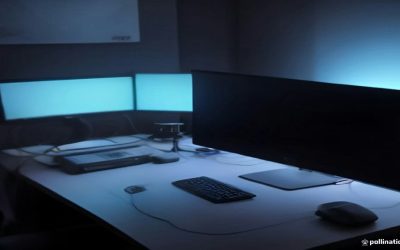
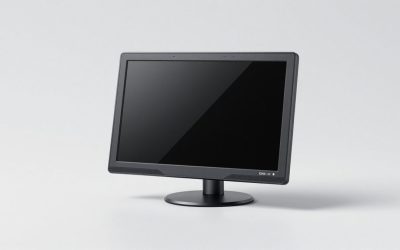
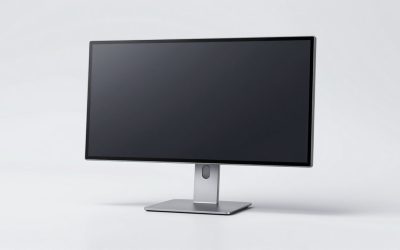
“Large screen desktop computer” usually means one of two things: an all-in-one PC with a big display built in, or a regular tower paired with a large monitor. If you already own a decent PC, buying a separate large monitor is almost always the better move. You get to choose panel type, refresh rate, and size independently, and you’re not stuck replacing an entire computer when the screen eventually feels dated. This guide focuses on picking that large display, since the monitor is what actually determines how the setup looks and feels day to day.
How big is too big
On a desk, 27 inches is the comfortable baseline, 32 inches is the practical ceiling for most people sitting 60-80cm away, and anything past 34 inches (especially ultrawides) starts to need either a deep desk or a monitor arm to push the screen back far enough that you’re not swiveling your head to read the corners. If you want “large” in the sense of immersive, an ultrawide or 32-inch 4K panel is the sweet spot. If you want “large” in the sense of a TV-like experience for media and casual use, a 40-43 inch 4K display works, but text scaling and desk space become real issues.
Resolution has to scale with size. A 32-inch monitor at 1080p looks visibly soft because the pixels are stretched thin, you’ll see individual pixels on text edges. The same panel size needs at least 1440p to look sharp, and 4K if you’re doing detailed photo or video work. Below is a rough guide for what resolution suits which size.
| Screen size | Minimum resolution for sharp text | Ideal resolution |
|---|---|---|
| 27″ | 1080p (usable) | 1440p |
| 32″ | 1440p | 4K |
| 34″ ultrawide | 1440p ultrawide (3440×1440) | same, 4K ultrawide is rare and expensive |
| 40-43″ | 4K | 4K (nothing higher is practical at normal viewing distance) |
Panel types, and what actually goes wrong with each
Panel type matters more than brand name for how the screen will actually behave day to day.
IPS is the safe default. Colors look consistent from almost any viewing angle, which matters a lot on a 32-inch-plus screen since the edges are off-axis from where you’re sitting. The failure mode is “IPS glow,” a slight haze in dark scenes that’s most visible in a dark room. Fine for office work, general browsing, and most gaming.
VA panels get you deeper blacks and higher contrast, which looks great in movies and dark games. The trade-off is slower pixel response, so fast motion can smear a bit, and colors shift noticeably if you’re off-center, which is a real concern on a wide curved screen where the edges are angled away from you.
OLED has the best contrast and color of the three, true blacks, no glow, fast response. Two things to know before buying one: burn-in risk from static elements (taskbars, HUDs) left on screen for extended periods, and the fact that OLED monitors in large sizes are still a meaningful price jump over IPS or VA. If you mostly browse and do office work with a static taskbar visible all day, that’s the one scenario where I’d actually pick IPS over OLED despite OLED’s better picture.
If you’re shopping by panel type first and size second, it’s worth browsing listings directly, something like 32-inch 4K IPS monitors gives you a sense of current pricing before you lock in a decision.
Refresh rate: when it matters and when it doesn’t
Refresh rate is the one spec that’s genuinely wasted on the wrong use case. A 60Hz panel is completely fine for spreadsheets, writing, browsing, and video playback, there’s no visible benefit to more. Where it matters is fast motion: competitive gaming, scrolling long documents or code, and general mouse movement, which feels noticeably smoother at 144Hz and up.
The catch at large sizes is that high refresh rate 4K panels need a GPU strong enough to actually push that many frames at that resolution, otherwise you’ve paid for a spec you can’t use. A 165Hz 4K monitor paired with a mid-range graphics card will often run games closer to 60-90fps anyway, meaning you paid the OLED-or-high-refresh premium for headroom you’re not using yet. If your card is a few years old, a 32-inch 1440p 144Hz monitor is the more honest buy than jumping straight to 4K.
For anyone building this out from scratch rather than reusing an old tower, it’s worth looking at desktop PC and large monitor bundles rather than buying the two separately, since bundled deals sometimes undercut buying each piece on its own.
Who should buy what
Office and general use, no gaming: a 27 or 32-inch IPS panel at 1440p, 60-75Hz. You will not notice the difference from a higher refresh rate panel in this use case, so don’t pay for one.
Gaming on a mid-range GPU: 32-inch 1440p, IPS or VA, 144-165Hz. This is the price-to-performance sweet spot right now, and the panel size still fits most desks without a monitor arm.
Gaming or content creation on a high-end GPU: 32-inch 4K OLED or a 34-inch ultrawide at 1440p, 144Hz-plus. You have the horsepower to actually use the refresh rate and resolution, so it’s not wasted spend.
Media, multitasking, casual use where sharpness for text matters less: 40-43 inch 4K. Great as a shared screen or a work-from-home setup with lots of windows open side by side, but check your desk depth first, these need distance to not feel oversized. Browsing 43-inch 4K monitors will show you how much desk space these actually need before committing.
FAQ
Is a bigger screen always better for productivity?
Not past a point. Past about 32 inches without a curve, you start turning your head or neck to see the edges, which gets uncomfortable over a full workday. An ultrawide curved panel or a 32-inch flat panel is usually the limit for comfortable all-day use at a normal desk distance.
Will a large monitor cause eye strain?
Screen size itself isn’t the main driver, viewing distance, brightness, and how often you look away matter more. If you’re having eye discomfort, it’s worth checking your distance and lighting setup first, and seeing an eye doctor if it persists, since that’s not something a monitor spec sheet can diagnose.
Do I need 4K if I’m just going to use it for Word and web browsing?
No. 1440p at 27-32 inches already looks sharp for text and browsing. 4K adds cost and requires more GPU power to drive at higher refresh rates, with little visible benefit for document work.
Can I just buy an all-in-one PC instead of a monitor plus tower?
You can, but you lose the ability to upgrade the GPU or swap the display later, and if either part fails, the whole unit usually goes in for repair. A separate tower and monitor costs about the same and gives you more flexibility long term.