If you find Xbox Game Bar not recording, the usual cause is that Game Bar does not recognize the window as a game (it will not record the Windows desktop or File Explorer), capture settings are switched off, another capture app is holding the video encoder, or a graphics driver problem is blocking the hardware encoder. Start by opening the game in focus, pressing Win + Alt + R, and checking Settings, Gaming, Captures; that fixes most cases in a minute.
- Xbox Game Bar not recording: the common causes
- Quick checks before deeper fixes
- Fix 1: Check the capture settings in Windows 11
- Fix 2: Make Game Bar recognize the game
- Fix 3: Close apps competing for the video encoder
- Fix 4: Repair, reset and allow background activity
- Fix 5: Update or reinstall the graphics driver
- Fix 6: Laptops with two GPUs
- Fix 7: Fix audio problems in recordings
- Fix 8: Check policies on work or school PCs
- Game bar not recording the desktop? Use Snipping Tool
- Frequently asked questions
This guide works through the fixes from quickest to most involved, explains each error message, and lists the capture settings that give reliable clips on Windows 11. If you have been asking “why can’t I record Xbox Game Bar clips anymore,” work down the list in order and stop when recording starts.
Key takeaways
- Game Bar only records a focused game or app window, never the desktop or File Explorer; use the Snipping Tool’s screen recorder for those.
- Win + Alt + R starts and stops a recording; Win + Alt + G saves the last moments only if background recording (“Record what happened”) is on.
- Low disk space on the Captures drive or another app using the GPU encoder (OBS, NVIDIA App, AMD Software) commonly blocks recording.
- Repair or Reset the Game Bar app under Settings, Apps, Installed apps, and allow it to run in the background.
- “This PC doesn’t meet the hardware requirements” usually points to a graphics driver problem or a missing hardware video encoder.
Xbox Game Bar not recording: the common causes
| What you see | Likely cause | Fix |
|---|---|---|
| “Gaming features aren’t available for the Windows desktop or File Explorer” | No game window in focus | Click into the game first, or use Snipping Tool to record the desktop |
| Record button greyed out | App not recognized as a game, or capture disabled | Enable “Remember this is a game” in Game Bar settings; check Captures settings |
| “Can’t record right now. Try again later.” | Encoder busy, app switched mid-session, temporary glitch | Close other capture apps, restart the game, restart Game Bar |
| “This PC doesn’t meet the hardware requirements for recording clips” | GPU driver issue or no supported hardware encoder | Clean-install the latest graphics driver; check the GPU supports video encoding |
| Win + Alt + G does nothing | Background recording is off | Turn on “Record what happened” in Settings, Gaming, Captures |
| Clip saves but is black | Wrong GPU on a laptop, protected content, overlay conflict | Set the game to the high-performance GPU; disable other overlays |
| Clip has no sound | Game audio capture off or microphone blocked | Turn on audio capture; allow microphone access |
| Recording stops or never saves | Captures drive full | Free space or move the Captures folder to another drive |
Quick checks before deeper fixes
- Click inside the game window. Game Bar records the app that has focus. If you press the shortcut while on the desktop, you get the desktop error message.
- Use the right shortcut. Win + Alt + R starts and stops recording. Win + Alt + G records what just happened, which only works with background recording enabled. Win + G opens the overlay so you can use the Capture widget.
- Open the Capture widget. Press Win + G, and if the Capture widget is not visible, open it from the Widget menu on the top bar. The record button and its status message tell you more than the shortcut does.
- Try windowed or borderless mode. Some games running in exclusive fullscreen interact badly with overlays. Switching to borderless windowed in the game’s display settings often lets recording start.
- Restart the game and Game Bar. A recording session can get stuck after alt-tabbing. Close the game, then restart the PC if the button stays greyed out.
Fix 1: Check the capture settings in Windows 11
Capture options live in the Settings app. Microsoft occasionally moves or renames toggles between Windows 11 versions, so if a label looks slightly different, look for the nearest equivalent.
- Open Settings (Win + I) and select Gaming.
- Select Captures.
- Check the Captures location. This is where clips are saved, by default the Videos, Captures folder in your user profile. Make sure that drive has free space.
- Turn on Record what happened if you want Win + Alt + G to save the last few seconds or minutes.
- Set the maximum recording length (options typically range from 30 minutes to 4 hours).
- Turn on Capture audio when recording a game and choose whether to include the microphone.
- Set Video frame rate and Video quality. If recording fails on an older GPU, try 30 fps and Standard quality first.
Also open Settings, Gaming, Xbox Game Bar. On recent Windows 11 builds, the toggle there may only control whether a controller button opens Game Bar, so Win + G is the more reliable way to confirm the overlay works.
| Setting | Reliable choice | Why |
|---|---|---|
| Video frame rate | 60 fps on modern GPUs, 30 fps on older or low-power ones | Lower frame rate reduces encoder load |
| Video quality | Standard first, High once it works | High raises bitrate and file size |
| Record what happened | On, with a short window (for example 30 seconds) | Needed for Win + Alt + G clips; short windows use fewer resources |
| Max recording length | 1 hour unless you need longer | Long recordings fill disks quickly |
| Capture mouse cursor | Off for most games | Avoids an extra cursor overlay in clips |
| Free space on Captures drive | Keep at least 10-20 GB free | A full drive stops recording without much warning |
Fix 2: Make Game Bar recognize the game
Game Bar decides whether an app is a game. Launchers, emulators and some smaller games are not always detected, which greys out the record button.
- Start the game and click into it.
- Press Win + G to open Game Bar.
- Open Settings (the gear icon) inside Game Bar.
- Under General, tick Remember this is a game if it appears.
- Close the overlay and press Win + Alt + R.
Fix 3: Close apps competing for the video encoder
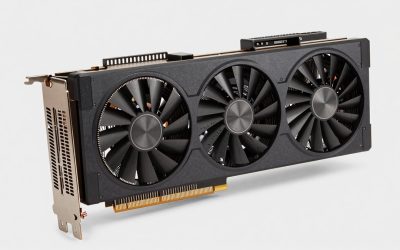
Game Bar uses your GPU’s hardware encoder (NVIDIA NVENC, AMD’s encoder or Intel Quick Sync). Other tools use the same hardware, and conflicts can stop Game Bar from recording.
- Close OBS Studio, Streamlabs, Discord streaming, and similar capture or streaming apps.
- Turn off Instant Replay in the NVIDIA App, or Instant Replay in AMD Software, while you use Game Bar.
- Disable other overlays (Steam, Discord, MSI Afterburner/RivaTuner) temporarily to see whether one is interfering.
Fix 4: Repair, reset and allow background activity
- Open Settings, Apps, Installed apps.
- Find Game Bar (it may be listed as Xbox Game Bar), open the three-dot menu and choose Advanced options.
- If a Background apps permissions option is shown, set it to Always or Power optimized, not Never. Game Bar needs to run in the background to capture.
- Select Terminate, then Repair. Repair keeps your settings. Try recording again.
- If it still fails, select Reset. This clears Game Bar’s app data and settings, so recheck your capture options afterward.
- Open the Microsoft Store, go to Library and install any updates for Game Bar and the Gaming Services component.
Fix 5: Update or reinstall the graphics driver
The “doesn’t meet the hardware requirements” message and black recordings often trace back to the graphics driver. Download the newest driver directly from NVIDIA, AMD or Intel rather than relying only on Windows Update, and choose the clean-install option if the installer offers it. Restart the PC afterward.
Very old or very low-end GPUs may lack a supported hardware encoder. In that case, Game Bar cannot record clips at all, and software-encoding tools are the alternative.
Fix 6: Laptops with two GPUs
Gaming laptops switch between integrated and dedicated graphics. If a game runs on one GPU while Game Bar tries to capture from another, clips can fail or come out black.
- Open Settings, System, Display, Graphics.
- Find the game in the list (or add it with Browse).
- Set its GPU preference to High performance.
- Restart the game and record again.
Fix 7: Fix audio problems in recordings
- In Settings, Gaming, Captures, make sure game audio capture is on.
- In Settings, Privacy & security, Microphone, allow microphone access, including for desktop apps, if you want your voice in clips.
- In the Game Bar Audio widget, check that the correct output device is selected.
- If you use a USB headset with its own software, set it as the default device in Windows sound settings.
Fix 8: Check policies on work or school PCs
On managed PCs, administrators can disable game recording. If the Captures options are missing or locked, the setting “Enables or disables Windows Game Recording and Broadcasting” may be turned off by policy (found in the Group Policy Editor under Windows Components, Windows Game Recording and Broadcasting). On a PC you own, setting it to Not configured or Enabled restores recording. On a work device, ask your IT team rather than changing it.
Game bar not recording the desktop? Use Snipping Tool
Xbox Game Bar is designed for games and single app windows. For the desktop, File Explorer or multiple windows, use the Snipping Tool’s recording mode, which in current Windows 11 builds can be opened with Win + Shift + R or by selecting the video camera icon in Snipping Tool. For long sessions, streaming or multi-source recording, dedicated tools such as OBS Studio offer more control.
Frequently asked questions
Why can’t I record with Xbox Game Bar?
The most common reasons are that no game window is in focus, the record option is greyed out because Game Bar does not recognize the app as a game, another app is using the GPU encoder, or the graphics driver needs reinstalling. Work through the fixes in order, starting with focus and Captures settings.
Why does Xbox Game Bar say “Can’t record right now”?
This usually means the encoder is busy or the session got stuck after switching windows. Close other recording and streaming apps, restart the game, and if needed repair Game Bar in Installed apps.
Can Xbox Game Bar record my desktop?
No. Game Bar will not record the Windows desktop or File Explorer. Use the Snipping Tool screen recorder or a dedicated recording app for that.
Where does Xbox Game Bar save recordings?
By default, in the Captures folder inside your Videos folder. You can open it from Settings, Gaming, Captures, or from the Gallery widget in Game Bar.
Why is my Game Bar recording black?
Black clips usually come from a laptop recording the wrong GPU, a driver issue, or protected video content. Set the game to the high-performance GPU, update the graphics driver and try borderless windowed mode.
Why doesn’t Win + Alt + G save a clip?
That shortcut saves recent gameplay only when background recording (“Record what happened”) is on in Settings, Gaming, Captures. Turn it on and choose how far back it should keep footage.
Does Xbox Game Bar lower FPS while recording?
Recording uses the GPU’s hardware encoder, so the impact is usually small, but it varies with the GPU, resolution and quality setting. Background recording adds a constant small load; turn it off if you need every frame.