

- Top Pick: TP-Link TL-SG105 5-Port Gigabit Switch
- Runner-up: NETGEAR GS308 8-Port Gigabit Switch
- Also consider: NETGEAR GS316 16-Port Gigabit Switch
The second gaming machine in a house has always come with a tax: every game you already own has to be downloaded again before it can be played. On a fast connection that is an annoyance. On a slow or metered one, it decides what you play this week. Valve’s answer has been sitting inside the Steam client since 2023, and it works on Linux as elsewhere: when you install a game, Steam first looks around your own network to see whether another of your machines already has the files.
The feature is called Local Network Game Transfers, and it turns an installed copy on one PC into the source for the next one. Nothing is copied by hand and no folders are shared. The receiving client asks, the source client serves, and whatever the local copy cannot provide quietly comes from Valve’s content servers instead. This explainer covers what actually moves, the settings that govern it, the conditions that silently disable it, and the modest gear that makes the wired path work.
As an Amazon Associate, we earn from qualifying purchases.
Quick answer
Yes: Steam’s Local Network Game Transfers work on the Linux client and on Steam Deck. When you install or update a game, Steam checks whether another client on your network already holds the files and copies them over instead of downloading. Both clients must be online, signed in, and have the transfer setting enabled, and the source machine must be idle. Anything missing still downloads normally.
What actually moves across the wire
Valve’s documentation is precise about the payload: the transfer carries game installation and update content from the original installation on the source machine — the same content a content server would deliver, sourced from a disk in your house. The receiving client verifies what arrives against the expected game content before installing it.
Just as important is what does not move. Per Valve’s documentation, local saves, configuration files, Workshop content, Steam Cloud files and shader files are excluded from the transfer. Progress still travels through Steam Cloud where the game supports it. The Proton prefix a game built up on the source machine stays there too, so a Windows game arriving on a Linux target still creates its own prefix and compiles its own shaders. The transfer replaces the download, not the setup.
It also transfers no rights. The receiving account must already be able to install the game in the usual way; the feature moves files, never licences. Borrowing a housemate’s library is Steam Families’ job, a separate system with its own rules.
The setting, and its four levels of trust
One control governs everything: Steam, then Settings, then Downloads, where the Game File Transfer over Local Network option lives. The setting is bidirectional — a client allowed to receive local files may also send them under the same policy — and it offers four levels:
- Off. The client neither looks for local sources nor offers its own installs to anyone.
- Only my own devices. Transfers run only between devices signed in to the same Steam account. This is the default, and it covers the common two-PCs-one-owner household with no further thought.
- Only my friends. Devices signed in by people on your Steam friends list, on the same network, can exchange files with yours.
- Any user. Any Steam client on the local network can transfer to or from this device. Sensible at a LAN party, generous anywhere else.
On Linux the control sits in the same place as on other platforms, and the Deck exposes it in its own Downloads settings. There is no separate Linux switch or beta requirement; a current stable client on both ends is the whole software prerequisite.
The conditions that silently decide whether it happens
Most failed transfers are not failures at all. The feature simply declines, invisibly, and the install proceeds as an ordinary download. Valve’s stated conditions explain nearly every case. Both clients must be online and able to see each other directly on the same local network; a client in offline mode neither sends nor receives. The game content on the source must be fully up to date, because the source serves its installed build. The game must be publicly released — preloaded, unreleased content cannot be distributed this way. And the source client must be idle: a machine that is downloading something else, or running a game, will not serve files.
Network shape matters as much as settings. The two clients need to discover each other on the LAN, which means access-point isolation on a guest network, a VPN tunnel that swallows local traffic, or a strict desktop firewall can each hide one machine from the other. If the two machines cannot see each other as local network neighbours, Steam cannot introduce them either.
The Steam Deck as source and target
A Steam Deck is a participant in both directions. A desktop with the game installed can serve a Deck that is installing it, and a Deck holding the only copy in the house can serve a desktop — handy when the Deck’s library was built up first. The Deck condition worth remembering is sleep: a suspended Deck is not an online client, so wake it and leave Steam open on both ends while the transfer runs.
The Deck also exposes the feature’s hardware caveat. Its only network path, undocked, is Wi-Fi, and a wireless hop is usually the slowest part of any transfer route. Docked, or through a USB-C Ethernet adapter, the same Deck joins the wired path and the bottleneck moves back to the drives.
Why a transfer stalls, slows down, or becomes a download
Valve built the fallback in from the start: if the connection is lost, or the source runs out of content to offer, the receiving client downloads the remainder from public content servers. A transfer that becomes a download halfway is the system working as designed. The common triggers are mundane. The source machine starts a game or another download and stops serving. The source’s copy turns out to be an older build, so only part of the content matches. One machine drops off the network, sleeps, or roams to a different access point.
Speed deserves honesty rather than numbers. A local transfer can never outrun the slowest element in its path: the source drive reading, the target drive writing, and the network link between them. Put both machines on Wi-Fi and the wireless link is normally that element, well below what the same machines would do over cable. Wire both ends into the same switch and the drives become the limit instead. That is why the gear below is unglamorous: ports, cable and one adapter are what the feature rewards.
The wired path: five pieces of ordinary network gear
TP-Link TL-SG105 5-Port Gigabit Switch
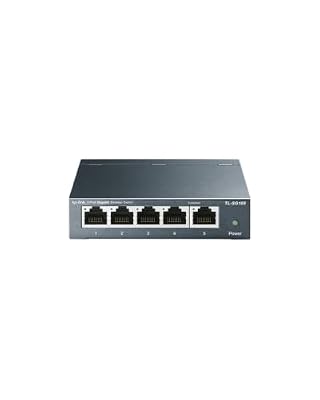
The smallest useful upgrade for a desk with two machines. Five gigabit ports wire a PC, a second PC or laptop, a Deck dock and an uplink to the router into one local segment, so transfers stay on the switch instead of crossing Wi-Fi. Unmanaged and fanless: nothing to configure, nothing to hear.
Specs
- Ports: 5 gigabit Ethernet ports
- Type: unmanaged desktop switch
- Housing: metal, fanless design
- Setup: plug and play, no configuration software
NETGEAR GS308 8-Port Gigabit Switch

The same idea with headroom. Eight ports suit a desk that also holds a NAS, a TV box or a third machine, and the extra ports cost nothing in complexity: the GS308 is unmanaged and silent. For households that keep adding wired devices, this tier stops the port counting.
Specs
- Ports: 8 gigabit Ethernet ports
- Model: GS308-300PAS
- Type: unmanaged, plug and play
- Housing: metal, fanless, desktop or wall mount
NETGEAR GS316 16-Port Gigabit Switch

Sixteen ports is living-room or home-office infrastructure rather than a desk accessory: every console, PC, Deck dock and access point on one switch, with the router reduced to an uplink. It remains an unmanaged, fanless box — capacity without a management interface to maintain.
Specs
- Ports: 16 gigabit Ethernet ports
- Type: unmanaged desktop switch
- Housing: metal, fanless design
- Setup: plug and play, no configuration software
Amazon Basics RJ45 Cat-6 Ethernet Cable, 25 Feet

A switch only helps the machines plugged into it, and the run from a desk to a router or between rooms is usually the missing piece. This 25-foot Cat 6 patch cable is rated by its maker for gigabit networks, with gold-plated RJ45 connectors at both ends. Length, not category, is what most home runs get wrong.
Specs
- Category: Cat 6 patch cable
- Length: 25 feet
- Connectors: RJ45, gold-plated
- Rating: made for gigabit Ethernet networks
Anker PowerExpand USB-C to Gigabit Ethernet Adapter

For machines with no Ethernet port at all — most thin laptops, and the Steam Deck through a dock — this adapter is the on-ramp to the wired path. It presents as a standard USB network adapter, so Linux and SteamOS handle it without vendor software.
Specs
- Connector: USB-C to RJ45 Ethernet
- Speeds: 10, 100 and 1000 megabit Ethernet
- Model: A8313
- Driver model: standard USB networking, no vendor app required
How to choose
Choose by household shape, not by enthusiasm. Two machines at one desk need the small switch, two cables and nothing else; add the USB-C adapter if one of them is a portless laptop or a Deck. A desk that already runs a NAS or a third machine belongs on the eight-port tier. Sixteen ports only make sense when the switch is becoming the room’s permanent wiring point. The transfer feature is free and already installed, so spend only on removing the wireless hop between the two machines you move games between most.
Who should skip this
Skip the whole topic if your household has one gaming machine; there is no second client to transfer with. Skip it if your connection is fast and unmetered and your library is small — the download may only take minutes anyway. Households where every device must stay wireless will see the feature work, but rarely at its best. And anyone hoping to use transfers to play games an account does not own should look at Steam Families instead; this feature will not help, by design.
FAQ
Does the source PC have to be switched on and idle?
Yes. Its Steam client must be online, and Valve’s condition is that the transferring client is idle: not downloading and not running a game. A sleeping or suspended machine cannot serve files.
Do saves and settings transfer with the game?
No. Valve’s documentation excludes local saves, configuration files, Workshop content, Steam Cloud files and shader files. Saves still sync through Steam Cloud where supported, and a Proton game builds its own prefix and shaders on the new machine.
Can I transfer games to a friend’s PC on my network?
Only if both clients’ permission settings allow it: the friends level covers devices signed in by your Steam friends. Even then, the transfer moves files only; your friend’s account must still own the game to install and play it.
Why did my transfer turn into a normal download?
Because that is the designed fallback. If the source disconnects, stops being idle, or lacks part of the content, the receiving client downloads the remainder from Valve’s content servers.
Final verdict
Local Network Game Transfers are the rare Steam feature that asks for nothing and removes a real cost: the second full download. On Linux it behaves identically to everywhere else, governed by one settings page, a short list of conditions, and an honest fallback. Respect the idle rule, and wire the two machines you use most into the same switch. After that, installing a game you already own somewhere in the house stops being an internet event at all.










