

- Top Pick: SanDisk 128GB Extreme PRO USB 3.2 Solid State Flash Drive
- Runner-up: Samsung 870 EVO 1TB SATA SSD
- Also consider: havit HV-F2056 Laptop Cooling Pad
A laptop that feels too slow for modern work is rarely too slow for the consoles of the eighties, nineties and early two-thousands. Those systems ran on processors a fraction as powerful as a tired office notebook, and their emulators are mature, efficient software. The catch is the operating system around them: a decade of startup programs, updates and background services makes a capable machine feel finished.
As an Amazon Associate, we earn from qualifying purchases.
This guide takes the other route. Instead of upgrading parts or tolerating a bloated system, it repurposes the laptop as-is into a dedicated emulation machine, using one of three operating system routes. Everything here assumes you play backups of games you own, with BIOS files from your own consoles where an emulator needs them.
This article contains affiliate links, and purchases made through them may earn a commission at no extra cost to you.
Quick Answer
Yes: an old 64-bit laptop makes a fine emulation machine without buying parts. Boot Batocera from a USB stick to test without touching the installed system, install a lightweight Linux for a permanent setup, or strip Windows back and add a frontend. Expect everything up to PS1 easily, PS2 and GameCube on stronger machines, PS3 only on the newest old laptops.
Pre-Flight Checks Before You Commit an Evening
Four checks decide whether the project is worth starting. First, the processor must be 64-bit: every current emulation operating system and nearly every maintained emulator is 64-bit only, so a 32-bit-only machine is a stop sign, not a challenge. Second, confirm the laptop can boot from USB — enter the BIOS or UEFI setup, or the one-time boot menu, and look for a USB device in the boot order. The Batocera route depends on it.
Third, be honest about the battery. Many old laptops hold little charge, and that is fine here: a dedicated machine lives plugged in beside a television. A swollen battery is different — a safety problem to fix or remove first. Fourth, heat. Old laptops clog with dust and their thermal paste dries out, so expect fan noise under load. Compressed air and a cooling pad help; a machine that was always hot-running has a real limit, covered below.
The Three Routes, Compared Honestly
Route One: Batocera Booted From USB
Batocera is a Linux-based system built solely for retro gaming, and its x86_64 image is designed to be written to a USB stick or external drive and booted from it, leaving the laptop’s internal drive and installed system untouched. That makes this the zero-risk first step: flash the image with a tool such as balenaEtcher, as Batocera’s documentation describes, boot from USB, and the machine wakes up as a console-style frontend with emulators already integrated.
The trade-offs are real. Everything lives on the USB device, so a slow stick makes a slow system — a fast solid-state flash drive matters here. Some laptop Wi-Fi cards have patchy Linux driver support, and settings live inside Batocera’s menus rather than each emulator’s familiar interface. But for reversibility and setup speed, nothing else comes close.
Route Two: A Lightweight Linux Install
Installing a lightweight Linux distribution on the internal drive is the permanent version of the same idea. The system boots straight into a lean desktop or directly into RetroArch or a frontend, with standalone emulators like DuckStation, PCSX2 and Dolphin alongside. You gain full control over each emulator’s settings and easier file management, and with so little else running, weak integrated graphics go further.
The cost is commitment. Installing Linux normally replaces what is on the drive, so back up anything that matters first, and expect a learning curve if you have never used it.
Route Three: Keep Windows, Strip It Back
The third route keeps the existing Windows installation and turns it single-purpose by subtraction: uninstall everything unrelated, clear the startup list, install standalone emulators plus a frontend such as LaunchBox or RetroBat, and set the frontend to launch at sign-in. It is the least disruptive route for a laptop that still does occasional laptop duty, and Windows driver support for odd hardware is the best of the three.
It is also the least transformed. Windows still spends resources on itself, updates arrive on their own schedule, and the machine never quite becomes the appliance the other routes produce. Choose it for convenience, not maximum performance.
What Each Era of Laptop Can Actually Run
Judge capability by the emulator projects’ own published requirements, not by hope. The classic era — NES, SNES, Genesis, Game Boy lines, home computers — asks so little that any 64-bit laptop handles it at full speed through RetroArch cores or Batocera’s built-in emulators. The first 3D generation is nearly as safe: DuckStation’s documented requirements ask for a CPU with SSE4.1 support and graphics handling OpenGL 3.3 or Vulkan, which describes most laptops from roughly a decade ago, and PPSSPP’s requirements are lighter still.
PS2 and GameCube are the honest borderline. PCSX2 publishes a tiered requirements list whose minimum tier calls for a PassMark single-thread score around 1,500, with much higher figures for demanding games, and Dolphin expects a reasonably modern CPU with OpenGL 3 or DirectX 11 class graphics. A later quad-core laptop with Iris Xe or Vega graphics clears that bar for many titles at native resolution; an older dual-core with early Intel HD graphics does not, and no route here changes that arithmetic.
PS3 is where old laptops stop. RPCS3’s quickstart documentation recommends modern multi-core processors with strong per-core performance, and its documentation prefers AVX-512 support where available — an instruction set no old laptop processor offers. Only the newest old laptops may run the lightest PS3 titles.
Living-Room Hookup: HDMI and Controllers
A dedicated machine earns its keep beside the television. Most laptops of the relevant eras have a full-size HDMI port, so the hookup is one cable, with the laptop’s screen set to switch off when the external display takes over. Set the television to its game or PC picture mode so its processing adds no delay.
Controllers matter more than cables. A wired pad has zero pairing friction and no battery to die mid-session; Bluetooth pads keep the couch cable-free and pair fine with all three routes. Map frontend hotkeys — exit, save state, load state — to controller combinations before guests arrive, because no route makes a keyboard trip across the room feel elegant.
The Honest Limits
Repurposing has ceilings no software route removes. Fans under sustained load are audible in a quiet room, and a machine that thermal-throttles will stutter in exactly the demanding scenes you built it for. A battery holding minutes of charge makes it a fixed appliance, not a portable, and suspend behaviour varies by route and hardware, so expect the occasional full boot rather than console-style instant wake. The capability tiers above are ceilings, not averages: a laptop that runs some PS2 games will still meet PS2 games it cannot run. None of that cancels the project — it defines it: a free second life for hardware you already own, playing the generations it can genuinely handle.
Gear That Helps the Conversion
SanDisk 128GB Extreme PRO USB 3.2 Solid State Flash Drive

The Batocera route lives or dies on its boot media, and this solid-state flash drive is the sensible stick: SSD-class speeds in a thumb-drive body, so the system and your library load without the pauses cheap sticks cause.
Specs:
– Capacity: 128 GB
– Model: SDCZ880-128G-GAM46
– Interface: USB 3.2
– Maker-stated read speed: up to 420 MB/s
Samsung 870 EVO 1TB SATA SSD
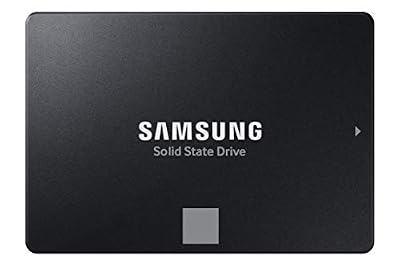
For the Linux or stripped-Windows routes, replacing a mechanical hard drive with this SATA SSD makes an old laptop feel new: fast boots, fast loading, and silence where the old drive clicked.
Specs:
– Capacity: 1 TB, 2.5-inch form factor
– Model: MZ-77E1T0B/AM
– Interface: SATA III 6 Gb/s
– Maker-stated speeds: up to 560 MB/s read, 530 MB/s write
havit HV-F2056 Laptop Cooling Pad

A cooling pad attacks the honest limits directly: three fans under a metal mesh surface push air into the laptop’s underside intakes, powered from a USB port, so long sessions run cooler than on a bare table.
Specs:
– Model: HV-F2056
– Fit: laptops from 15.6 to 17 inches
– Fans: 3 fans at 110 mm, 1100 RPM class
– Airflow: 65 CFM as listed
– Power: USB, 5V DC, with 2 USB ports
– Dimensions: 14.96 x 1.18 x 11.02 inches
8BitDo Pro 2 Bluetooth Controller (Hall Effect)
A pad with a retro silhouette and modern internals: Hall Effect sticks resist drift over years of living-room duty, and it connects over Bluetooth or USB-C to whichever route you chose.
Specs:
– Sticks: Hall Effect joysticks
– Extras: 2 back paddle buttons
– Connection: Bluetooth or USB-C wired
– Battery: 1000mAh rechargeable, maker-stated 20 play hours
Xbox Wireless Controller, Carbon Black

The path of least resistance on the Windows route and fully supported on Linux: it pairs over Bluetooth, and its button layout is the one most emulators assume by default.
Specs:
– Model: QAT-00001
– Connectivity: Bluetooth and USB-C
– Controls: hybrid D-pad, Share button, textured grip on triggers and bumpers
– Audio: 3.5mm headset jack
– Power: 2 AA batteries
How to Choose
Choose the Batocera USB route to test the idea tonight with a full retreat path, or if the laptop must return to normal duty afterwards. Choose the lightweight Linux install if the laptop is permanently retired and you want the most from weak hardware with full per-emulator control. Choose stripped Windows if the laptop still does occasional ordinary tasks or its hardware has stubborn driver needs. Whichever route you take, do the pre-flight checks first and size expectations by the capability tiers.
Who Should Skip
Skip this project if your laptop is 32-bit only, if its battery is swollen, or if it overheats in ordinary use even after cleaning — fix or retire hardware like that instead. Skip it if your actual goal is PS3, Wii U or Switch emulation, because the honest answer there is newer hardware. And skip it if the laptop is still someone’s daily machine whose files matter: the USB route is the only one that leaves it untouched, and even that deserves a backup first.
FAQ
Will Batocera erase my laptop’s hard drive?
No. Batocera boots and runs entirely from the USB device you flash it to, and the internal drive stays untouched. Remove the stick, reboot, and the laptop starts its normal system as before.
Can an old laptop run PS2 games?
Some can. PCSX2’s published minimum tier calls for a PassMark single-thread score around 1,500, which later quad-core laptops with modern integrated graphics can reach for lighter titles at native resolution. Older dual-core machines fall short regardless of route, while everything up to PS1 runs comfortably on almost any 64-bit machine.
Do I need a new battery for a laptop that stays plugged in?
Usually not. A dedicated machine beside a television lives on mains power, and a tired battery is mostly irrelevant there. The exception is a swollen battery, which is a safety hazard: have it removed or replaced before using the laptop at all.
Is this legal?
Emulators are legal software, and this guide assumes you play backups of games you own, dumping BIOS files from your own consoles where an emulator requires them. Nothing here involves downloading games or system files: the legal route is your own discs and cartridges.
Final Verdict
An old laptop is not an emulation machine waiting for parts; it is one waiting for a decision about its operating system. Batocera on a fast USB stick proves the concept in an evening with zero risk, a lightweight Linux install makes it permanent and lean, and stripped Windows keeps one foot in the familiar. Match the route to how retired the laptop is, and hardware headed for a drawer becomes an honest retro console.










