Logitech’s Powerplay system charges a compatible mouse continuously while you use it, using a plastic puck module that clips into the mouse and receives power wirelessly from a coil grid built into the mouse pad. You never dock the mouse or plug it in — the charging happens under your hand, mid-click, mid-game.
As an Amazon Associate we earn from qualifying purchases at no extra cost to you.


How the Powerplay base actually works
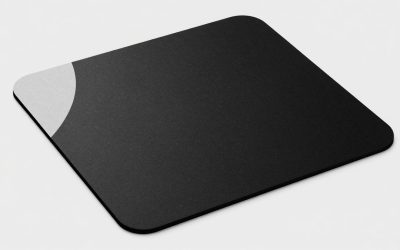
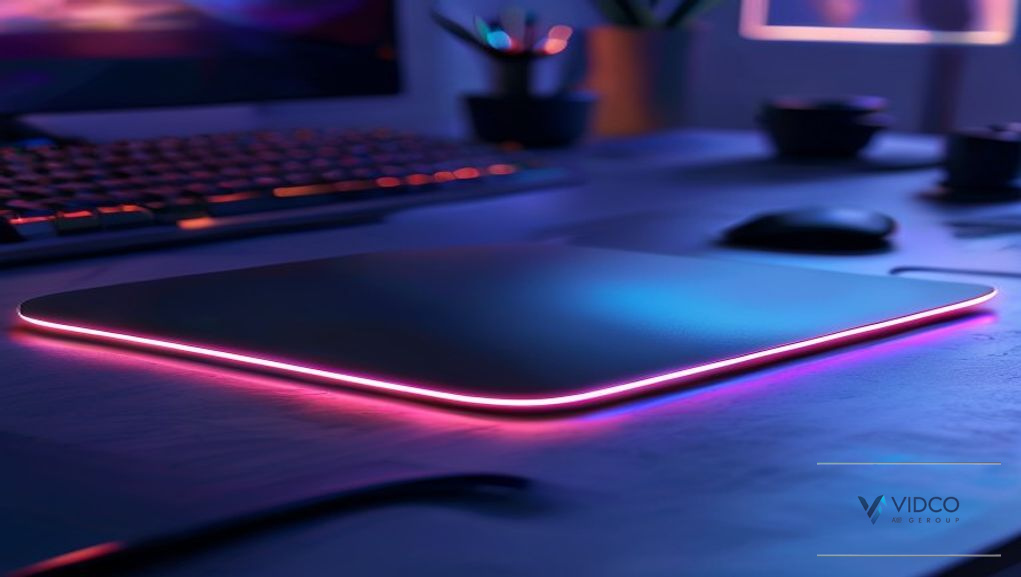
The base is a thin hard plastic module, roughly the size of a tablet, that connects to your PC over USB and to a wall outlet or a second USB port for power. Inside it are an array of overlapping coils that generate a shifting magnetic field. When a compatible mouse (fitted with the small Powerplay module that snaps into its battery compartment) passes over the coils, the receiver coil in the puck induces a current, which trickles power into the mouse’s battery. Logitech’s own figures put the transfer at roughly 1W, which is enough to offset normal use but not enough to fast-charge a depleted battery from empty.
The base also acts as the USB receiver for Logitech’s Lightspeed wireless protocol, so the mouse connects to the base rather than a separate dongle. That’s one reason people search for a wireless mouse with charging dock instead of just a charging pad — Powerplay is really both at once: a dock that never requires docking, plus the wireless receiver in one unit.
Cloth and hard surface swaps
The base ships with a mounting plate that holds a surface on top of the coil grid. Logitech sells (and originally bundled) two surface types:
- Cloth surface — a fabric mousepad-style top, better for control-sensitive aim and lower glide speed, similar to a standard cloth pad.
- Hard surface — a smooth polymer top with a slicker, more consistent glide, closer to a glass or hard plastic pad.
Both attach to the base with a removable adhesive-backed backing plate that aligns using magnets or clips depending on the base revision, so swapping takes under a minute and doesn’t require re-pairing the mouse. The charging coils don’t care which surface is on top — the field passes through cloth or hard polymer without meaningful loss, since neither material is a good conductor that would block the magnetic field.
Which mice accept the Powerplay module
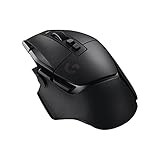
Not every Logitech mouse works with Powerplay. You need a mouse with a Powerplay-compatible battery bay that accepts the small receiver puck (sold separately if you buy the mouse and base separately, or bundled in some kits). Historically this includes the G903, G703, and later Lightspeed-generation mice built with the Powerplay bay molded into the underside. Newer Lightspeed mice released without that bay — including most compact and lightweight models optimized for minimum shell weight — do not accept the puck at all, because there’s no cavity for it and no contact pins routed to the battery.
| Mouse category | Powerplay puck compatible | Why |
|---|---|---|
| Legacy Powerplay-bay mice (G903/G703-class) | Yes | Molded cavity + contact pins built in |
| Ultra-lightweight competitive mice (sub-60g shells) | No | No room for puck without adding weight/height Logitech won’t accept on these models |
| Standard Lightspeed mice without a listed Powerplay bay | No | Shell wasn’t designed with the coil receiver or pin contacts |
| Third-party or other-brand mice | No | Proprietary pin layout and induction protocol are Logitech-specific |
Before buying a base on its own, check the specific mouse’s product page for “Powerplay compatible” — Logitech doesn’t retrofit older or newer mice that weren’t designed for the bay, and there’s no universal adapter that fits every shell.
The 2mm surface height and why it matters for sensor tracking
The coil grid and its housing add about 2mm of thickness under whichever surface you mount, which is thicker than a typical cloth pad on its own (usually 3-4mm) but roughly in line with a hard pad on a mouse bungee setup. That 2mm doesn’t affect sensor tracking, since the optical sensor reads the surface texture directly beneath the mouse regardless of what’s underneath the pad — but it does change desk ergonomics slightly. If you’re used to a slim cloth pad sitting almost flush with your desk, the base sits noticeably higher, which can affect wrist angle for players who rest their palm heavily.
Cable routing is built into the design: the USB cable runs from the back edge of the base through a small channel molded into the underside, so it exits flush rather than creating a lump under the pad. If you’re running the base near a keyboard or a second monitor stand, route the cable along the same edge as your other peripheral cables so it doesn’t create tension that lifts the corner of the pad off the desk — a lifted corner is the most common cause of intermittent charging drop-outs, since it increases the air gap between the coils and the puck.
Does continuous charging hurt battery life?
This is the real concern for anyone leaving a mouse on the pad 8+ hours a day, and the short answer is: not meaningfully, because Powerplay’s charging circuit is designed to trickle-charge rather than hold the battery at a forced 100%.
Here’s the actual math. A typical Powerplay-compatible mouse uses a roughly 200mAh lithium-polymer cell. Lithium cells lose a small amount of capacity per full charge cycle — figure roughly 20% capacity loss after 300-500 full cycles under normal charge/discharge behavior, per typical lithium-ion degradation curves. But Powerplay doesn’t push a full charge cycle each session. Because the mouse is topped up continuously at ~1W while you use maybe 0.3-0.5W during active tracking, the battery mostly hovers in a partial-charge band rather than swinging from empty to full. Partial-cycle charging is actually gentler on a lithium cell than repeated 0-100% cycles, because the depth of discharge per cycle is what drives most degradation, not the total time spent charging.
Rough estimate: if a mouse would normally do one full 0-100% cycle every 3-4 days of moderate gaming use, continuous Powerplay charging cuts that to shallow 10-20% fluctuations throughout the day — meaning it may take 3-5x longer to accumulate the equivalent stress of one full cycle. In practical terms, most users won’t notice measurable capacity loss within a normal 2-3 year mouse ownership window, and Logitech’s firmware caps charge voltage to avoid overcharging stress once the cell nears full.
Setup checklist
- Confirm your mouse model lists Powerplay compatibility before buying the base alone.
- Seat the puck module firmly in the battery bay — a loose puck is the top cause of “not charging” complaints.
- Keep the base’s USB cable on a low-tension path so no corner lifts off the desk.
- Pick cloth for control-heavy aim styles, hard surface for faster flick-heavy play.
- Don’t expect fast charging from empty — plan on plugging the mouse into USB-C directly if the battery drops critically low, since the 1W trickle rate charges slower than active use can drain a fully dead cell.