

You can still go live with your gameplay on Facebook in 2026, but the route has changed. The standalone Facebook Gaming app is gone, so gaming streams now run through Facebook Live, built into the main Facebook app and website. The setup is OBS Studio, a free encoder, sending your game to Live Producer.
The whole process takes about fifteen minutes once your gear is connected: create the live video in Live Producer, choose streaming software as the source, copy the server URL and stream key into OBS, start streaming, then press Go Live in Facebook.
As an Amazon Associate, we earn from qualifying purchases.
Quick Answer
Go live on Facebook Gaming through Facebook Live, not a separate app. Open Live Producer, choose Streaming software as the video source, copy the Server URL and Stream key into OBS Studio, then start streaming in OBS and click Go Live in Facebook. Stream at 1080p or 720p, 30 or 60 frames per second. A webcam, a USB microphone, and a capture card for console play cover the gear.
How to Go Live on Facebook Gaming with OBS
OBS Studio is free, open-source broadcasting software, and it is the standard way to send a gaming stream to Facebook Live. The workflow has two halves: Facebook creates a slot for your broadcast, and OBS fills it.
Step 1: Open Facebook Live Producer. On a desktop browser, open Facebook and start a live video from your profile, Page, or group. Facebook opens Live Producer, its live video control room.
Step 2: Choose Streaming software as the video source. In Live Producer, choose Streaming software as the video source. Facebook then displays a Server URL and a Stream key for this broadcast. Keep the stream key private: anyone with it can send video to your broadcast.
Step 3: Connect OBS to Facebook. Open OBS Studio, go to Settings, then Stream. Select Facebook Live as the service, or choose Custom to paste the Server URL by hand. Paste the Server URL and Stream key from Live Producer into the matching fields, then click Apply and OK.
Step 4: Build your scene. Add a Game Capture source for the game, a Video Capture Device source for your webcam, and an Audio Input Capture source for your microphone. Put the webcam over a corner of the game and check the audio meters move when you speak. A short test recording catches framing and volume problems before anyone watches.
Step 5: Start streaming, then go live. Click Start Streaming in OBS. Switch back to Live Producer and wait for the preview to appear. Add your title and description, confirm the audience, and click Go Live. When you finish, click End Live Video in Facebook, then Stop Streaming in OBS.
Step 6: Reuse the key for regular streams. Live Producer offers a persistent stream key option. Turn it on if you stream on a schedule; use a fresh key per stream if anyone else has ever seen the old one.
What No Longer Exists
Search results still point at guides written for a Facebook Gaming that no longer exists in that form. Meta shut down the standalone Facebook Gaming app for iOS and Android on October 28, 2022, just over two years after it launched. The app stopped working that day and left the app stores. Gaming did not disappear with it: streams, groups, and game videos moved into the Gaming section of the main Facebook app and website.
Facebook ended its live shopping feature on October 1, 2022, so live shopping events no longer exist on the platform. And the mobile game streaming that the old Facebook Gaming app made easy from a phone has no matching one-tap path in the main Facebook app. A phone can still go live with its camera through Facebook Live, but a proper gaming broadcast with game capture, overlays, and a webcam belongs on a PC with OBS.
None of this means Facebook Gaming is dead. It means the name now describes gaming content inside Facebook rather than a separate app. Anyone promising a dedicated Facebook Gaming streaming app in 2026 is describing something that does not exist.
Facebook Live Settings That Work
Facebook lists a short set of technical requirements for live video, and OBS ships a Facebook Live service profile that matches them.
Resolution and frame rate. Facebook accepts 1080p or 720p at 30 or 60 frames per second. Start at 1080p at 30, and drop to 720p at 30 if the stream stutters. For fast games, 720p at 60 is a better trade than a choppy 1080p feed.
Video codec and bitrate. Use H.264 video, the codec in the OBS Facebook Live profile. That profile lists a maximum bitrate of 9000 kilobits per second and a maximum of 60 frames per second. A stable upload connection matters more than a fast download, because streaming pushes video out of your home.
Account age. Meta requires Facebook accounts to be at least 60 days old before they can go live. If the Go Live button is missing on a new account, age is the usual reason.
Audio. Capture your microphone and desktop game audio as separate sources in OBS, so you can lower the game volume without touching your voice. Listen back on headphones before going live.
Gear for a Facebook Live Gaming Stream
Four pieces of gear cover the setup: a webcam, a microphone, a capture card for console play, and a light.
Logitech C922x Pro Stream Webcam
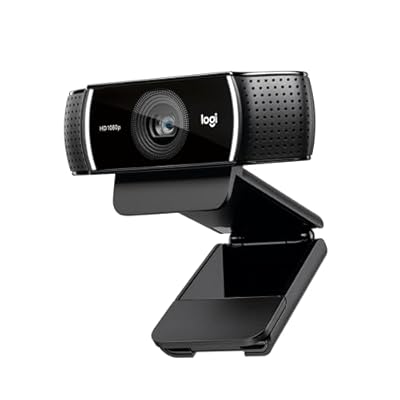
The C922x is the streaming-focused version of the long-running C920 line: full HD at 30 frames per second, or 720p at 60 for smoother motion. Autofocus keeps your face sharp as you lean in and out, and HD light correction lifts the image in dim rooms. The universal clip mounts on a monitor or a tripod, and it works with OBS as a standard video capture device.
| Spec | Detail |
|---|---|
| ASIN | B01LXCDPPK |
| Model | 960-001176 |
| Resolution | 1080p at 30 fps, 720p at 60 fps |
| Focus | Autofocus |
| Field of view | 78 degrees |
| Connection | USB-A |
| Mount | Monitor clip, tripod-ready |
Blue Yeti USB Microphone

The Blue Yeti is the default USB microphone for first-time streamers: plug-and-play, on its own adjustable desktop stand, with four pickup patterns on a dial. Cardioid is the pattern for solo streaming, because it picks up your voice and rejects sound from behind the mic. Bidirectional suits two people on a couch, omnidirectional suits a round table, and stereo suits music. Gain, mute, and headphone volume controls sit on the mic itself.
| Spec | Detail |
|---|---|
| ASIN | B002VA464S |
| Model | 988-000103 |
| Type | Three-capsule condenser array |
| Pickup patterns | Cardioid, bidirectional, omnidirectional, stereo |
| Frequency response | 20 Hz to 20 kHz |
| Connection | USB |
| Controls | Gain, mute, headphone volume |
Elgato Game Capture 4K X

Console players need a capture card, because OBS cannot see a PlayStation or Xbox directly. The 4K X is Elgato’s current external card, capturing up to 4K at 144 frames per second over HDMI 2.1, with variable refresh rate and HDR10 pass-through, so the display still gets the full-quality signal. It connects over USB 3.2 Gen 2 and appears in OBS as a video capture device. If you only play PC games, do not buy this: OBS game capture does the same job for free.
| Spec | Detail |
|---|---|
| ASIN | B0CPFWXMBL |
| Model | 20GBH9901 |
| Capture | Up to 4K at 144 fps |
| Input | HDMI 2.1 |
| Features | VRR pass-through, HDR10 |
| Connection | USB 3.2 Gen 2 |
| Software | Works in OBS as a video capture device |
Neewer 55W 18-Inch Ring Light Kit RL-18

Webcams look far worse in a dim room than their spec sheets suggest, and a ring light is the cheapest fix. The Neewer RL-18 is an 18-inch dimmable daylight ring light at 5600K, which keeps skin tones neutral. The kit includes a tripod stand, a phone holder, a soft tube diffuser, and a carrying bag.
| Spec | Detail |
|---|---|
| ASIN | B0784SSRZS |
| Model | RL-18 |
| Power | 55W |
| Color temperature | 5600K daylight |
| Size | 18-inch ring |
| Dimming | Dimmable |
| In the box | Tripod stand, phone holder, soft tube, carrying bag |
How to Choose
Match the gear to how you actually stream. PC-only players need a webcam, a microphone, and a light, and nothing else. Console players add a capture card, and should check that it passes through the refresh rate and HDR their display uses. Spend first on the microphone, because viewers forgive a soft picture far sooner than muddy voice. Fast shooters should favor 60 frames per second at 720p over 30 at 1080p. Buy the light before upgrading the webcam: a budget webcam in good light beats a premium webcam in a dark room.
Who Should Skip
Facebook Live is not the best home for every streamer. Skip it if your audience already lives on Twitch or YouTube, since both platforms surface live gaming far more aggressively than Facebook’s feed does. Skip the capture card if you only play PC games, as OBS captures them directly. Skip the ring light if you already stream in a bright room with daylight on your face. And skip streaming until your account is at least 60 days old, since Meta blocks live video on newer accounts.
Frequently Asked Questions
Can you still go live on Facebook Gaming?
Yes. The standalone Facebook Gaming app closed on October 28, 2022, but gaming streams continue through Facebook Live inside the main Facebook app and on the Facebook website. Open Live Producer, choose Streaming software as the video source, connect OBS with the server URL and stream key, and click Go Live.
Do I need a capture card to stream PC games on Facebook?
No. OBS Studio captures PC games directly with its Game Capture source, so a capture card adds nothing for PC-only streaming. A capture card is only needed for console games, because OBS cannot see a PlayStation or Xbox without one.
What settings should I use for Facebook Live?
Stream at 1080p or 720p, at 30 or 60 frames per second, with H.264 video. The OBS Facebook Live profile lists a maximum video bitrate of 9000 kilobits per second. Start at 1080p at 30 frames per second and drop to 720p if the stream stutters.
Why can’t I go live on Facebook?
The most common reasons are an account younger than 60 days, a mistyped stream key, or OBS set to the wrong streaming service. Meta requires accounts to be at least 60 days old before they can go live. If the account is old enough, copy a fresh server URL and stream key from Live Producer.
Final Verdict
Going live on Facebook Gaming means going live on Facebook Live, and the setup is simpler than the old app era suggested. OBS Studio is free, Live Producer hands you a server URL and stream key, and the settings are a short list: 1080p or 720p, 30 or 60 frames per second, H.264. Start with a webcam, a USB microphone, and a light, and add a capture card only if you play on console.







