- Top Pick: ASUS Dual NVIDIA GeForce RTX 5060 8GB GDDR7 OC Edition (PCIe 5.0, 8GB GDDR7, DLSS 4, HDMI 2.1b, DisplayPort 2.1b, 2.5-Slot Design, Axial-tech Fan Design, 0dB Technology), 3 Year Warranty
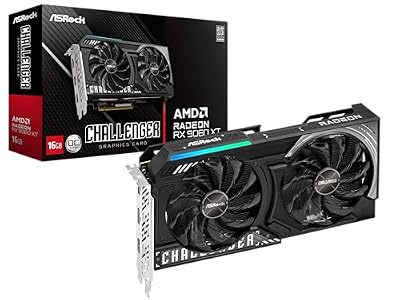
- Best Value: ASRock Radeon RX 9060 XT Challenger 16GB OC, RDNA 4, 3290MHz Boost, 16GB GDDR6 128-bit, PCIe 5.0, Dual Fans, 0dB Silent, LED Indicator, DisplayPort 2.1a, HDMI 2.1b
- Premium Choice: Patriot Viper Venom DDR5 RAM 32GB (2X16GB) 6000MHz CL30 Desktop Memory
To fix FPS drops in Ready or Not, first work out which kind of drop you have: hitching on a fresh map points to shader compilation, a sudden collapse after an update points to stale mods or caches, steady low FPS indoors points to VRAM or heavy effects, and drops only during shootouts point to a CPU limit. Each has a different fix, and applying them in the order below solves most cases without guesswork.
- Step 1: Identify the type of FPS drop
- Step 2: Update and use VOID’s official workarounds
- Step 3: Rebuild shaders after updates
- Step 4: Clear out stale mods
- Step 5: Fix GPU and VRAM limits
- Step 6: Handle CPU-bound drops in shootouts
- Step 7: Smooth out what remains with a frame cap
- Quick checklist
- Still Dropping Frames? When an Upgrade Makes Sense
Step 1: Identify the type of FPS drop
Turn on an overlay that shows both frame rate and frame time (Steam’s performance overlay or your GPU vendor’s overlay) and also watch GPU and CPU usage. Then match what you see to this table.
| Symptom | Likely cause | Quick check | Fix section |
|---|---|---|---|
| Hitches of 50–200 ms in the first minutes of a new map, then smooth | Shader compilation | Replay the same map; hitches shrink the second time | Step 3 |
| FPS fell sharply right after a game or driver update | Stale shader cache or outdated mods | Disable all mods and compare | Steps 3 and 4 |
| Whole session slow from launch, every map | Known start-up performance issue | Toggle the graphics preset and back | Step 2 |
| Low FPS indoors, GPU usage near 99% | GPU-bound: shadows, effects, resolution | Lower resolution scale; FPS rises | Step 5 |
| Stutter when turning, VRAM near full | VRAM overflow | Overlay shows VRAM at or above card capacity | Step 5 |
| Drops only during shootouts with many suspects, GPU usage falls | CPU-bound: AI, physics, audio | Lowering resolution changes nothing | Step 6 |
Step 2: Update and use VOID’s official workarounds
Several FPS problems in recent versions were level-specific bugs rather than settings issues, so check that you are on the newest build before tuning anything.
- The Boiling Point release (v1.4.1, March 2026) listed a known issue where performance can be significantly worse on start-up. VOID’s workaround: switch the graphics preset to a different preset, then switch it back. It has to be repeated each launch while the issue is present.
- The same notes flagged major performance issues caused by the rubber ducks on No Good Deed. Patch v1.4.2 fixed that, along with sprinklers causing performance issues on A New America.
- The v1.5.2 Mission Editor update (September 2026) fixed performance issues when firing shotguns at certain surface materials.
- v1.4.1 also improved performance for hosts of near-full multiplayer lobbies and fixed audio-related memory leaks, so an old build can genuinely run worse in co-op.
If your drops are tied to one map or one weapon, compare against the latest changelog before you rebuild your whole configuration.
Step 3: Rebuild shaders after updates
Ready or Not moved to Unreal Engine 5 in 2024, and like most Unreal titles it compiles shaders as new materials appear. After a game patch or GPU driver update, old cached shaders can be invalid and new ones have to be built mid-match, which shows up as sharp hitches.
- NVIDIA: in NVIDIA Control Panel, open Manage 3D Settings and set Shader Cache Size to a large value such as 10 GB or Unlimited so compiled shaders are not evicted. If drops began right after an update, clear the cache once, then let it rebuild.
- AMD: in AMD Software: Adrenalin Edition, use Reset Shader Cache under the graphics advanced options after a major game update.
- Use DirectX 12. Community reports have favored DX12 for Ready or Not. If an older guide had you add -dx11 to the Steam launch options, remove it.
- Expect the first 10–15 minutes after a cache reset to hitch while shaders rebuild. Running a single-player mission on each map you play shortens that window before co-op.
Step 4: Clear out stale mods
VOID’s own update FAQ warns that mods using old game files usually break after a patch. Broken or duplicated mods are one of the most common causes of sudden FPS collapses, and of odd mouse lag. Disable every mod, then test. If the problem disappears, re-enable mods one by one. Players have also reported that a leftover mod.io folder in Ready Or Not\ReadyOrNot\Content\Paks, which an update failed to clean, caused severe drops; moving that folder out of the game directory restored normal frame rates for them. Back it up first, since it holds your installed mods, then verify the game files in Steam.
Step 5: Fix GPU and VRAM limits
The official minimum is a GTX 960 2GB or R7 370 2GB with 8 GB of RAM, and the recommended tier is a GTX 1060 6GB with a Ryzen 5 1600 or Core i5-7600K. Those targets assume roughly 1080p at 30 and 60 FPS respectively, so anything near them needs reduced settings. Size textures to your VRAM first, because overflow causes stutter rather than a lower but stable frame rate.
| Setting group | 2–4 GB VRAM | 6 GB VRAM | 8 GB+ VRAM |
|---|---|---|---|
| Texture quality | Low–Medium | Medium–High | High |
| Shadows | Low | Medium | High |
| Effects (smoke, gas, flashbangs) | Low | Medium | Medium–High |
| Ambient occlusion | Off | Low | Medium |
| Screen space reflections | Off | Off–Low | Medium |
| Post processing | Low | Medium | Medium |
| Motion blur | Off | Off | Off |
| Upscaling | Quality or Balanced | Quality | Quality or native |
Ready or Not’s interiors stack dynamic lights, smoke, gas, and flashbang particles in small rooms, so shadows and effects are the settings most likely to cause sudden dips when a breach goes loud. Lower those before you lower resolution. If an upscaler such as DLSS causes shimmering or instability on your system, switch it off and use the game’s standard anti-aliasing instead; some players have resolved drops that way.
Step 6: Handle CPU-bound drops in shootouts
When FPS drops during firefights with several suspects and civilians while GPU usage falls, the CPU is processing AI, physics, and audio, and no graphics setting will fully fix it. What helps:
- Close browsers, launchers, and capture tools you are not using, and disable extra overlays.
- Use the Windows Balanced or High Performance power plan rather than a power-saving plan, and on laptops make sure the charger is connected.
- Run RAM in dual channel at its rated XMP or EXPO speed. Single-channel memory is a common hidden CPU bottleneck in Unreal titles.
- In co-op, let the player with the strongest CPU host, since the host also handles extra simulation work.
Step 7: Smooth out what remains with a frame cap
Frame time is what you feel. A swing between 120 FPS and 60 FPS is a doubling of frame time, which reads as stutter even though both numbers sound fine. Capping a few frames below what your system holds in heavy scenes keeps frame times flat.
| Frame rate | Frame time | Reasonable cap if this is your heavy-scene minimum |
|---|---|---|
| 60 FPS | 16.7 ms | 58 FPS with VRR, or 60 with V-Sync |
| 90 FPS | 11.1 ms | 87 FPS |
| 120 FPS | 8.3 ms | 116 FPS |
| 144 FPS | 6.9 ms | 140 FPS |
| 165 FPS | 6.1 ms | 160 FPS |
For example, if a 144 Hz monitor shows 140 FPS in hallways but 85 FPS in a smoke-filled breach, a cap of about 87 FPS feels smoother overall than letting the frame rate swing. Pair the cap with G-Sync or FreeSync for tear-free output without the extra latency of traditional V-Sync.
Quick checklist
- Latest build installed; graphics preset toggled if the session starts slow.
- Shader cache enlarged or reset after updates, DX12 in use.
- All mods disabled while diagnosing.
- Textures matched to VRAM; shadows and effects lowered first.
- Background apps closed, RAM in dual channel, frame cap set.
Still Dropping Frames? When an Upgrade Makes Sense
If Ready or Not still stutters or falls below your monitor’s refresh rate after every fix above, the limit is usually the graphics card or system memory rather than a setting. These are common upgrade paths for that situation.
As an Amazon Associate we earn from qualifying purchases at no extra cost to you.