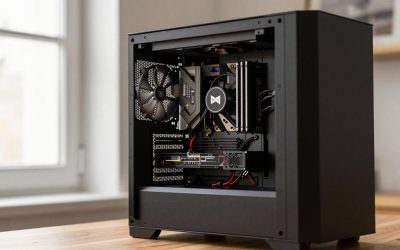
- Top Pick: ASUS Dual NVIDIA GeForce RTX 5060 8GB GDDR7 OC Edition (PCIe 5.0, 8GB GDDR7, DLSS 4, HDMI 2.1b, DisplayPort 2.1b, 2.5-Slot Design, Axial-tech Fan Design, 0dB Technology), 3 Year Warranty
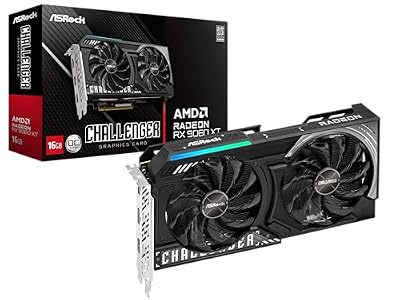
- Best Value: ASRock Radeon RX 9060 XT Challenger 16GB OC, RDNA 4, 3290MHz Boost, 16GB GDDR6 128-bit, PCIe 5.0, Dual Fans, 0dB Silent, LED Indicator, DisplayPort 2.1a, HDMI 2.1b
- Premium Choice: Patriot Viper Venom DDR5 RAM 32GB (2X16GB) 6000MHz CL30 Desktop Memory
To fix FPS drops in Fortnite, identify whether the problem is shader compilation, a CPU limit, thermal throttling, background software, or unstable graphics settings, then change one variable at a time and retest in the same type of match.
- 1. Check whether the drop is a one-time shader-compilation stutter
- 2. Use the right rendering mode for your hardware
- 3. Find out whether the CPU or GPU is causing the drop
- 4. Stop thermal throttling before changing graphics settings
- 5. Remove background processes and overlays
- 6. Stabilize Fortnite’s graphics settings
- 7. Update, verify, and reset only what is necessary
- When the problem is probably hardware
- Still Dropping Frames? When an Upgrade Makes Sense
1. Check whether the drop is a one-time shader-compilation stutter
Fortnite can compile DirectX 12 shaders when you first launch the game, install a major patch, update your graphics driver, or visit new areas. During compilation, the game may freeze briefly or produce repeated stutters even when your average FPS looks high.
DX12 usually gives access to modern rendering features and can perform well after its shader cache is built, but the first sessions after a change can be uneven. Do not judge the result from the first few minutes.
- Launch Fortnite and remain in the lobby for a minute or two.
- Play several minutes in the same mode and visit different areas so more shaders are encountered.
- Restart the game and check whether the same hitching remains.
- Keep the same driver, resolution, and graphics settings while testing.
If stutters began immediately after a driver or Fortnite update, allow a few matches for caching before making major changes. If the issue continues, close Fortnite and clear the Windows DirectX Shader Cache through Settings > System > Storage > Temporary files. Select the DirectX Shader Cache, restart Windows, and let Fortnite rebuild it. A shader cache rebuild can make the first launch slower again, so do not repeatedly delete the cache after every stutter.
2. Use the right rendering mode for your hardware
Fortnite’s rendering mode changes the type of bottleneck your PC encounters. A powerful graphics card paired with a modest processor may benefit from a lower-latency, lower-detail mode, while a modern CPU and GPU can use DX12 more effectively after shaders finish compiling.
| Situation | Starting choice | Why |
|---|---|---|
| Older or entry-level PC, inconsistent frame pacing | Performance mode | Reduces graphical workload and often lowers GPU pressure |
| Mid-range PC with recurring DX12 stutter after updates | DX12, then allow shader caching | May become smoother after initial compilation |
| CPU-limited PC at very high FPS | Performance mode with a sensible FPS cap | Reduces simulation and draw-call pressure |
| GPU-limited PC at native resolution | DX12 with reduced resolution or upscaling | Preserves features while lowering pixel workload |
After changing rendering mode, restart Fortnite. Do not compare a freshly switched DX12 session with a fully cached Performance Mode session and assume the mode itself caused every difference.
3. Find out whether the CPU or GPU is causing the drop
Turn on Fortnite’s performance statistics and watch the frame-time behavior during a match. The important clue is not only the FPS number, but which component is fully occupied when frames fall.
- GPU near 95–100%: lower resolution, 3D resolution, shadows, effects, view distance, or hardware-intensive features.
- GPU well below full usage while FPS is low: the CPU, memory, game thread, shader compilation, or another process may be limiting performance.
- One or a few CPU cores heavily loaded: lowering resolution may do almost nothing because Fortnite is waiting on the game thread.
- FPS falls as the match becomes busier: simulation, player count, draw calls, and background processes may be exposing a CPU limit.
A useful example is a 144 Hz display. You need a new frame about every 6.94 milliseconds to sustain 144 FPS. If the game thread occasionally takes 12–16 milliseconds during a crowded fight, the frame arrives late even if your average FPS counter reports a much higher figure. This is why improving 1% lows and frame pacing can feel more effective than chasing a higher average.
Fixing a CPU limit
- Set an FPS limit slightly below the monitor’s refresh rate, such as 141 FPS for a 144 Hz display, 162 FPS for 165 Hz, or 237 FPS for 240 Hz, if your system can hold that target.
- Reduce view distance, shadows, effects, and high-detail geometry before lowering texture quality.
- Close unnecessary overlays and launchers.
- Use dual-channel memory and enable the motherboard’s supported memory profile, such as XMP or EXPO, if your system is stable with it.
- Avoid unlimited FPS. It can keep the CPU fully busy, increase heat, and make sudden drops more severe.
If Fortnite is installed on a hard disk, moving it to an SSD can reduce asset-streaming delays. An SSD will not magically increase CPU-limited average FPS, but it can improve loading and reduce storage-related hitching.
4. Stop thermal throttling before changing graphics settings
Thermal throttling occurs when the CPU or GPU reduces clock speed to stay within its temperature or power limits. A common pattern is smooth performance immediately after launch followed by drops after 10–30 minutes.
Monitor CPU temperature, GPU temperature, clock speed, and usage with a trusted hardware monitor. Exact safe limits differ by model, laptop design, fan curve, and firmware, but a sustained CPU temperature in the mid-to-high 90s Celsius or a GPU repeatedly approaching its thermal limit deserves investigation. Look for falling clock speeds that happen at the same time as FPS drops.
- Clean dust from filters, fans, and heatsinks.
- Make sure the desktop case has unobstructed intake and exhaust airflow.
- Use the laptop on a hard surface rather than fabric, and connect its intended power adapter.
- Set a frame cap to reduce unnecessary heat and power consumption.
- Use a balanced or performance power mode, then compare temperatures rather than assuming maximum power is best.
- Check whether a fan is failing or whether the cooler is mounted correctly.
For a laptop, lowering Fortnite’s FPS target can be a particularly effective fix: reducing the workload from an unstable 200 FPS target to a steady 120 or 144 FPS may prevent heat buildup and produce smoother frame times.
5. Remove background processes and overlays
Background activity can steal CPU time, memory bandwidth, disk access, or GPU encoding resources. The interruption may be brief, but a single scheduled scan or recording event can appear as a visible hitch.
- Open Task Manager and sort by CPU, Memory, and Disk while Fortnite is running.
- Pause cloud synchronization during play if it is actively uploading or downloading.
- Close browsers with many tabs, video editors, game launchers, and hardware-monitoring tools you do not need.
- Disable unnecessary Discord, Xbox Game Bar, and graphics-driver overlays as a test.
- Turn off background recording and instant replay if the GPU is already near full usage.
- Allow Windows Update, antivirus scans, and large downloads to finish before competitive play.
Do not randomly disable system services or security software. Use a clean boot only as a temporary diagnostic step, then restore services and enable items one at a time to find the conflict.
6. Stabilize Fortnite’s graphics settings
Unstable settings often come from mixing an aggressive FPS target with features that cause sudden workload spikes. Start with a repeatable baseline instead of changing every option at once.
| Setting | Stable starting value | Reason |
|---|---|---|
| FPS limit | Refresh rate minus 2–3 FPS | Leaves headroom for frame pacing and reduces heat |
| 3D resolution | 100%; test 85–95% if GPU-limited | Preserves clarity before making larger visual compromises |
| Shadows | Off or Low | Can create significant GPU and scene-complexity spikes |
| Effects | Low or Medium | Reduces demanding combat and weather effects |
| View distance | Medium or Far | Lower values can help CPU-limited systems; higher values improve visibility |
| Textures | Medium or High if VRAM allows | Textures mainly affect VRAM and image quality, not usually CPU load |
| Ray tracing or equivalent advanced features | Off while troubleshooting | Removes large and variable GPU workloads |
Use the native resolution first. If the GPU is the clear limit, reduce 3D resolution or use an available upscaling option. If the CPU is the limit, lowering resolution will have little effect; use an FPS cap and reduce CPU-heavy settings instead.
7. Update, verify, and reset only what is necessary
Install a current graphics driver that supports your GPU, but avoid changing drivers and Fortnite settings simultaneously if you want to identify the cause. After a driver update, expect shader compilation again.
- Use the Epic Games Launcher’s Verify option for Fortnite if files may be corrupted.
- Check that Fortnite is using the dedicated GPU on a laptop rather than integrated graphics.
- Reset an overclock or undervolt temporarily if crashes, flickering, or clock instability began after tuning.
- Restart the PC after driver installation and after clearing the shader cache.
- Test one complete match after each major change.
When the problem is probably hardware
If FPS drops remain after shader caching, clean settings, stable temperatures, and a quiet background, compare the workload with your hardware limits. Insufficient RAM can cause disk paging, while inadequate VRAM can produce texture streaming and severe hitching at higher resolutions. Keep several gigabytes of system memory free before launching the game, and lower textures or resolution if GPU memory usage is consistently at the limit.
The most reliable troubleshooting order is: cache shaders, identify CPU versus GPU limitation, check temperatures, remove background activity, cap FPS, then adjust graphics quality. That sequence preserves image quality where possible and makes it clear which change actually fixes the Fortnite FPS drops.
Still Dropping Frames? When an Upgrade Makes Sense
If Fortnite still stutters or falls below your monitor’s refresh rate after every fix above, the limit is usually the graphics card or system memory rather than a setting. These are common upgrade paths for that situation.
As an Amazon Associate we earn from qualifying purchases at no extra cost to you.