- Top Pick: ASUS Dual NVIDIA GeForce RTX 5060 8GB GDDR7 OC Edition (PCIe 5.0, 8GB GDDR7, DLSS 4, HDMI 2.1b, DisplayPort 2.1b, 2.5-Slot Design, Axial-tech Fan Design, 0dB Technology), 3 Year Warranty
- Best Value: ASUS Dual GeForce RTX 5060 Ti 16GB GDDR7 OC Edition Gaming Graphics Card
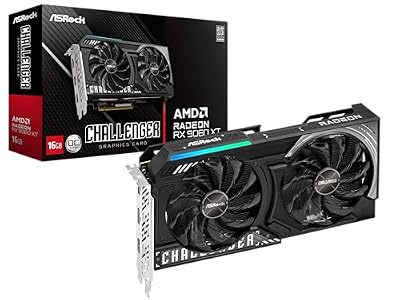
- Premium Choice: ASRock Radeon RX 9060 XT Challenger 16GB OC, RDNA 4, 3290MHz Boost, 16GB GDDR6 128-bit, PCIe 5.0, Dual Fans, 0dB Silent, LED Indicator, DisplayPort 2.1a, HDMI 2.1b
The best Battlefield 6 settings for a low end PC start from the Low graphics preset, keep Texture Quality matched to your VRAM, set Sun Shadow, Volumetric, Effects and Mesh Quality to Low, turn Screen Space AO & GI and Screen Space Reflections off, and use an upscaler at Quality or Balanced instead of native resolution. Then cap the frame rate at what your PC holds in a full 64-player fight, because a steady 60 FPS plays far better than a number that jumps between 45 and 90.
What counts as a low end PC for Battlefield 6
EA’s official minimum spec targets 1080p at 30 FPS on Low settings. The recommended tier targets either 1440p at 60 FPS on High or 1080p at 80+ FPS on Low. Anything at or below the minimum needs the tuning in this guide, and so does a recommended-tier PC if you want a high-refresh frame rate.
| Tier | GPU examples | VRAM | CPU examples | Realistic goal |
|---|---|---|---|---|
| Below minimum | GTX 1650 Super, RX 570 4GB | 4 GB | Modern 6-core | 1080p output, 50–60 FPS with reduced render resolution |
| Official minimum | RTX 2060, RX 5600 XT, Arc A380 | 6 GB | Core i5-8400, Ryzen 5 2600 | 1080p Low, 30 FPS official target; 60 with upscaling |
| Budget recommended | RTX 3060 Ti, RX 6700 XT, Arc B580 | 8–12 GB | Core i7-10700, Ryzen 7 3700X | 1080p Low at 80+ FPS |
Two non-performance requirements trip up older systems: the Javelin anti-cheat needs TPM 2.0 and UEFI Secure Boot enabled, and the game needs 16 GB of RAM and a 64-bit Windows 10 or 11 install. Check TPM and Secure Boot in your BIOS before blaming your hardware for launch errors.
Recommended settings by hardware tier
Pick the column that matches your GPU’s VRAM. Set Graphics Quality to Low first, then switch to Custom and adjust from there.
| Setting | 4 GB (below minimum) | 6 GB (minimum spec) | 8 GB+ (budget) |
|---|---|---|---|
| Texture Quality | Low | Medium | High |
| Texture Filtering | Medium | High | High |
| Mesh Quality | Low | Low | Medium |
| Terrain Quality | Low | Low | Low |
| Undergrowth Quality | Low | Low | Low |
| Effects Quality | Low | Low | Low |
| Volumetric Quality | Low | Low | Low |
| Lighting Quality | Low | Low | Medium |
| Local Light & Shadow Quality | Low | Low | Low |
| Sun Shadow Quality | Low | Low | Medium |
| Shadow Filtering | PCF | PCF | PCF |
| Reflection Quality | Low | Low | Low |
| Screen Space Reflections | Off | Off | Off |
| Post Processing Quality | Low | Low | Low |
| Screen Space AO & GI | Off | Off | Off or GTAO |
| High Fidelity Objects Amount | Low | Low | Medium |
| Upscaling | Off; Fixed Resolution Scale 60–75 | DLSS, FSR or XeSS Quality/Balanced | DLSS, FSR or XeSS Quality |
| Frame Generation | Off | Off | Off |
| Future Frame Rendering | Off | Off | Off |
| NVIDIA Reflex Low Latency | Enabled if supported | Enabled + Boost | Enabled + Boost |
| Motion blur, Chromatic Aberration, Film Grain, Vignette | 0 / Off | 0 / Off | 0 / Off |
Why these settings and not others
- Screen Space AO & GI is one of the heaviest single options; settings guides put the cost of its SSGI mode at roughly a third of your frame rate. Turning it off is the biggest free gain.
- Sun Shadow Quality and Volumetric Quality are the other big GPU costs, especially on open maps with smoke and dust. Shadow Filtering on PCF instead of PCSS also saves GPU time.
- Effects Quality matters most in the moments you care about: explosions, smoke grenades and collapsing buildings. Low keeps 1% lows from collapsing mid-firefight.
- Mesh Quality, Terrain Quality and High Fidelity Objects Amount affect how much geometry the CPU has to prepare, so lowering them helps older 6-core CPUs in 64-player modes.
- Texture Quality costs little GPU time but a lot of VRAM. Too high a value on a 4 GB or 6 GB card causes stutter rather than lower average FPS, which is why it is the one setting that follows VRAM instead of GPU speed.
- Screen Space Reflections off also removes reflections that can hide enemies behind glass or water.
Upscaling vs resolution scale: the pixel math
Upscalers render fewer pixels and rebuild a 1080p image. At 1080p output, the standard modes render at these internal resolutions:
| Mode at 1080p output | Internal resolution | Pixels rendered | Share of native |
|---|---|---|---|
| Native | 1920 × 1080 | 2.07 million | 100% |
| Quality | 1280 × 720 | 0.92 million | 44% |
| Balanced | about 1114 × 626 | 0.70 million | 34% |
| Performance | 960 × 540 | 0.52 million | 25% |
Frame rate does not scale one-to-one with pixel count, because the upscaler has its own cost and CPU work stays the same, but Quality mode typically removes a large share of GPU load. Battlefield 6 supports DLSS 4 on GeForce RTX cards, FSR 4 on Radeon RX 9000 cards with FSR 3.1-class upscaling for older Radeons, and XeSS 2, which also runs on non-Intel GPUs. On older AMD and GTX cards, XeSS is often the cleaner-looking option at the same mode.
On 4 GB cards the picture changes. Published videos of a GTX 1650 Super paired with a Core i5-12400F showed roughly 50–60 FPS at 1080p on the lowest settings with VRAM nearly full, and around 70–80 FPS with the resolution scale near 50%, at the cost of a soft image. Upscalers added little there and sometimes caused frame-time spikes, likely because they need extra memory. Those figures vary by map, player count, CPU and patch, but the lesson holds: on 4 GB cards, lower Fixed Resolution Scale first and leave upscaling off.
Frame cap and frame-time targets
Low end systems feel worst when frame rate swings. Use the in-game Frame Rate Limiter and pick the highest cap your PC holds during the busiest fights, not in an empty corridor.
| Cap | Frame time budget | Good fit for |
|---|---|---|
| 48 FPS | 20.8 ms | 4 GB cards on large Conquest maps, VRR monitors |
| 60 FPS | 16.7 ms | Minimum-spec GPUs with upscaling |
| 75 FPS | 13.3 ms | 75 Hz monitors, mid-tier upscaled setups |
| 90 FPS | 11.1 ms | 8 GB cards at 1080p Low with Quality upscaling |
To find your number, turn on the Performance Overlay under Graphics, Advanced, play a full round of Conquest, and note the lowest frame rate during heavy action. Cap slightly below that. If the CPU frame time is consistently higher than the GPU frame time, lowering graphics further will not help much; reduce Mesh Quality and High Fidelity Objects Amount, close background apps, and make sure your RAM runs in dual channel.
Skip frame generation on low end hardware
Frame generation multiplies the frames shown on screen, but it works best when the base frame rate is already around 60 FPS or higher. From a 35–45 FPS base, generated frames look smoother on the counter while aim still responds at the base rate plus extra delay, and image artifacts are more visible. Keep it off for multiplayer, and spend your GPU headroom on upscaling instead.
System tweaks that help weak PCs
- Install the game on an SSD; the minimum storage requirement is 55 GB and large maps stream a lot of data.
- On laptops, plug in the charger and set the dedicated GPU as the preferred GPU for the game in Windows graphics settings.
- Close browsers, launchers and overlays before playing, since 16 GB of RAM is the minimum, not a comfortable margin.
- Update your GPU driver, then check your settings again after each game update, as patches can reset options.
When Settings Aren’t Enough: Upgrade Options
If the lowest sensible settings still can’t hold a steady frame rate in Battlefield 6, a newer graphics card is the upgrade that changes the most. These cards cover the usual budget-to-midrange steps.
As an Amazon Associate we earn from qualifying purchases at no extra cost to you.