

- Top Pick: GameSir G8 Galileo Type-C Mobile Gaming Controller
- Runner-up: SanDisk 256GB High Endurance microSDXC Card
- Also consider: Anker 341 USB-C Hub (7-in-1)
DuckStation is the PS1 emulator most desktop players already trust, and its Android build carries the same emulation core into your pocket: hardware rendering, PGXP geometry fixes, per-game settings and proper memory card support, all in a free app. The catch is that nothing is bundled with it. The BIOS and the games must come from your own console and discs, and the first-run setup asks you to point the app at both before anything boots.
As an Amazon Associate, we earn from qualifying purchases.
This guide walks the whole path in order: installing the app, importing a BIOS dumped from your own PlayStation, adding your disc images in the format that suits a phone, and the settings that matter on mobile hardware. Everything below uses legal software with your own game backups only.
This article contains affiliate links; if you buy through them, we may earn a commission at no extra cost to you.
Quick Answer
Install DuckStation free from Google Play, then run the setup wizard: import a BIOS dumped from your own PS1 console, add a folder of your own disc images (CHD saves the most space), and pick the Vulkan renderer. Enable PGXP for steadier 3D, match rendering resolution to your screen, and use a physical controller for anything beyond casual play.
Installing the App: What You Actually Get
DuckStation on Android is distributed through Google Play under the package name com.github.stenzek.duckstation, published by the project’s own developer, Stenzek. It is free, with no paid tier.
The honest caveat, from the project’s README, is that no support is provided for the Android app, so expect a self-service experience. Hardware demands are modest: 32-bit and 64-bit ARM plus 64-bit x86 are supported, 64-bit is strongly preferred, and on older 32-bit hardware the developer suggests at least a 1.5 GHz CPU.
The BIOS Step: One File From Your Own Console
DuckStation will not boot a game until you give it a BIOS ROM image, and it does not include one: the BIOS is Sony firmware, so the app expects you to dump it from a PlayStation you own, using tools such as Caetla or UniROM, as the Play listing and README describe. Once the file is on your phone, import it through the BIOS settings; the setup wizard prompts for it on first launch.
Region deserves attention. The README notes that a BIOS from any region will work, but mismatching game region and BIOS region may cause compatibility issues. So if your discs are mostly North American releases, use a BIOS from a North American console, and import a second region only if your collection spans regions.
Getting Your Games Into the Library
DuckStation reads disc images ripped from your own PlayStation discs. Supported formats, per the official listing, are cue, iso, img, ecm, mds, chd and unencrypted PBP. For a phone, CHD is the format worth converting to: it compresses each disc into a single file, which matters when a multi-disc RPG would otherwise eat several gigabytes of storage. Convert on a computer first.
In the app, add your game directories and let it scan; the scanner builds the game list and can fetch cover art. Two habits keep the library clean. If you are not using CHD, keep each game’s cue sheet beside its bin file, because a bare bin can be missed or misread; the project hosts a cue-maker tool on duckstation.org for that case. And keep the game folder outside the app’s data directory, so an uninstall never takes the library with it.
Settings That Matter on a Phone
Renderer: Vulkan First
DuckStation offers OpenGL, Vulkan and a software renderer. On Android, Vulkan is the right default: the hardware renderer’s upscaling, true colour and PGXP features are tuned around it. Drop to OpenGL only if a specific game glitches on your GPU’s Vulkan driver; the software renderer is a diagnostic only, since it gives up the enhancements entirely.
PGXP: Worth It, With a Cost
PGXP fixes the original hardware’s wobbly polygons and swimming textures by tracking geometry at higher precision, and the Android build includes it along with the depth buffer option. On a phone it is not free: it adds CPU and GPU load, which on entry-level hardware can show up as heat or dips in busy scenes. Enable it globally, then use per-game settings to switch it off for titles that object.
Resolution and the Widescreen Caution
Hardware rendering lets you upscale the internal resolution, and the rule on a phone is to match the screen: rendering far beyond your display buys heat and battery drain, not sharpness. Start at a modest multiple and raise it only while the frame rate holds. The widescreen option needs more care: DuckStation renders true widescreen in supported games rather than stretching, but support is game-dependent, and titles never designed for it can show pop-in or stretched 2D elements. Leave it off globally and enable it per game where it behaves.
Controls: Touch First, Pad for Real Play
The app ships with a full on-screen overlay, and the pause menu includes a layout editor, so touch play is workable for RPGs and anything turn-based. External controllers are supported with binding and vibration, including multitap for up to eight controllers in supported games, and per-game mapping lets a profile differ per title. The honest recommendation: action games, fighters and anything with shoulder-button combos deserve a physical controller.
Saves: Memory Cards That Travel
DuckStation uses virtual memory cards like the desktop build, and its memory card editor can move saves between cards and import formats such as gme and mcr. Because the card files are standard, a card created on Android can be copied to the desktop build and used there, making the phone a continuation of a desktop playthrough. Save states exist too and suit suspending a session on the move; just remember that a state is tied to the emulator’s internal state, while the memory card is the durable record. Keep real progress on the card and treat states as bookmarks.
Performance, stated plainly: the PlayStation is a light system to emulate, and DuckStation stays comfortable on almost any modern phone at native or modestly upscaled resolution. What changes the picture is layering the expensive features together: high upscaling, PGXP, shader chains and runahead, which the listing warns against on slow devices.
Gear That Makes Phone PS1 Play Better
GameSir G8 Galileo Type-C Mobile Gaming Controller

A telescopic controller turns the phone into a handheld, and the G8 Galileo plugs straight in through a movable USB-C connector, so there is no Bluetooth pairing or extra input lag. Hall effect sticks and triggers suit the DualShock-era library, and pass-through charging keeps long sessions alive.
Specs:
- Connection: USB-C wired, movable Type-C port
- Sticks and triggers: Hall effect sensing
- Extras: pass-through charging, 3.5 mm audio jack, two mappable back buttons
- Phone fit: 110 to 185 mm length, up to 13 mm depth without a case
- Size: 217 x 107 x 54 mm
SanDisk 256GB High Endurance microSDXC Card

A PS1 library in CHD form still grows once multi-disc games pile up, and a high-endurance card is the right home for it on phones that keep a microSD slot. It is rated for continuous-use workloads, suiting a game folder that gets scanned and read constantly.
Specs:
- Model: SDSQQNR-256G-GN6IA
- Capacity: 256GB
- Speed class: UHS-I, Class 10, U3, V30
- Read speed: up to 100 MB/s (maker figure)
- Design: rated for continuous recording workloads
SanDisk 256GB High Endurance on Amazon
8BitDo Pro 2 Bluetooth Controller (Hall Effect)
If you would rather prop the phone up and play from a separate pad, the Pro 2 hall effect variant pairs over Bluetooth and also works wired over USB-C. Its layout mirrors the classic PlayStation arrangement, so PS1 muscle memory transfers, and the back buttons can take over awkward shoulder inputs.
Specs:
- Connection: Bluetooth and USB-C wired
- Sticks: hall effect analog sticks on this variant
- Extras: two remappable back buttons, profile switching
- Compatibility: Windows, Switch, Android and macOS, per 8BitDo
- Battery: rechargeable
Anker 341 USB-C Hub (7-in-1)

A hub earns its place when the phone becomes a small console: connect a controller by wire, read a microSD card full of disc images, and charge at the same time. The Anker 341 covers those jobs in one compact unit, and its card slots make moving CHD files easy.
Specs:
- Model: A8346
- Ports: HDMI, USB-C power delivery pass-through, USB-C data, two USB-A, SD and microSD slots
- Function: 7-in-1 expansion for USB-C devices
- Charging: pass-through charging while in use
- Build: aluminium enclosure
Lamicall Foldable Phone Stand (STDP03)
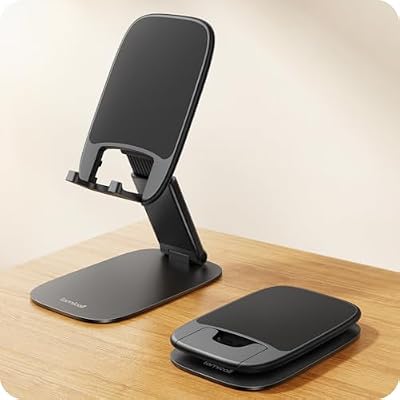
Playing with a separate Bluetooth pad means the phone needs somewhere to sit, and this folding stand is thin enough to live in the same bag as the controller. It adjusts for height and angle and folds flat at just over half an inch thick.
Specs:
- Model: STDP03
- Folded size: 4.41 x 2.76 x 0.59 inches
- Device fit: phones from 4 to 8 inches, thick cases supported
- Adjustment: height and viewing angle adjustable
- Base: weighted metal base
Lamicall Foldable Phone Stand on Amazon
How to Choose
Start with the install and BIOS, because no setting fixes a missing or mismatched BIOS file. Then choose storage by library size: a serious collection belongs in CHD form on the largest card your phone accepts. For controls, decide how you actually play: short-burst commuters can live with the touch overlay, while anyone settling in for full sessions should budget for a controller first and a stand or hub second. Finally, layer enhancements in order of value: Vulkan, then a screen-matched resolution, then PGXP, then shader effects.
Who Should Skip
Skip this setup if you do not own a PlayStation console or discs to dump from, because DuckStation ships with neither a BIOS nor games. Skip it if your phone is an older 32-bit device, where the developer’s guidance sets expectations low. Skip the enhancements race if you mainly play 2D and turn-based games: at native resolution the app is already excellent. And if you want hands-off support, remember the project’s position that the Android app comes without it; players who need a help desk should look at commercial options.
FAQ
Is DuckStation on Android free?
Yes. The Google Play listing offers the app at no cost, and the developer describes the Android build as free in the project documentation. There is no paid unlock or feature tier.
Why does DuckStation ask for a BIOS file?
The BIOS is the console’s firmware, and the emulator needs it to boot games. For legal reasons it is not included, so you dump it from a PlayStation you own using tools such as Caetla or UniROM, then import it through the app’s BIOS settings. Matching the BIOS region to your games avoids the compatibility issues the developer warns about.
Which game format is best on a phone?
CHD. It is fully supported, keeps each disc in one compressed file, and saves substantial space compared with bin and cue pairs. The other supported formats, including iso and img, also work, so conversion is an optimisation rather than a requirement.
Can I move my saves between Android and PC?
Yes. DuckStation’s memory cards use standard files, and the built-in editor can move saves between cards and import formats such as gme and mcr. Copy the card file to the desktop build’s memory card folder and your progress comes with it.
Final Verdict
DuckStation on Android is the desktop emulator’s real feature set in a free, self-service app: Vulkan rendering, PGXP, per-game settings and portable memory cards, with a quick setup wizard. Do the legal groundwork with your own console and discs, store the library as CHD files, add a controller for anything action-heavy, and a modern phone becomes a faithful PS1 in your pocket.










