

- Top Pick: DualShock 4 Wireless Controller (CUH-ZCT2, Jet Black)
- Runner-up: OIVO PS4 Controller Charger Dock
- Also consider: 8BitDo USB Wireless Adapter 2
The DualShock 4 is the controller Linux grew up with. Sony’s PlayStation 4 pad has been handled by an in-kernel driver for most of its life, which makes it a different proposition from most gamepads: no companion app, no vendor utility, just a driver in the kernel tree that exposes the sticks, triggers, rumble, touchpad, light bar, motion sensors and battery as standard Linux devices.
That maturity comes with fine print, and this guide is the fine print: what USB gives you that Bluetooth does not, how the driver layer is organised, what each feature does on a Linux desktop, where Steam Input changes the picture, and the quirks — coarse battery steps, clone pads, two hardware generations — that still trip people up. It covers the PS4 pad only; the PS5’s DualSense has a separate driver and its own dedicated guide in this series.
As an Amazon Associate, we earn from qualifying purchases.
Quick answer
The DualShock 4 is one of the best-supported gamepads on Linux: the kernel’s hid-sony driver handles it over USB and Bluetooth with rumble, touchpad, light bar, motion sensors and battery reporting. Steam Input adds remapping and gyro aiming, while native SDL games read it directly. The main gaps are headset-jack audio over Bluetooth and coarse battery steps.
Connection modes: what USB unlocks, what Bluetooth keeps
The DualShock 4 offers two transports, and on Linux they are closer than on most pads — but not identical. Over a micro-USB cable, the pad enumerates as a wired gamepad, charges at the same time, and also presents a USB audio device: the 3.5 mm headset jack on the bottom edge can carry game audio and microphone input while wired. That audio endpoint is wired mode’s one exclusive feature.
Over Bluetooth, pairing is the standard HID dance: hold the PlayStation and Share buttons until the light bar flashes, then pair from the desktop’s Bluetooth settings — no dongle is required, and the pad remembers the host afterwards. Buttons, sticks, triggers, rumble, touchpad, light bar, motion sensors and battery reporting all work wirelessly. What does not travel over the standard Bluetooth link is the headset jack: plug earphones into a Bluetooth-connected DualShock 4 and they stay silent. That is a limitation of the pad’s Bluetooth profile rather than a Linux gap — the jack is a wired feature everywhere outside the PS4 itself.
One generation note matters here. The original CUH-ZCT1 and the revised CUH-ZCT2 look nearly identical, but the revision added a light-bar window on the touchpad. On Linux both use the same driver and feature set, so a second-hand v1 is no downgrade for PC play.
The driver layer, in plain terms
Support lives in hid-sony, a mainline kernel driver maintained with Sony’s involvement that covers the DualShock 3, DualShock 4 and related Sony hardware. When the DualSense arrived, its support landed in a newer sibling driver, hid-playstation, while the DualShock 4 stayed with hid-sony. The practical meaning is simple — any reasonably current distribution kernel already contains full DualShock 4 support, and there is nothing to install.
What the driver does is translation into standard subsystems. The gamepad face appears as an evdev joystick device; the touchpad registers as its own input device, with two-finger tracking and a click; the light bar appears as system LEDs; the accelerometer and gyroscope surface as motion sensors; and the battery registers with the power-supply subsystem, which is why a desktop battery indicator can show the pad alongside a laptop battery. Rumble comes through the standard force-feedback interface. (Older guides mention ds4drv, a userspace daemon from before kernel support matured; on a modern kernel it only creates a second, conflicting view of the same pad.)
The feature matrix
Touchpad. The kernel exposes the touchpad as a real, separate touch input device, so on many desktops it acts as a small mouse, moving the pointer and clicking when pressed. Steam Input can claim it for game purposes instead — a radial menu, a mouse region, swipe gestures or extra buttons. Outside Steam, whether it drives your pointer is a desktop input setting.
Light bar. Fully supported as system LEDs: Steam tints it per player, desktop tools can set it directly, and some native games drive it themselves. It doubles as the pad’s status display — pairing flashes, charging pulses and player colours all live there.
Motion sensors. The gyroscope and accelerometer are exposed by the driver and are usable — most visibly through Steam Input’s gyro aiming, which maps pad tilt to mouse or stick movement for shooters. Native games and emulators that read motion through SDL can use them too.
Rumble. Standard dual-motor rumble works over both transports through the kernel’s force-feedback support.
Steam Input vs native behaviour
A DualShock 4 on Linux lives two lives. In its native life, the pad speaks evdev and SDL directly. SDL — the library most native Linux games and emulators use — ships a proper DualShock 4 mapping, so native titles generally behave correctly and often show PlayStation button prompts. Games built on other stacks can be less predictable: a title expecting an Xbox-style XInput device may ignore the pad or show mismatched prompts.
Steam Input is the second life, and for a Proton-heavy library it is usually the right default. With PlayStation controller support enabled in Steam’s settings, Steam translates the pad into the layout Windows games expect, and in exchange you get per-game remapping, touchpad modes, gyro aiming, light-bar control and consistent behaviour across native and Proton titles. The trade-off is that the translation layer sits between the game and the pad’s native features: a rare native game with its own DualShock 4 support may do less with Steam Input in the way. The practical rule is Steam Input on for the Windows catalogue, and worth toggling off per-game when a native title advertises its own PlayStation pad support.
The quirks list
Battery reporting is coarse. The pad reports its charge in broad steps rather than a smooth scale, and the kernel passes those steps through. A desktop percentage that sits still for an hour and then drops in a visible jump is the hardware talking, not a dying battery. Plug in when it reads low rather than empty.
Clone pads are a lottery. The second-hand market is full of DualShock 4 lookalikes. Genuine pads identify themselves cleanly to hid-sony; clones often borrow the identifiers and implement only part of the protocol — a touchpad that does nothing, motion sensors that never report, a battery gauge frozen at one value. If a pad pairs but half its features are missing, suspect the pad before the driver.
Bluetooth housekeeping. The pad pairs to one host at a time; moving it between console and PC means re-pairing each time. Interference shows up as input lag before disconnections, so a floaty pad at range is usually a radio problem — a better adapter or shorter distance fixes more than any setting.
How to choose your setup
Choose wired USB if you play at a desk, want the headset jack to work, or value input consistency over a clean desk; the cable also answers the battery question permanently. Choose Bluetooth if the PC lives across the room and your headset connects to the PC directly. Choose a dock if the pad lives in the living room and tends to be found empty; choose a long cable if sessions outlast one charge. If you are buying now, a genuine CUH-ZCT2 in good health is the target — authenticity matters more than colour.
Who should skip this
Skip the DualShock 4 if you want a pad whose every feature works in every Windows game with zero translation thought — an Xbox-style pad remains the path of least resistance for a purely Proton library. Skip it, too, if headset-jack audio over a wireless connection is a requirement; no DualShock 4 setup on Linux offers that.
Gear that rounds out a DualShock 4 setup
DualShock 4 Wireless Controller (CUH-ZCT2, Jet Black)

The revised pad itself: the light-bar window on the touchpad marks the second generation, and it remains the reference device hid-sony is built around.
– Model: CUH-ZCT2 (second generation)
– Connectivity: Bluetooth and micro-USB
– Battery: built-in rechargeable, maker-rated 1,000 mAh class
– Features: touchpad, light bar, gyroscope and accelerometer, headset jack, built-in speaker
OIVO PS4 Controller Charger Dock

A dual-slot dock that charges through the pad’s extension port, saving the micro-USB socket from daily wear.
- Slots: two DualShock 4 controllers
- Charging contact: extension port, not the micro-USB socket
- Indicator: LED charge status per slot
- Power: USB powered
8BitDo USB Wireless Adapter 2
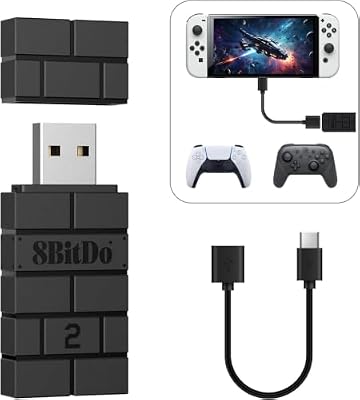
A receiver that handles Bluetooth pairing itself and presents the pad to the PC as a standard controller — a useful bypass when a PC’s own Bluetooth stack is the weak link.
- Interface: USB, with OTG cable included
- Role: self-contained Bluetooth receiver for controllers
- Compatibility: DualShock 4 among the maker’s listed supported pads
- Modes: presents the controller in standard gamepad modes
ASUS USB-BT500 Bluetooth 5.0 USB Adapter

A nano adapter for desktops with no Bluetooth or a flaky onboard radio; a clean, modern radio is the cheapest fix for floaty wireless input.
– Standard: Bluetooth 5.0 with EDR and low-energy support
– Interface: USB 2.0, nano form factor
– Chipset class: Realtek-based, supported by the in-kernel Bluetooth stack
Anker PowerLine Micro USB Cable (6 ft)

Wired play lives or dies on the cable: it must carry data, not just charge. A reinforced 6 ft cable covers a desk or a short couch run.
- Length: 6 ft
- Connectors: USB-A to Micro-B, data and charging
- Construction: aramid fibre reinforcement, maker-rated bend lifespan
- Use: wired play and charging
FAQ
Does the DualShock 4 work on Linux without installing anything?
Yes. The hid-sony driver is part of the mainline kernel, so current distributions support the pad over USB and Bluetooth out of the box, including rumble, touchpad, light bar, motion and battery reporting. Steam Input is optional and adds remapping on top.
Why does my DualShock 4 move the mouse pointer?
Because the kernel exposes its touchpad as a separate pointer-capable input device. Steam Input claims the touchpad for game functions inside Steam; outside Steam, the pointer behaviour can be turned off in the desktop’s input settings.
Why is there no sound from the headset jack over Bluetooth?
The pad’s standard Bluetooth connection does not carry headset-jack audio on PC platforms; the jack works over USB, where the pad appears as a USB audio device. For wireless play, connect the headset to the PC itself.
My battery percentage jumps in big steps. Is the pad faulty?
Almost certainly not. The DualShock 4 reports its charge in coarse steps and the desktop shows what it receives. Sudden drops between steps are normal; only a pad that will not charge, or drains within a short session, suggests a tired battery.
Final verdict
The DualShock 4 is the safe pair of hands of Linux gaming: an in-kernel driver, a feature set that almost entirely survives the trip from console to PC, and two honest limitations — a silent headset jack over Bluetooth and a battery gauge that speaks in round numbers. If you already own one, it may be the best Linux gamepad you do not need to buy. If you are buying, buy a genuine second-generation pad and let Steam Input handle translation where games need it.










