

- Top Pick: Sapphire Pulse Radeon RX 9070 XT
- Runner-up: PowerColor Hellhound Radeon RX 9070 XT
- Also consider: Sapphire Pulse Radeon RX 9060 XT 16GB
AMD never shipped a Linux version of its Adrenalin control panel, so Radeon owners manage their cards through the amdgpu kernel driver and community tools. CoreCtrl is the profile-first entry in that space: a free, open-source application that ties GPU and CPU settings to individual programs, applying one hardware behaviour when a game launches and another back on the desktop.
That profile idea separates CoreCtrl from monitoring overlays and one-shot tuning utilities. Instead of a single system-wide tune, you build a quiet global default and let demanding games opt into higher power limits, firmer fan curves and a performance CPU governor automatically. This deep dive covers what it controls, the kernel step its advanced mode needs, how it differs from LACT, and its documented limits.
As an Amazon Associate, we earn from qualifying purchases.
Quick answer
CoreCtrl is a free, open-source control panel for AMD GPUs on Linux. It stores hardware settings in profiles that activate automatically when a chosen program launches: performance modes, power profiles, clock and voltage controls, a power cap, fan modes and CPU governors. Full GPU control needs the amdgpu.ppfeaturemask kernel parameter. It is AMD-only and in maintenance mode.
What CoreCtrl controls on an AMD card
CoreCtrl talks to the amdgpu driver, and its GPU page mirrors what that driver exposes. The headline setting is the performance mode. In Automatic mode the driver manages clocks and power on its own, as with no tool installed. Switching a profile to Advanced hands those decisions to you, within the controls the driver publishes.
A profile can also select one of the driver’s power profiles, the presets amdgpu keeps for different workloads, such as 3D Fullscreen for games, Power Saving for light desktop work and a dedicated VR profile. Advanced mode adds the manual controls: core and memory clock settings, voltage adjustment, and a power limit cap. Their shape depends on the generation: older architectures expose editable clock and voltage states, while newer RDNA cards expose a voltage offset instead of a full table.
Fan control sits in the same profile, again where the driver exposes it: automatic behaviour, a fixed speed, or a custom curve mapping fan speed to temperature points. Not every card publishes fan control to the driver, and where the firmware keeps charge of the fans, automatic behaviour is what you get.
Profiles are the real feature
Everything above becomes more useful because of how CoreCtrl applies it. A global profile defines the system’s default behaviour, with as many custom profiles as you like on top of it. Each custom profile is bound to an executable: when that program starts, the profile activates; when it closes, the previous settings return.
A profile also chooses which parts of the system it controls. A game profile might set the GPU performance mode, a fan curve and the CPU governor while leaving everything else to the global profile. That selective control lets one part follow per-app rules while the rest stays conservative, and CoreCtrl can coexist with a second tool managing something it leaves untouched. The application sits in the system tray; its helper service performs the privileged hardware writes, which is where the setup steps below come in.
The CPU side of a profile
A profile can also set the CPU governor, choosing between the governors your kernel offers, such as performance while a game runs and a power-saving governor in the global profile. The project describes its CPU support as basic: governor selection, maximum frequency limits and sensor readouts, rather than deep per-core tuning. For gamers the pairing is the point: one executable triggers a single hardware mood, and when the game exits, GPU and CPU revert together to the quieter global profile.
The setup step most people miss
Installed from a repository, CoreCtrl opens and monitors a Radeon card straight away, but its advanced GPU controls stay locked until you enable them in the driver. The project’s setup documentation gives the step plainly: add the kernel parameter amdgpu.ppfeaturemask=0xffffffff to your bootloader configuration, regenerate the boot configuration, and reboot. That parameter unlocks the amdgpu overdrive controls CoreCtrl writes to. Without it, only the automatic mode and monitoring are available.
Two smaller items come from the same documentation: copying the supplied desktop file into your session’s autostart folder makes CoreCtrl launch at login, and an optional Polkit rule authorises its helper without a password prompt at every start. Both are one-time configuration; after them, day-to-day use is entirely inside the graphical interface.
CoreCtrl or LACT?
LACT is the other name in this space, and the two overlap without being interchangeable. CoreCtrl’s signature is the per-executable profile system, with automatic switching as games start and stop. LACT is built around a background daemon holding a system-wide configuration across sessions.
The bigger difference is hardware reach. CoreCtrl’s GPU control is AMD-only, a boundary the project states openly; LACT also covers NVIDIA and Intel graphics, the natural pick for mixed-vendor machines or GeForce owners. CoreCtrl is also the older, quieter project: in maintenance mode, while LACT is under active development. If your machine is all-AMD and automatic per-game profiles are what you want, CoreCtrl still does that job in a focused way; if you need current development or another vendor covered, LACT is the safer home.
Installing CoreCtrl
Most distributions package CoreCtrl as corectrl, and Arch users can also take it from the AUR; where no package exists, the project documents building from source. Either way, the setup steps above are what make it a working profile system.
Honest limits
The project’s documentation is refreshingly blunt, and three limits matter. First, maintenance mode: no new features or hardware support will be added, and development focuses on bug fixes. Second, stated support reaches AMD GPUs up to the RX 9000 series, and the project warns that some series carry limitations from long-standing, unresolved driver or firmware issues, listed on a known-issues page; fuller support on any card is not promised. Third, everything GPU-related depends on what amdgpu exposes for your card, so fan control, clock states and voltage controls vary by model.
NVIDIA and Intel graphics owners should look elsewhere: these GPU controls exist only on AMD’s driver.
Hardware CoreCtrl readers actually run
Sapphire Pulse Radeon RX 9070 XT
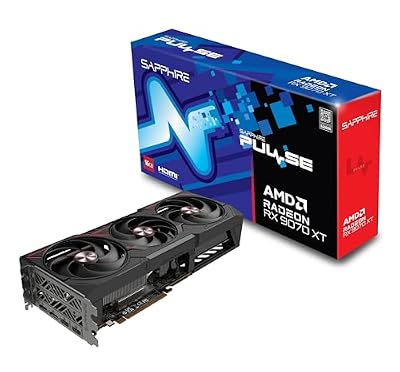
The current RDNA 4 flagship tier is where CoreCtrl’s stated support ceiling sits, and the Pulse is Sapphire’s straightforward, triple-fan take on it: the kind of card that gets a 3D Fullscreen power profile and a firmer fan curve for games, with a quiet global profile for the desktop.
Specs:
- GPU: AMD Radeon RX 9070 XT, RDNA 4 architecture
- Stream processors: 4,096
- Memory: 16GB GDDR6 on a 256-bit bus
- Boost clock: up to 2,970 MHz, as listed by the maker
- Board power: 304 W, as listed by the maker
- Power connectors: two 8-pin
PowerColor Hellhound Radeon RX 9070 XT

A second board-partner route to the same GPU, with PowerColor’s triple-fan Hellhound cooler and a factory overclock. For a CoreCtrl profile the interest is identical silicon under a different cooler: fan behaviour is the variable being tuned, so the cooler shapes how a curve feels.
Specs:
- GPU: AMD Radeon RX 9070 XT, RDNA 4 architecture
- Memory: 16GB GDDR6 on a 256-bit bus
- Cooler: triple-fan Hellhound design
- Power connectors: two 8-pin
- Model number: RX9070XT 16G-L/OC
Sapphire Pulse Radeon RX 9060 XT 16GB

The mid-range RDNA 4 option, in the 16GB version listed here rather than the smaller-memory variant sold under a similar name. A dual-fan, single-connector card for 1080p and 1440p play, it suits a two-profile life: a quiet global profile and a full-performance game profile.
Specs:
- GPU: AMD Radeon RX 9060 XT, RDNA 4 architecture
- Stream processors: 2,048
- Memory: 16GB GDDR6 on a 128-bit bus
- Boost clock: up to 3,290 MHz, as listed by the maker
- Power connector: one 8-pin
- Model number: 11350-03-20G
Sapphire Pulse Radeon RX 7800 XT

RDNA 3 sits squarely inside the support range CoreCtrl has documented for years, and the 7800 XT remains a strong 1440p card whose driver exposes the clock and voltage controls in the form CoreCtrl’s advanced mode was built around.
Specs:
- GPU: AMD Radeon RX 7800 XT, RDNA 3 architecture
- Compute units: 60, with 3,840 stream processors
- Memory: 16GB GDDR6 on a 256-bit bus
- Boost clock: up to 2,430 MHz, as listed by the maker
- Board power: 263 W, as listed by the maker
- Power connectors: two 8-pin
AMD Ryzen 7 9800X3D
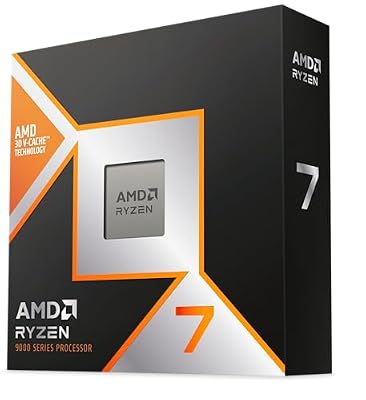
CoreCtrl’s CPU governor settings deserve a processor worth governing. The 9800X3D is AMD’s eight-core gaming chip with stacked cache: a game profile can hold its governor at performance while the GPU profile applies, then let both settle back for desktop work.
Specs:
- Architecture: AMD Zen 5 with 3D V-Cache
- Cores and threads: 8 cores, 16 threads
- Clocks: 4.7 GHz base, boost up to 5.2 GHz, as listed by the maker
- Cache: 96MB L3
- Socket: AM5, with DDR5 memory support
How to choose
Start with your graphics card, because it decides whether CoreCtrl is an option at all. An AMD Radeon on the amdgpu driver, from older generations through the RX 9000 series, is the entry requirement; anything else ends the conversation. Next, decide whether automatic per-executable profiles are what you want. If you play demanding games on an otherwise quiet desktop, that switching is CoreCtrl’s best trick. If you would rather set one tune and forget it, the global profile alone may be enough.
Then check the known-issues documentation for your card series before planning around fan control or voltage adjustment, since those controls vary most by model.
Who should skip
Skip CoreCtrl if your graphics card is NVIDIA or Intel, since its GPU controls cover neither vendor. Skip it if you want a tool under active feature development, because the project is in maintenance mode and says so itself. Skip it if editing bootloader parameters is a hard no; without that step the advanced controls stay locked. And skip it if your card already behaves as you like in automatic mode: a profile system only earns its place when different programs need different hardware behaviour.
FAQ
Does CoreCtrl work with NVIDIA cards on Linux?
No. CoreCtrl’s GPU controls are built on AMD’s amdgpu driver, and the project documents its hardware support as AMD-only. NVIDIA owners should look at tools written for that stack instead, such as LACT or GreenWithEnvy.
What happens if I never add the kernel parameter?
CoreCtrl still installs, monitors the card and runs in automatic mode, but the advanced controls stay locked. Manual clock, voltage and power limit settings require the amdgpu.ppfeaturemask parameter from the project’s setup guide, followed by a reboot.
Is CoreCtrl still being developed?
Only in maintenance mode, by the project’s own statement. Bug fixes continue, but no new features or hardware support will be added, and stated GPU support tops out at the RX 9000 series with documented caveats for some card families.
Can a CoreCtrl profile change CPU behaviour too?
Yes, within basic limits. A profile can set the CPU governor and maximum frequency behaviour alongside its GPU settings, so one executable triggers a coordinated GPU and CPU mode. It is not a replacement for dedicated CPU tuning tools.
Final verdict
CoreCtrl remains the most profile-minded way to control an AMD graphics card on Linux. Its per-executable switching, selective control and combined GPU and CPU profiles solve a real problem elegantly: games get their hardware mood, the desktop gets its quiet one, and nobody touches a slider in between. The costs are clear: AMD-only support, a bootloader change for advanced mode, and a project in maintenance mode. For an all-AMD machine whose owner likes set-and-forget automation, those costs are fair. For everyone else, LACT’s broader reach and active development make it the better default.










