

- Top Pick: Samsung 990 PRO 2TB NVMe SSD
- Runner-up: Samsung T7 Portable SSD 1TB
- Also consider: SanDisk Extreme Portable SSD 1TB
A shelf of GameCube and Wii discs turns into a heavy folder of disc images fast. A full GameCube dump takes about 1.4 GB and a single-layer Wii dump about 4.7 GB, and much of that space holds padding data no game ever reads. Dolphin’s own RVZ format exists to fix exactly that: it compresses your dumps losslessly, stores the padding cleverly instead of literally, and still plays directly in the emulator.
As an Amazon Associate, we earn from qualifying purchases.
This guide walks through the whole job with Dolphin’s built-in converter: the format choices, the two settings that matter, the scrubbing option to avoid, how to verify a converted file against your original dump, and how to get a plain ISO back when another tool insists on one. Everything here starts from discs you own and dumped yourself.
This article contains affiliate links, and we may earn a commission when you buy through them at no extra cost to you.
Quick Answer
Right-click a game in Dolphin’s game list, choose Convert File, set the format to RVZ with Zstandard compression, and convert. RVZ shrinks your own disc dumps losslessly: the junk padding is regenerated rather than stored, games play directly from the smaller file, and you can convert back to a byte-identical ISO whenever another tool needs one.
The Format Landscape: ISO, GCZ, WIA and RVZ
Four containers cover most Dolphin libraries. A plain ISO (or GCM) is the raw dump: every byte of the disc in order, no compression, maximum size, and the universal fallback every tool understands. GCZ is Dolphin’s older compressed format; it shrinks files, but its random access is slower and it does not handle the padding data as cleanly, so the project has steered users away from it for years.
WIA is the compressed format RVZ grew out of, and the two are close relatives. RVZ is Dolphin’s refined version, introduced by the Dolphin team in 2020 as a lossless format built specifically for the emulator. WBFS, the Wii-era container, also appears in old libraries; it keeps only part of the disc data, which makes it a poor archive. For a library you intend to keep and play in Dolphin, RVZ is the modern default, with ISO kept as the interchange format.
Why RVZ Stores Less Without Losing Anything
The trick is the junk data. GameCube and Wii discs fill unused space with pseudorandom padding generated from a known seed. Storing that padding byte for byte wastes most of the disc. RVZ instead records how to regenerate it, following the same Lagged Fibonacci generator the original data came from, and stores only the real game data, compressed with Zstandard by default.
Because the padding is reconstructed rather than discarded, the process is fully lossless: convert an unscrubbed RVZ back to ISO and you get the original dump byte for byte. The format is also built for play, not just storage. Data is kept in blocks that Dolphin can decompress on demand, so games run straight from the RVZ file with fast random access and no separate extraction step. Each file also carries the disc’s integrity information, which the verification step below puts to work.
How to Convert Your Games to RVZ
The converter is built into Dolphin’s game list; there is nothing extra to install.
- Add your dumped games to Dolphin so they appear in the game list, then select one game, or several with Ctrl-click or Shift-click for a batch.
- Right-click and choose Convert File.
- Set the format to RVZ.
- Leave the compression type on Zstandard. It is the format’s default and the best balance of size and speed; the Bzip2, LZMA and LZMA2 options exist mainly for compatibility and convert more slowly.
- Leave the compression level at the default unless you are patient. Higher levels squeeze a little more from some games but take much longer, and the gains shrink quickly.
- Leave the block size at the default. Smaller blocks favour random access while playing; larger blocks can compress slightly better but make the emulator work harder when a game seeks. The default sits in the middle on purpose.
- Make sure the junk-data removal option, covered next, is off, then start the conversion.
Batch conversion runs the selected games one after another, so a whole shelf can be processed in a single sitting. Conversion is a one-way trip for your workflow, not for your data: keep the original ISOs until every converted file has passed the verification step.
Scrubbing: The One Option to Leave Alone
The converter offers to remove junk data, often labelled scrubbing. Scrubbing in Dolphin historically meant replacing the padding with zeros, and a scrubbed image is no longer the same disc. The game data survives and the game still plays, which is why the option tempts people, but the costs are real.
A scrubbed image cannot be converted back into a byte-identical copy of your original dump, so your archive quietly stops being an archive. Verification also changes meaning: Dolphin can still check the game partitions, but the file will never match the hash of a clean dump. Netplay is the third casualty, because a session expects every player to be running the same game data; a scrubbed copy and an untouched copy are not the same data, and mismatches surface as desyncs and failed checks. RVZ already removes the storage cost of padding without deleting it, so scrubbing buys almost nothing. Leave it off.
Verify the Result Before You Delete Anything
Dolphin can audit a disc image against the integrity data stored on the disc itself. Right-click the converted game, open Properties, go to the Verify tab and run Verify Integrity. For Wii games it checks the partitions’ hash trees and reports problems such as a bad dump or damaged data; a clean result means the RVZ holds exactly the game data your disc held.
For the strongest check, compare hashes. The Verify tab reports the image’s computed hash values, and converting the RVZ back to ISO should reproduce your original dump exactly, hash for hash, as long as scrubbing stayed off. Only delete the source ISO once the RVZ passes and, ideally, once one game from the batch has been booted and played. Work shelf by shelf rather than converting the whole library blind.
Converting Back to ISO When a Tool Insists
Some patchers, loaders and archival tools only speak ISO. The way back is the same door you came in: right-click the RVZ in Dolphin’s game list, choose Convert File, set the format to ISO and convert. The output is the full-size, byte-identical image, ready for whatever needed it. Command-line users can do the same job with DolphinTool, the converter bundled with Dolphin, which is handy for scripting a folder of files. Keep the RVZ as your playing and storage copy and treat the ISO as a temporary export.
Storage and Controllers for a Converted Library
RVZ shrinks the library; these picks house it and let you play it properly.
Samsung 990 PRO 2TB NVMe SSD

A fast internal NVMe drive is the natural home for the library you play from: Dolphin decompresses RVZ blocks on demand, and quick storage keeps game lists and texture packs snappy.
Specs:
– 2TB capacity, M.2 2280 form factor
– PCIe 4.0 x4 NVMe interface
– Sequential reads up to 7,450 MB/s, writes up to 6,900 MB/s
– Samsung V-NAND TLC flash
Samsung T7 Portable SSD 1TB

A portable SSD suits a library that moves between a desktop and a laptop, or a backup copy of your converted games kept away from the main PC.
Specs:
– 1TB capacity, USB 3.2 Gen 2 interface
– Reads up to 1,050 MB/s, writes up to 1,000 MB/s
– USB-C connection, both cable types included
– Aluminium body, drop resistant to 2 metres
SanDisk Extreme Portable SSD 1TB
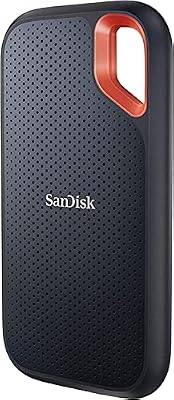
The rugged option for a games drive that travels: sealed against dust and water, with a shell built to survive being carried in a bag every day.
Specs:
– 1TB capacity, USB 3.2 Gen 2 interface
– Reads up to 1,050 MB/s, writes up to 1,000 MB/s
– IP65 dust and water resistance
– Drop protection up to 3 metres
WD Elements Desktop 14TB External Hard Drive
RVZ makes the playing library small; this desktop drive is for the other copy, the full-size ISO archive of your original dumps kept for safety.
Specs:
– 14TB capacity, desktop enclosure
– USB 3.0 interface
– Formatted NTFS for Windows out of the box
– External power adapter included
Mayflash GameCube Controller Adapter
A converted library deserves the original controller. This four-port adapter connects real GameCube pads to a PC, and Dolphin works with it directly.
Specs:
– Four GameCube controller ports
– USB connection
– Wii U and PC operating modes
– Supports rumble and turbo functions
How to Choose
Choose RVZ with Zstandard at the default level and block size for everything you play in Dolphin; that single recipe covers almost every library. Reach for a higher compression level only for games you archive and rarely open, and accept the longer conversion time as the price. Keep at least one full ISO archive copy of each dump on separate storage if preservation matters to you, since the RVZ is your working copy. If you share netplay sessions, agree the format with the other players first and convert the same way, so everyone’s game data matches.
Who Should Skip
Skip converting if your games mostly live outside Dolphin, in loaders or tools that cannot read RVZ; you would spend your time converting back. Skip it if your dumps are already scrubbed WBFS or GCZ files of unknown history, because converting cannot restore data that was thrown away earlier; re-dump from your discs first if you want a trustworthy archive. And skip the batch-everything approach if your drive is nearly full: conversion needs room for the source and the output side by side until verification is done.
FAQ
Is RVZ really lossless?
Yes, as long as scrubbing stays off. The padding data is regenerated from its seed rather than stored, the game data is compressed with a lossless codec, and converting back to ISO reproduces the original dump byte for byte.
Can Dolphin play games directly from RVZ files?
Yes. RVZ is designed for play, with block-based access that lets Dolphin decompress only what the game asks for. There is no extraction step, and RVZ is the format the Dolphin team recommends for storing games you actually run.
Will converting to RVZ break netplay?
Not if everyone converts the same way. Problems come from mixing versions of the game data, such as one player running a scrubbed image and another an untouched one. Keep scrubbing off and use identical dumps across the session.
What should I do with my old GCZ or WBFS files?
Convert GCZ files to RVZ for better behaviour in current Dolphin. Treat WBFS files with suspicion as archives, because the format discarded disc data; if the game matters to you, re-dump it from your own disc and convert the fresh ISO instead.
Final Verdict
RVZ is the rare format change with no real downside for Dolphin users: smaller files, the same data, direct play, and a clean path back to ISO. Convert with Zstandard at the defaults, refuse the scrubbing option, verify every batch, and keep an ISO archive of your original dumps. Do that and the library takes a fraction of the shelf space while staying exactly the collection you dumped.










