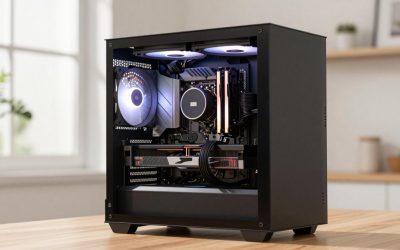
The cheapest useful PC setup is a working computer, a monitor, a keyboard, a mouse, and some way to hear audio, with a desk and chair you can sit at comfortably. The smartest savings come from skipping extras like RGB and premium peripherals, while avoiding cuts on the power supply, the storage drive, and memory configuration, which tend to cause the most frustration when they are poor.
What a complete minimal setup actually includes
When people search for a cheap PC setup, they often focus on the tower and forget that a computer is useless without the things around it. A full setup is a small system of parts, and the cheapest route is to decide in advance which ones you truly need today.
- The PC itself. Either a prebuilt desktop, a self-built system, or a refurbished machine, with a case, motherboard, processor, memory, storage, and power supply.
- A monitor. One screen with a cable that matches your graphics output.
- A keyboard and mouse. Basic wired versions work fine to start.
- Audio. Headphones, a headset, or simple speakers.
- A desk and chair. Easy to overlook, but they affect comfort more than most people expect.
- Power and cables. A power strip, the monitor cable, and an internet connection method, wired or wireless.
Must-have versus optional
This table separates the pieces you need on day one from those that can wait. Optional does not mean worthless, only that you can add it later without redoing anything.
| Item | Category | Notes |
|---|---|---|
| PC with working GPU output | Must-have | Needs a display output from either a graphics card or integrated graphics. |
| Monitor | Must-have | Any screen that your PC can connect to. Check available ports first. |
| Keyboard | Must-have | A simple wired model is enough. |
| Mouse | Must-have | A basic optical mouse works for most games and desktop use. |
| Headphones or speakers | Must-have | Any working audio output is enough to begin. |
| Desk and chair | Must-have | Stable and comfortable for long sessions. Posture matters. |
| Dedicated microphone | Optional | A headset mic is often enough for voice chat. |
| Mouse pad | Optional | Low cost, but a smooth surface improves tracking. |
| Webcam | Optional | Only needed for video calls or streaming. |
| Second monitor | Optional | Useful, but adds cost and desk space. |
| RGB lighting and extras | Optional | Cosmetic. Skip first when trimming. |
| Uninterruptible power supply | Optional | Helpful where power cuts are frequent. |
Where to save and where not to
A budget is a series of trade-offs. Some cuts are low-risk. Others tend to create problems that eat up the money you saved. The guidance below is general, so check it against your own needs.
Safe places to save
- Case styling. A plain case with decent airflow usually does the job as well as a flashy one.
- Peripherals. Entry-level keyboards, mice, and headphones are fine for starting out.
- Lighting and cosmetics. They do not affect performance.
- Peak capacity. Buying only the storage you need now is reasonable if you leave room to add a drive later.
- Monitor extras. High refresh rate and large panel sizes are nice, but a basic screen works at first.
Places where cutting corners usually backfires
- Power supply. The PSU feeds every other component. A poor or undersized unit can cause instability, and in the worst case it can damage other parts. Pick a reputable model with enough wattage and the right connectors, and read independent reviews of the exact model rather than relying on the box label.
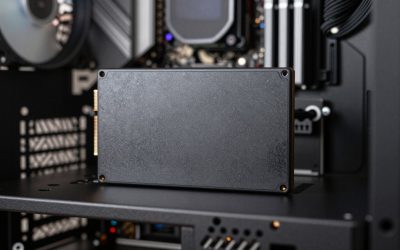
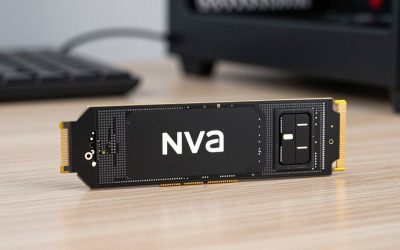
- Solid-state storage. Even a modest SSD makes a computer feel much more responsive than a mechanical drive as the main drive. If you can only afford one improvement, it is often this one.
- Memory in dual-channel. Two matched memory sticks generally give better performance than a single stick of the same total size, because the processor can use both channels. A single stick may be acceptable temporarily, but plan to add a matching one.
- Cooling. Sound basic cooling, including a cooler suited to your processor, protects performance and component life.
- Motherboard basics. A very stripped-down board can limit upgrades, so check the number of memory slots, storage slots, and ports.
Used and refurbished parts: risks and checks
Secondhand hardware can stretch a small budget a long way, but it carries a different risk profile than new parts. The goal is not to avoid it, but to buy it with eyes open.
Parts that are usually lower-risk to buy used
Cases, desks, chairs, monitors, keyboards, and mice are relatively easy to inspect and have no hidden wear-out mechanism. Memory modules and processors generally tolerate resale well, though counterfeit or relabeled products exist, so verify the model.
Parts that deserve more caution
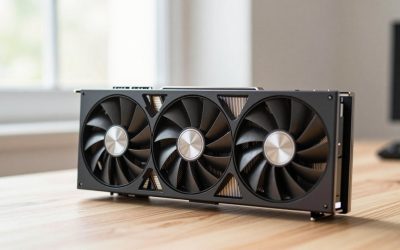
- Graphics cards. They may have been used heavily, for example in sustained workloads. Check for visible damage, dust, and fan noise, and ask about prior use.
- Power supplies. Age and unknown history make used units a gamble. Many builders prefer to buy these new.
- Storage drives. Drives wear with use. Ask for health information from the drive’s reporting tools if the seller can provide it.
Checks before and after buying
- Ask for clear photos and the exact model name or part number.
- Prefer sellers that offer a return window or a limited warranty.
- Inspect for bent pins, burn marks, corrosion, and swollen components.
- Test the machine immediately: run a memory test, check storage health, and monitor temperatures under load.
- Confirm that a refurbished prebuilt machine includes a license or reinstalled operating system, and confirm what the seller means by refurbished.
- Keep the listing and proof of purchase in case a part fails.
A rule of thumb: if the deal seems too good, or the seller cannot name the exact model, walk away. The savings are not worth a dead component with no recourse.
Tiers of cheap setups, described qualitatively
Instead of chasing a number, think in terms of what each tier is for. Exact capability varies by the parts you choose, so treat this as a map rather than a promise.
| Tier | Best for | Typical approach | Trade-offs |
|---|---|---|---|
| Bare minimum | Lighter and older games, esports titles at modest settings, general use | Refurbished or integrated-graphics desktop, basic peripherals | Limited graphics headroom. Newer demanding games may be out of reach. |
| Balanced starter | Many popular games at sensible settings | New or carefully chosen used parts, dedicated graphics, SSD, dual-channel memory | Needs more careful part selection and a reliable PSU. |
| Upgrade-ready starter | Players who expect to improve the system over time | Good PSU and motherboard now, with modest graphics and memory that can be replaced later | Upfront outlay is a bit higher, but upgrades are cheaper in the long run. |
Plan the upgrade path from the start
The cheapest approach is often the one you do not have to repeat. Buy a power supply with spare capacity, a motherboard with free memory and storage slots, and a case with room for a larger graphics card. That way, when you can afford more, you replace one component rather than the whole machine.
A sensible upgrade order for many budget builders is: add a second matching memory stick for dual-channel, move to a larger or faster SSD, upgrade the graphics card, and then consider the processor and monitor. Which comes first depends on your bottleneck. If a game stutters, check whether memory, storage, or graphics is the limiting factor before spending anything.
Budget setup checklist
- List everything you need: PC, monitor, keyboard, mouse, audio, desk, chair, and cables.
- Check what you already own and can reuse.
- Check the monitor’s input ports against the PC’s outputs.
- Choose a trustworthy PSU and a solid-state main drive before anything else.
- Plan for two matched memory sticks, even if you start with one.
- Inspect and test every used component promptly.
- Set aside a small reserve for cables, adapters, and surprises.
- Write down the upgrade order you intend to follow.
Frequently asked questions
What is the minimum I need to start gaming on PC?
You need a computer capable of running your chosen games, a monitor, a keyboard, a mouse, and audio output. A desk and chair are easy to forget but affect comfort. Check each game’s minimum requirements, and remember that lighter and older titles run on far more modest hardware than recent demanding releases.
Is it cheaper to build or buy a prebuilt?
It depends on market conditions and what you choose. Self-building can offer better component choices for the money, while prebuilts and refurbished machines can be good value when parts are scarce. Compare complete parts lists and warranty terms rather than assuming one route always wins.
Is buying used parts safe?
It can be, with precautions. Lower-risk items include cases, peripherals, and monitors. Be more careful with graphics cards, power supplies, and drives, and always test promptly and buy from sellers that offer some form of return or warranty.
What should I upgrade first?
It depends on the bottleneck, but common first steps are adding a second memory stick for dual-channel operation, moving to an SSD, and then upgrading the graphics card. Identify what is actually limiting performance before buying anything.
Conclusion
A cheap PC setup works best when you treat it as a complete system rather than a single box. Cover the basics, protect the components that affect stability and speed, be careful with used hardware, and leave room to improve later. Spending carefully on the power supply, storage, and memory layout usually pays off more than spending on appearance.