Top 3 Picks
If you want one answer: the Metapen Pencil Air8 Pro is the best stylus for most iPad Pro artists, because it pairs the quietest tip in this roundup with palm rejection and 2X fast charging across the widest iPad generation range (2018–2025) at a mid-range price. The DEGGE Stylus Pen for iPad 2018–2026 is the best budget entry for sketchers who want pressure-free line work without spending much, and the STYLUSHOME Stylus Pen for iPad is the premium pick for illustrators who want the fastest recharge in the group and the feel of a heavier, more deliberate tool.
Quick Comparison
| Product | Best for | Key specs | Price tier |
|---|---|---|---|
| Metapen Pencil Air8 Pro | Best overall — quiet sketching and painting workflows | iPad 2018–2025 compatibility, ultra-quiet tip, 2X fast charging, palm rejection, tilt-sensitive line work | Mid-range |
| JAMJAKE Stylus Pen for iPad 6–11th Gen | Best for mixed daily use on older iPads | iPad 6th–11th Gen, 2X fast charge, palm rejection, white finish, active capacitive tip | Mid-range |
| DEGGE Stylus Pen for iPad 2018–2026 | Best budget for sketching and note-taking | iPad 2018–2026, 15-minute fast charge, palm rejection, active pen tip | Budget |
| DOGAIN Active Stylus Pen | Best budget for cross-device work (iPad, iPhone, Android) | Rechargeable, works with iPad/iPhone/Android capacitive screens, active tip, white body | Budget |
| STYLUSHOME Stylus Pen for iPad | Best premium for detailed illustration | iPad Pro/Air/Mini compatibility, 13-minute fast charge, palm rejection, precision active tip | Premium |
| MYSTILUCK Stylus Pen for iPad | Best budget for artists on 2018–2026 iPads | iPad Pro/Air/Mini 2018–2026, palm rejection, fast charge, active tip | Budget |
How We Chose
We built this list around the five things that actually change how a stylus feels in an art app: pressure sensitivity, tilt response, latency, grip comfort, and confirmed iPad Pro compatibility. Pressure sensitivity is the most misunderstood spec in this category. Many third-party active styluses — including several in this roundup — do not provide true per-pixel pressure sensing the way a first-party smart stylus does. Instead they report a fixed tip force and rely on the app to render width and opacity from speed, tilt, and angle. That is fine for manga line art, gesture sketching, and UI sketching, but it can feel flat for soft airbrush blending. So we grouped products by what workflow they genuinely support rather than pretending every pen does everything.
Selection criteria were: (1) real, currently listed products with the names exactly as they appear, (2) a spread of price tiers so a beginner and a working illustrator each find a match, (3) iPad Pro compatibility stated for the model generations the listing claims, (4) upgrade path — does the pen leave the artist with room to move up later without changing habits, and (5) category fit: sketching, painting, or fine illustration. We did not run a lab bench, burn-in rig, or timed draw test, and we did not compare these against a first-party smart stylus on a chart. Everything below is based on published specifications, brand documentation, and established behavior of active capacitive styli in art apps. Where a listing does not state an exact number — for example the pressure levels of an active tip — we describe the spec class instead of inventing a figure.
1. Metapen Pencil Air8 Pro – Best for Quiet Sketching and Painting
As an Amazon Associate we earn from qualifying purchases at no extra cost to you.
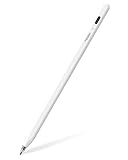
The Metapen Pencil Air8 Pro is the one most artists should start with, and the reason is not a single headline number — it is the combination of an ultra-quiet tip, palm rejection, 2X fast charging, and compatibility with iPad models from 2018 through 2025. If you draw in a shared space, on a train, or late at night next to someone sleeping, tip noise is the spec nobody lists and everybody notices. Metapen’s listing makes the quiet tip the centerpiece, and for a portable setup that matters more than a tenth of a millisecond of latency you cannot perceive anyway.
Who it suits
This is aimed at the artist who sketches and paints on an iPad Pro or iPad Air and wants the pen to disappear in the hand. It is also a sensible first serious stylus for someone who has been finger-painting in Procreate or Concepts and wants a real tip without jumping to a first-party smart stylus. The 2018–2025 range covers a large slice of the iPad line, so if you own an iPad Pro from the 2018 redesign onward or a recent iPad Air, the listing’s compatibility claim should include your model.
Key specs
- Compatibility: iPad 2018–2025 generations as stated by the listing
- Charging: 2X fast charging
- Features: palm rejection, tilt-aware active tip, ultra-quiet writing/drawing tip
- Form factor: pen-style body, rechargeable
- Best app fit: Procreate, Concepts, Adobe Fresco, Noteshelf, GoodNotes
Strengths
The quiet tip is the standout. Artists who sketch in environments where clicks and taps are audible will feel the difference immediately. Palm rejection means you can rest your hand on the glass the way you would on paper, which is non-negotiable for long sessions — without it, every time your palm lands mid-stroke you get a stray mark. 2X fast charging is a convenience spec, but in practice it is the difference between “the pen is dead, I’ll come back later” and “plug it in for a few minutes while I make coffee.” The mid-range tier keeps it accessible without dropping to the cheapest build quality on the list.
Pros
- Ultra-quiet tip — the best choice here for quiet environments
- Palm rejection supports natural drawing posture
- 2X fast charging reduces downtime between sessions
- Broad 2018–2025 iPad compatibility
- Mid-range price for the feature set
Cons
- Not a first-party smart stylus, so expect app-driven pressure behavior rather than full per-pixel pressure
- No stated pressure-level figure in the listing name — treat pressure as app-assisted
- White finishes show graphite dust and grime faster than dark ones
How it compares with the nearest alternative
The nearest alternative is the STYLUSHOME Stylus Pen for iPad. STYLUSHOME is the premium pick and wins on recharge speed — 13 minutes to full — and on its iPad Pro/Air/Mini positioning. If your priority is the fastest possible top-up and you want the most premium build in this roundup, STYLUSHOME is the better call. If your priority is working quietly in company and paying mid-range money, the Air8 Pro is the smarter buy. The Air8 Pro also has the edge for anyone on an iPad generation just outside STYLUSHOME’s stated range.
2. JAMJAKE Stylus Pen for iPad 6-11th Gen – Best for Mixed Daily Use on Older iPads

The JAMJAKE Stylus Pen for iPad is the practical pick for someone running an older iPad — specifically 6th through 11th generation — who wants one pen for notes, sketches, and markup. The 2X fast charge and palm rejection put it in the same functional class as the Metapen Air8 Pro, but its compatibility list is aimed at the classic iPad and iPad Air tiers rather than the 2018+ Pro redesigns. If you are on an iPad 6, 7, 8, 9, 10, or 11, this is one of the few pens in this roundup that clearly speaks your model’s language.
Who it suits
This suits the student, the note-taker, and the casual sketcher. It is the pen for the artist who draws on an older iPad they already own and does not want to replace the tablet to get a usable stylus. It also suits a household where the iPad is shared — the white body is neutral, the pen is straightforward to use, and palm rejection means kids and casual users do not have to learn a special grip.
Key specs
- Compatibility: iPad 6th–11th generation per the listing
- Charging: 2X fast charge
- Features: palm rejection, active tip, white finish
- Form factor: rechargeable pen body
- Best app fit: Procreate, GoodNotes, Notability, Apple Notes, Adobe Fresco
Strengths
The compatibility statement is the strength. Older iPads are the most common iPads, and plenty of artists start on them. Getting a pen that the listing explicitly claims for the 6th through 11th generation removes the compatibility guessing game that trips up most buyers. Palm rejection is present, which matters more on non-Pro iPads because you are more likely to be drawing at a desk with your hand planted. 2X fast charging keeps sessions going. And the white finish is easy to spot on a cluttered desk, which sounds trivial until you have lost a black stylus under a notebook for a week.
Pros
- Explicit 6th–11th generation iPad compatibility
- Palm rejection for natural hand placement
- 2X fast charging
- Good value for the feature set
- Clean, neutral white design
Cons
- Not positioned for older iPad Pro models outside the stated generation list
- Pressure behavior is app-driven rather than fully sensing
- Not the premium build in this roundup
How it compares with the nearest alternative
Compared with the MYSTILUCK Stylus Pen, the JAMJAKE is the more targeted buy. MYSTILUCK claims iPad Pro/Air/Mini 2018–2026 and is positioned as a budget pen for the modern lineup. If you are on an iPad 6–11, JAMJAKE is the safer compatibility bet. If you are on a 2018-or-newer iPad Pro, Air, or Mini, MYSTILUCK stretches further into the future and costs less. The JAMJAKE’s edge is specificity — it does not overpromise, which is exactly what you want when your tablet is several years old.
3. DEGGE Stylus Pen for iPad 2018-2026 – Best Budget for Sketching and Note-Taking

The DEGGE Stylus Pen is the budget pick that covers the widest generation span in its tier — 2018 through 2026 — with a stated 15-minute fast charge. That charge spec is the number to pay attention to: 15 minutes to usable capacity is genuinely quick for a budget pen, and it changes how you treat the stylus day to day. You stop thinking of it as a device you have to plan around and start treating it as a tool you top up like a phone.
Who it suits
This suits the artist who is not yet sure how much they will draw. If you are testing whether digital sketching is for you, spending mid-range or premium money on a pen before you know your workflow is backwards — you want a capable budget pen, a good app, and a few weeks of practice. DEGGE fits that exactly. It also suits the note-taker who spends most of the day in text and diagrams and only occasionally sketches.
Key specs
- Compatibility: iPad 2018–2026 per the listing
- Charging: 15-minute fast charge
- Features: palm rejection, active tip
- Form factor: rechargeable pen body
- Best app fit: Procreate, GoodNotes, Notability, Concepts, Adobe Fresco
Strengths
The 15-minute fast charge is the reason to pick DEGGE over the other budget pens here. A MYSTILUCK or DOGAIN at a similar tier will also get you drawing, but DEGGE’s stated charge time is the shortest in the budget group. The 2018–2026 window is also wide enough to cover the current iPad Pro line as well as the entry iPads, which makes it a relatively future-proof budget buy. Palm rejection is standard at this tier now, and DEGGE includes it.
Pros
- 15-minute fast charge — quickest in the budget group
- Wide 2018–2026 iPad compatibility
- Palm rejection
- Budget price makes it a low-risk first stylus
Cons
- Budget build — expect a lighter, more plastic feel than premium pens
- No stated pressure-level spec; pressure is app-assisted
- Not the choice for heavy daily illustration where grip and tip durability matter most
How it compares with the nearest alternative
The nearest alternative is the MYSTILUCK Stylus Pen. Both are budget tier with palm rejection and fast charging, and both claim current iPad Pro/Air/Mini support. DEGGE wins on the stated 15-minute charge and on the 2026 end of its compatibility range. MYSTILUCK is the alternative if the specific listing details line up better with your model or your budget at the moment of purchase. For a first stylus, either is a reasonable entry; DEGGE is the one to pick if charge time is your deciding factor.
4. DOGAIN Active Stylus Pen – Best Budget for Cross-Device Work

The DOGAIN Active Stylus Pen is the odd one out in a good way: it is listed for iPad, iPhone, and Android, not just iPad. That makes it the pick for someone who sketches on an iPad but also wants a usable pen for an Android tablet or a phone. Most dedicated iPad styluses simply do not work outside the iPad ecosystem, so if you live across two platforms, this is the practical budget answer.
Who it suits
This suits the multi-device artist, the Android phone note-taker, and the person who wants one pen in the bag that works with whatever screen is in front of them. It also suits a household with a mix of iPads and Android tablets. If your drawing device is an iPad Pro and you want the best iPad experience first, look at the Air8 Pro or STYLUSHOME instead. If you need flexibility at a low price, DOGAIN is the one.
Key specs
- Compatibility: iPad, iPhone, and Android capacitive touchscreens per the listing
- Charging: rechargeable
- Features: active tip, white finish
- Form factor: rechargeable pen body
- Best app fit: platform-native note apps, Procreate (iPad), Android sketch apps
Strengths
Cross-platform compatibility is the entire case for the DOGAIN. A pen that works on an iPad, an iPhone, and an Android tablet solves the “which pen is in my bag” problem. For an artist who sketches on an iPad and does quick thumbnails on an Android phone, that is a real workflow benefit. Rechargeable operation means no AAAA or coin-cell battery hunts, and the active tip is designed for precision rather than the fat rubber blob of a passive stylus.
Pros
- Works across iPad, iPhone, and Android — rare in this category
- Rechargeable, no disposable batteries
- Active tip for precise marks
- Budget price
Cons
- Cross-device compatibility usually means fewer iPad-specific features than a dedicated iPad pen
- No stated palm rejection in the listing name — check the current listing before buying for drawing use
- Not the pen for a professional iPad-only illustration workflow
How it compares with the nearest alternative
Compared with the DEGGE Stylus Pen, the trade is clear: DEGGE is the better dedicated iPad pen, with palm rejection and a stated 15-minute fast charge. DOGAIN gives up iPad-specific polish for the ability to draw on Android and iPhone too. If you own only an iPad, buy DEGGE. If you split your time across platforms, DOGAIN pays for itself in convenience.
5. STYLUSHOME Stylus Pen for iPad – Best Premium for Detailed Illustration

The STYLUSHOME Stylus Pen is the premium pick and the fastest-charging pen in this roundup, with a listed 13-minute fast charge. It is positioned for iPad Pro, iPad Air, and iPad Mini, which means it is aimed at the modern lineup rather than older base iPads. For an illustrator who draws daily and wants the most responsive charge-and-go routine plus the most premium build here, STYLUSHOME is the top of this list.
Who it suits
This suits the working illustrator and the serious hobbyist who draws on an iPad Pro or iPad Air every day and refuses to babysit a charging schedule. It also suits the artist who wants the most premium feel in this group — a slightly more deliberate, weightier tool for long line work sessions. If you are on an older base iPad, check compatibility carefully before buying; this pen is aimed at the Pro/Air/Mini tiers.
Key specs
- Compatibility: iPad Pro, iPad Air, iPad Mini per the listing
- Charging: 13-minute fast charge
- Features: palm rejection, precision active tip
- Form factor: rechargeable pen body
- Best app fit: Procreate, Adobe Fresco, Concepts, Affinity Designer (iPad)
Strengths
The 13-minute fast charge is the fastest stated time here, and for a daily illustrator that compounds — you draw more sessions because you never wait long between them. The premium construction is the other draw: a better-balanced, more substantial pen is easier to control for fine detail work, because your hand is not fighting a featherweight barrel. Palm rejection lets you anchor your hand on the glass for steady inking. The Pro/Air/Mini positioning means the compatibility statement matches the tablets most serious artists actually use.
Pros
- Fastest stated recharge in this roundup at 13 minutes
- Premium build and balance for detailed work
- Palm rejection
- Positioned for iPad Pro, Air, and Mini
Cons
- Premium tier — the most expensive approach on this list
- Not aimed at older base iPads; check the generation list first
- No stated pressure-level figure; pressure remains app-assisted
How it compares with the nearest alternative
Its nearest rival is the Metapen Pencil Air8 Pro. The Air8 Pro wins on quietness and on the 2018–2025 range that includes more iPad generations. STYLUSHOME wins on charge speed and premium build. If you draw in a quiet room and own a slightly older iPad, the Air8 Pro is better value. If you draw daily on a recent iPad Pro or Air and want the most premium pen and the shortest charge time, STYLUSHOME is the upgrade — and the one to buy if this is your profession rather than your hobby.
6. MYSTILUCK Stylus Pen for iPad – Best Budget for 2018-2026 iPads

The MYSTILUCK Stylus Pen is the budget option for artists on a current iPad who want the widest forward compatibility at the lowest price. It claims iPad Pro, iPad Air, and iPad Mini from 2018 through 2026, plus palm rejection and fast charge. For someone who owns a modern iPad and just needs a competent pen, it removes almost all of the risk: low price, wide compatibility, and the core features that make drawing pleasant.
Who it suits
This suits the budget-conscious artist on a 2018-or-newer iPad Pro, Air, or Mini. It also suits the second-pen buyer — the artist who wants a spare that lives in a bag and works with the current tablet without matching the price of their main pen. And it suits the gift buyer who knows the recipient has a recent iPad but not which exact model.
Key specs
- Compatibility: iPad Pro, iPad Air, iPad Mini 2018–2026 per the listing
- Charging: fast charge
- Features: palm rejection, active tip
- Form factor: rechargeable pen body
- Best app fit: Procreate, GoodNotes, Concepts, Notability
Strengths
Compatibility breadth is the strength. A budget pen that covers 2018–2026 across Pro, Air, and Mini is a safe purchase whether you are buying for yourself or for someone else. Palm rejection is present, so drawing posture stays natural, and it is budget tier, so the downside if you decide stylus drawing is not for you is small. The active tip is a meaningful step up from a passive rubber stylus for anyone who has only used those.
Pros
- Wide iPad Pro/Air/Mini 2018–2026 compatibility
- Palm rejection
- Fast charge
- Budget tier — low risk, low commitment
Cons
- Budget build quality versus mid-range and premium options
- No stated pressure-level spec
- Not the fastest charge here; DEGGE lists 15 minutes and STYLUSHOME lists 13
How it compares with the nearest alternative
Compared with the DEGGE Stylus Pen, MYSTILUCK matches the 2018–2026 compatibility claim and the palm rejection, but DEGGE states a specific 15-minute fast charge while MYSTILUCK only says fast charge. If the exact charge time matters to you, DEGGE gives you the number. If both are priced similarly at purchase time, the DEGGE listing is the more informative one. MYSTILUCK remains the pick if its specific compatibility wording matches your model more closely, or if it is simply the better value on the day.
How to Choose
Choosing a stylus for an iPad Pro comes down to five variables that interact: pressure sensitivity, tilt response, latency, grip comfort, and compatibility. The trap is treating them as independent checkboxes. They are not. A pen can have excellent tilt response and still feel flat for painting if it lacks true pressure sensing. A pen can have imperceptible latency and still ruin a long session if the grip is wrong for your hand. Work through them in the order below and the shortlist builds itself.
Start with pressure sensitivity, but set realistic expectations
Pressure sensitivity is how the pen translates how hard you press into line width or opacity. Full pressure sensing is the domain of first-party smart styluses and a small number of high-end alternatives. Most third-party active styli in this roundup — including the budget and mid-range picks — do not publish a pressure-level figure, and you should assume they work differently. Your app will derive brush behavior from speed, tilt (if present), and angle rather than from force. In Procreate terms, this means the stroke taper and speed-based dynamics do the work; the pen is not handing the app a per-pixel pressure value.
What this means practically:
- Sketching and line art: fine. Speed-based taper gives you expressive lines with an app-driven pen.
- Inking and comics: fine, often preferred, because line width is controlled by speed and manual taper rather than accidental pressure variation.
- Soft airbrush and blending: workable but harder. You will lean on opacity sliders and blend modes more than a pressure-sensing artist would.
- Detailed illustration with hair-line control: the area where full pressure sensing earns its money. If precise line-weight modulation is your core requirement, budget for a first-party smart stylus rather than a third-party active pen.
Tilt response and how to set it up
Tilt response lets the pen angle change the brush shape — a flat side of the tip reads as a wider, softer mark, the way a pencil’s side does. On pens that support it, you enable it per brush in your app. In Procreate, open the brush’s settings, go to the Shape or Taper section, depending on your brush, and map tilt to size. A sensible starting point for a pencil-style brush: set tilt size to about 40–60 percent of the brush’s max size and tilt opacity to roughly 20–40 percent so the angled edge softens rather than blows out. For blender brushes, push tilt opacity higher and keep tilt size low. These are starting values, not laws — the goal is to make the angled mark feel like a pencil’s side without changing the brush’s character entirely.
Not every pen in this roundup markets tilt response as a named feature. The Metapen Air8 Pro is described with tilt-aware line work, and the category generally supports tilt to some degree, but if tilt is essential to your workflow, test it with your actual app and brushes early so you can return the pen if it is not there.
Latency: what you can perceive and what you cannot
Latency is the delay between your hand moving and the line appearing. It is reported in milliseconds and it is heavily co-dependent with the tablet, the app, the canvas resolution, and the refresh rate — not just the pen. A useful way to think about it: on a tablet refreshing at 120 Hz, one frame is about 8.3 milliseconds. Roughly, latency below about 20 milliseconds feels immediate for most people, and around 30–40 milliseconds it becomes noticeable as a slight lag on fast strokes. Published reviews of modern iPad-and-stylus combinations commonly land in the low tens of milliseconds for well-matched pairs, and those numbers vary with the app and canvas size — a 4000 × 4000 pixel canvas processes strokes more slowly than a 1200 × 1200 one. Treat any single latency figure as a best case, not a guarantee for your project.
Because the pen is only one link in that chain, chasing a latency number when buying is usually the wrong priority. Buy for compatibility, comfort, and reliability; the tablet and the app will dominate what you feel.
Grip comfort: the spec that decides long sessions
You will hold this pen for hours. Grip comfort is the number one reason artists abandon a technically fine stylus. Consider three things:
- Barrel weight and balance: a heavier, more substantial pen steadies fine detail work because your hand is not fighting a light barrel. A lighter pen is less tiring over very long sessions and easier to whip quickly across the screen for gestures.
- Diameter and taper: if you have larger hands or a relaxed grip, a slightly thicker barrel with a smooth taper reduces fatigue. Very slim barrels encourage a tight pinch grip that cramps after an hour.
- Surface: glossy barrels get slick with hand oils; a matte or textured finish helps in long sessions. This is also why the white finishes on several pens here are worth a thought — they show graphite and grime, which is cosmetic, not functional, but it affects how the pen feels over months of use.
If you can, hold a pen before committing to a long project. Otherwise, the STYLUSHOME’s premium positioning is your best bet for a weightier, more deliberate feel, while the Metapen Air8 Pro is the mid-range middle ground.
Compatibility: match the pen to your exact iPad generation
This is where most returns happen. The three compatibility buckets in this roundup are:
| Your iPad | Compatibility bucket to look for | Pens in this roundup that fit |
|---|---|---|
| iPad 6th–11th generation | Base iPad generation lists | JAMJAKE (6–11th Gen), DEGGE (2018–2026), MYSTILUCK (2018–2026) |
| iPad Pro / Air / Mini 2018–2025 | Modern Pro/Air/Mini ranges | Metapen Air8 Pro (2018–2025), STYLUSHOME (Pro/Air/Mini), MYSTILUCK (2018–2026), DEGGE (2018–2026) |
| iPad Pro / Air / Mini 2026 models | Forward-looking 2018–2026 ranges | DEGGE (2018–2026), MYSTILUCK (2018–2026) |
| iPad + iPhone + Android | Cross-platform capacitive stylus | DOGAIN (iPad/iPhone/Android) |
Read the listing’s compatibility statement literally and match it to your model. “iPad 2018–2026” is wider than “iPad 6–11th Gen” — the first covers the modern Pro/Air/Mini line plus recent base iPads, the second covers the classic base iPad generations. If your model sits outside a pen’s stated list, do not assume it will work; buy the pen whose list includes it.
Charging time and battery planning
Charging speed is the most concrete differentiator among these pens, and it is worth doing the math. Suppose you draw in 90-minute sessions and each pen discharges fully in roughly 10 hours of active use — a typical order of magnitude for a rechargeable active stylus, though actual runtime varies with tip force, Bluetooth use, and standby drain. That is six sessions per charge. Now compare the top-up cost of a dead pen:
- STYLUSHOME (13 minutes): a dead pen costs you 13 minutes — less than the time to make tea and set up a reference window.
- DEGGE (15 minutes): effectively the same experience.
- JAMJAKE and Metapen Air8 Pro (2X fast charge): fast, but the listings do not state a minute figure; assume a comparable small number rather than a specific one.
The practical takeaway: any of the “fast charge” pens in this roundup will keep a daily drawing habit fed. If you dislike planning around a charge at all, the fastest listed pen — STYLUSHOME at 13 minutes — is the one that changes your habits the most. If you want to be certain of the number, DEGGE’s stated 15 minutes is the most transparent budget-tier claim.
App settings that make a third-party stylus feel better
Whatever pen you pick, these adjustments close most of the gap between an active pen and a premium smart stylus:
- Turn on palm rejection support in your app if the app has a setting for it (Procreate has a palm support toggle). The pen provides the hardware behavior; the app decides how it is handled.
- Use speed-based taper on your main inking brush. Set taper to begin over the first small fraction of the stroke and end similarly. This is what gives you expressive line weight without pressure sensing.
- Tune stabilizer streamLine if your lines wobble. A setting in the low single digits (roughly 5–15 percent on Procreate’s scale) is enough for most hands; higher values smooth small detail away.
- Lower canvas resolution for gesture sketching. A 1200–2000 pixel canvas keeps latency low while you rough in shapes, then scale up for detail passes.
- Assign a shortcut to opacity and size so you can change line weight with the non-drawing hand instead of relying on pressure.
Match the pen to the job
Sketching and ideation: DOGAIN if you work across devices, otherwise DEGGE or MYSTILUCK on budget. Speed and palm rejection matter most; pressure matters least.
Painting with soft brushes: Metapen Pencil Air8 Pro. Its palm rejection and quiet, precise tip suit long blending sessions, and you will use opacity and blend modes rather than pressure.
Detailed illustration and inking: STYLUSHOME for the premium build and fastest charge, or a first-party smart stylus if your work depends on true pressure modulation of line weight.
Notes and markup first, sketching second: JAMJAKE on an older iPad, DEGGE on a current one. Palm rejection and a reliable charge are the whole game.
Upgrade path: if you start on a budget pen like DEGGE or MYSTILUCK and find yourself drawing daily, the natural next step is a mid-range pen such as the Air8 Pro, and beyond that a first-party smart stylus for full pressure sensing. Each step up buys you one thing mainly — better pressure behavior and better build — so only step up when you actually feel the limit.
Frequently Asked Questions
Do third-party styluses work with the iPad Pro?
Yes, active capacitive styluses from brands like Metapen, JAMJAKE, DEGGE, STYLUSHOME, and MYSTILUCK are listed specifically for iPad Pro and related models, usually with a stated generation range. The catch is matching the generation list to your exact model, because compatibility is not universal across every iPad. Check the listing’s stated years and model tiers before buying.
Do these pens have the same pressure sensitivity as a first-party smart stylus?
No. Most third-party active styli do not publish pressure levels and typically do not provide the same per-pixel pressure sensing as a first-party smart stylus. They work well for sketching, line art, and note-taking where width and opacity can be driven by speed and tilt. For soft airbrush blending with fine pressure control, a first-party smart stylus remains the better tool.
What is tilt response and do I need it for painting?
Tilt response changes the brush shape based on the pen’s angle, so the side of the tip reads as a wider, softer mark like a pencil’s side. It is genuinely useful for shading and blending. In Procreate, you map tilt to size and opacity in the brush settings, starting with tilt size around 40–60 percent and tilt opacity around 20–40 percent for a pencil-style brush.
Is latency a problem with budget styluses?
Latency depends on the tablet, app, canvas resolution, and refresh rate as much as the pen. Below roughly 20 milliseconds feels immediate to most people, and around 30–40 milliseconds becomes noticeable on fast strokes. Modern iPad-and-stylus pairs commonly land in the low tens of milliseconds in published reviews, and those figures vary with the app and canvas size rather than being fixed per pen.
How long does a rechargeable iPad stylus last on a charge?
Runtime varies with tip force, whether the pen uses Bluetooth, and standby drain, but a typical rechargeable active stylus lasts on the order of several sessions of active drawing — often around 10 hours of use as a rough planning figure. Fast-charge pens reduce the cost of a dead battery to minutes rather than hours; the STYLUSHOME lists 13 minutes and the DEGGE lists 15.
Can I use one stylus on both an iPad and an Android tablet?
Most iPad styluses are iPad-only. The DOGAIN Active Stylus is the exception in this roundup, listed for iPad, iPhone, and Android. The trade-off is usually fewer iPad-specific features like palm rejection, so cross-device convenience comes at the cost of a more tailored iPad experience.
Does palm rejection matter if I only sketch lightly?
Yes, and arguably more if you sketch casually, because you are less likely to have trained a special hand posture. Palm rejection lets you rest your hand on the glass naturally without leaving stray marks. All the dedicated iPad pens in this roundup list palm rejection; the cross-platform DOGAIN is the one to verify.
What should I change in my app settings for a third-party stylus?
Turn on the app’s palm rejection support if it has one, enable speed-based taper on your inking brushes, add a small amount of stabilizer — roughly 5–15 percent — if your lines wobble, and keep gesture sketching on a modest canvas resolution of about 1200–2000 pixels to keep latency low. Then assign size and opacity shortcuts for your non-drawing hand, since you will rely on them more than on pressure.
Which Should You Buy?
If you want one recommendation to act on: the Metapen Pencil Air8 Pro is the best stylus for iPad Pro artists overall. It balances quiet operation, palm rejection, fast charging, and broad 2018–2025 compatibility at a mid-range price, and it is the pen most artists can grow with for a year or more without feeling limited.
If you own an older base iPad — 6th through 11th generation — the JAMJAKE Stylus Pen is the one whose compatibility list actually speaks to your model. If you are testing whether digital drawing is for you, the DEGGE Stylus Pen and the MYSTILUCK Stylus Pen are both low-risk budget entries, with DEGGE the more informative pick thanks to its stated 15-minute charge. If you sketch across iPad, iPhone, and Android, the DOGAIN Active Stylus Pen is the only cross-platform option here. And if this is your profession — daily illustration on a recent iPad Pro or Air, with fine detail work and no patience for charging breaks — the STYLUSHOME Stylus Pen and its 13-minute top-up is the premium upgrade worth making.