

⚡ Quick Answer
What should you upgrade first on a gaming PC?
Upgrade in this order for maximum gaming impact: (1) GPU first — it provides the biggest FPS boost in most games, (2) RAM if you have less than 16 GB, (3) NVMe SSD for faster load times, (4) CPU if bottlenecking, (5) Monitor to actually see the performance gains. Don’t upgrade RAM or CPU before your GPU in a gaming-focused build.
Knowing how to upgrade your gaming PC strategically saves money and maximizes performance gains. Unlike consoles where you’re stuck with fixed hardware, a PC’s modular design lets you upgrade components individually as your needs and budget change. This guide covers what to upgrade, when to upgrade it, and exactly how to do each upgrade.
Gaming PC Upgrade Priority Order
Upgrade Impact by Component
| Component | Gaming FPS Impact | Cost | Difficulty |
|---|---|---|---|
| GPU | Very High (30–100% faster) | $250–$1,200 | Easy |
| RAM (8→16GB) | High (10–25% in some games) | $40–$80 | Very Easy |
| NVMe SSD | Load Times Only | $60–$120 | Easy |
| CPU | Moderate (5–20% at 1080p) | $200–$400 | Moderate |
| Monitor | Smoother/Sharper experience | $200–$600 | Very Easy |
| PSU | Required for higher-end GPU | $80–$150 | Moderate |
| Cooler | Lower temps/noise only | $30–$150 | Easy |
GPU Upgrade: The Biggest Gaming Performance Boost
The GPU is responsible for 70–80% of gaming performance in most titles. Upgrading your GPU — especially if you’re on a 2–3 year old card — will provide the single largest FPS boost of any upgrade. Going from an RTX 3060 to an RTX 4070 can double framerates at 1440p.
GPU Upgrade Checklist
- ✅ Check your PSU wattage — RTX 4070 needs 650W+, RTX 4080 needs 750W+
- ✅ Verify physical clearance in your case — measure GPU length vs case clearance
- ✅ Check PCIe slot version — PCIe 3.0 works but PCIe 4.0 is preferred
- ✅ Update GPU drivers immediately after installation (Nvidia GeForce Experience)
- ✅ Uninstall old GPU drivers first using DDU (Display Driver Uninstaller)
See our guide to the best GPU for gaming for recommendations at every budget. For 1440p, the RTX 4070 delivers outstanding value. For 4K, the RTX 4080 is our top pick.
RAM Upgrade: When It Matters for Gaming
If you’re gaming with 8 GB of RAM, an upgrade to 16 GB or 32 GB will show noticeable gains in modern titles. Many 2026 games use 12–14 GB of RAM, and running them on 8 GB causes Windows to aggressively swap data to storage, causing stutters and long load times.
If you already have 16 GB, upgrading to 32 GB provides modest benefits — mainly in multitasking scenarios (streaming while gaming, having many browser tabs open). See our DDR5 RAM guide for top kit recommendations.
NVMe SSD Upgrade: Eliminate Load Time Frustration
Upgrading from an HDD or SATA SSD to an NVMe SSD doesn’t boost FPS but dramatically cuts game load times — from 30–60 second loads to 2–5 seconds in many titles. With PCIe 4.0 NVMe drives now as cheap as $60–$80 for 1 TB, this is an excellent cost-effective upgrade.
PCIe 5.0 NVMe drives offer even faster speeds but at a significant premium — see our PCIe 5.0 SSD guide for whether the premium is worth it. For most gamers, a PCIe 4.0 NVMe is the sweet spot.
CPU Upgrade: When to Consider It
Upgrade your CPU when you notice it bottlenecking your GPU — signs include GPU utilization below 90%, inconsistent frame times, and high CPU usage at 100% while GPU sits at 70%. At 1440p+, most modern CPUs (Core i5-12th gen+, Ryzen 5 5000+) don’t bottleneck even the RTX 4080.
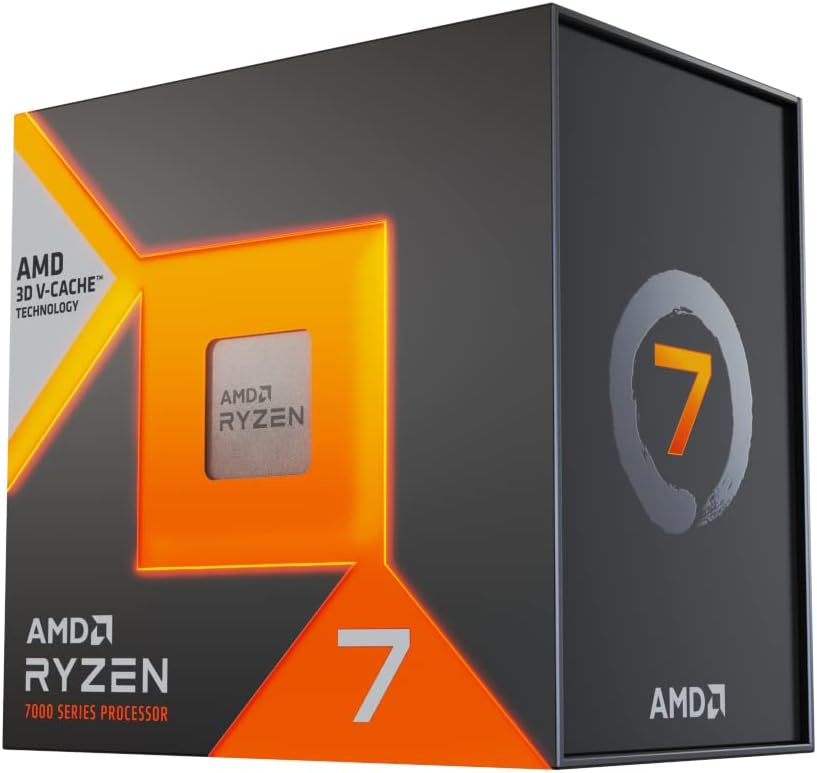
If you’re on an older 8th/9th gen Intel or Ryzen 2000/3000 CPU, upgrading to a modern gaming CPU on a new platform will provide both gaming and productivity gains. The Ryzen 7 7800X3D on AM5 is our recommended upgrade path for gaming-focused builds.
Monitor Upgrade: See Your Performance Gains
Upgrading your monitor is often overlooked but transforms the gaming experience. Moving from a 60Hz 1080p panel to a 144Hz 1440p monitor makes games feel dramatically smoother. A high refresh rate monitor is mandatory to appreciate the FPS gains from GPU and CPU upgrades.
Target: 1440p 144Hz for balanced gaming. Budget option: 1080p 144Hz at ~$150. Premium: 1440p 165Hz+ for ~$250–$350. See our best gaming monitor guide for specific picks.
🏆 Our Verdict
Start with GPU, then RAM, then NVMe SSD
For the best return on investment when upgrading your gaming PC: GPU first (biggest FPS impact), RAM upgrade if under 16 GB, NVMe SSD for load times, CPU only when bottlenecking. Pair with a quality monitor to actually experience the improvements. Need a full build? Check our best prebuilt gaming PC roundup if starting from scratch.
Frequently Asked Questions
How often should you upgrade your gaming PC?
Most components age well over 3–4 years for mainstream gaming. GPUs typically show their age the fastest as game requirements increase — consider upgrading your GPU every 3–4 years. CPUs last 5–7 years for gaming. RAM is rarely a bottleneck if you have 16–32 GB. Storage should be upgraded when you run out of space or want faster load times.
Is it worth upgrading an old gaming PC or buying a new one?
If your PC is 5+ years old, a full rebuild may be more cost-effective than upgrading individual components — especially if your motherboard doesn’t support modern CPUs or your PSU is inadequate. If it’s 2–3 years old, a GPU upgrade alone often provides excellent value. Use PCPartPicker to compare upgrade vs new build costs for your specific situation.
Will upgrading to an NVMe SSD improve gaming FPS?
Upgrading to an NVMe SSD won’t directly improve in-game FPS, but it significantly reduces level load times, texture streaming delays (open-world games), and game installation times. Some open-world games (like Horizon Forbidden West) see smoother traversal with faster storage due to real-time asset streaming.


Write Your Review
No reviews yet. Be the first to share your experience!